> ## Documentation Index
> Fetch the complete documentation index at: https://docs.simcel.io/llms.txt
> Use this file to discover all available pages before exploring further.
# Activity log
> See a timestamped, auditable timeline of every action taken on a Plan, Scenario, or Event.
## Definition
The activity log provides a complete timeline of all actions taken on an object such as a Plan, Scenario, or Event. It automatically records changes such as creations and updates, making it easy to see who did what and when. This ensures transparency, accountability, and an auditable record of planning activities.
## Viewing logged activities
In each object drawer, open the **Activity Log** tab to see the history of actions related to that object.
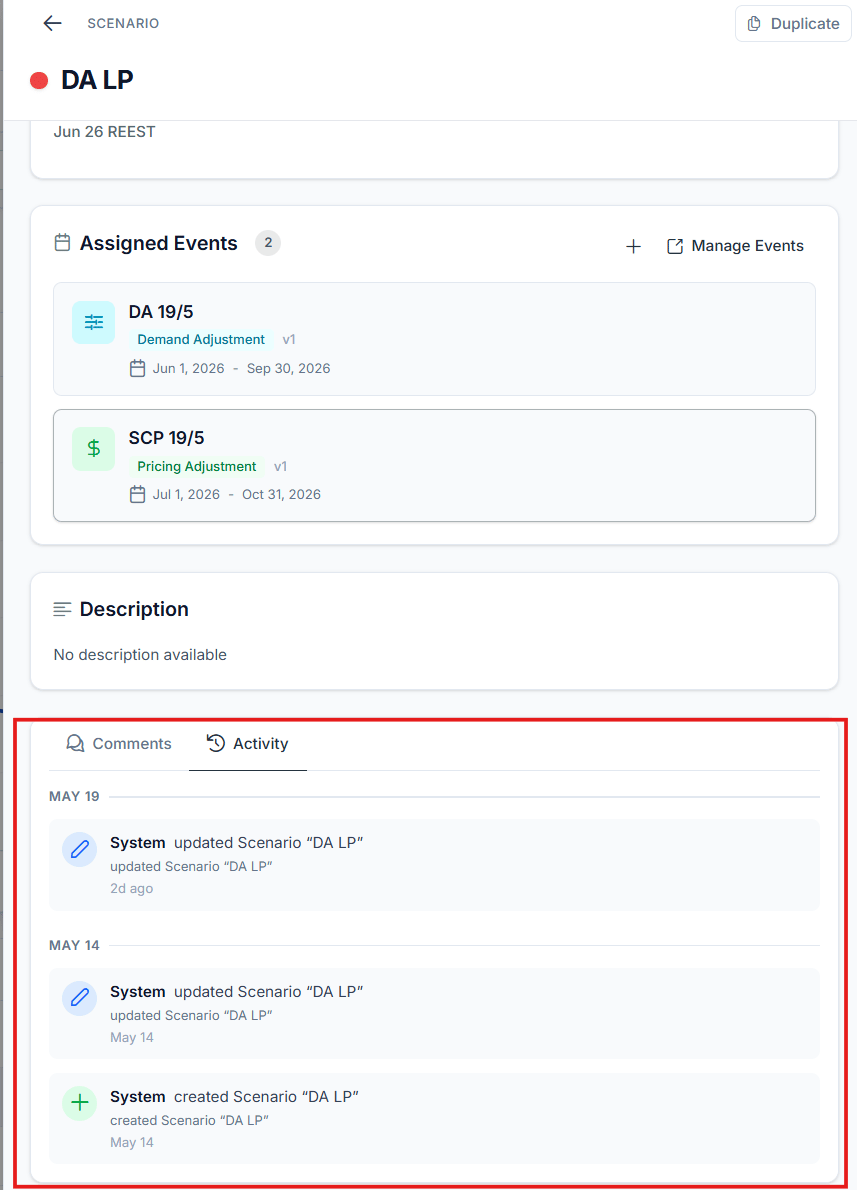 The log automatically captures key events such as:
* **Object creation**, for example "Alice has created Event B".
* **Status changes**, for example "John updated Scenario A".
* Other edits and modifications to the object.
Each entry contains the **user's name**, the **timestamp**, and a **short description** of the action.
## Grouping and ordering
The log organizes entries by day, with the **most recent actions displayed at the top**. Within a day, actions appear in the order they occurred, making it easy to follow the sequence of updates.
## Example user journey
You create a new scenario.
A teammate makes an edit to the same scenario.
You update one of the scenario's events.
Open the **Activity Log** tab. All three actions are listed, each with the user's name, a timestamp, and a short description.
This gives you a clear history of how the object evolved and who contributed.
The log automatically captures key events such as:
* **Object creation**, for example "Alice has created Event B".
* **Status changes**, for example "John updated Scenario A".
* Other edits and modifications to the object.
Each entry contains the **user's name**, the **timestamp**, and a **short description** of the action.
## Grouping and ordering
The log organizes entries by day, with the **most recent actions displayed at the top**. Within a day, actions appear in the order they occurred, making it easy to follow the sequence of updates.
## Example user journey
You create a new scenario.
A teammate makes an edit to the same scenario.
You update one of the scenario's events.
Open the **Activity Log** tab. All three actions are listed, each with the user's name, a timestamp, and a short description.
This gives you a clear history of how the object evolved and who contributed.