> ## Documentation Index
> Fetch the complete documentation index at: https://docs.simcel.io/llms.txt
> Use this file to discover all available pages before exploring further.
# Object detail view drawers
> Open Plans, Scenarios, and Events in a drawer to see attributes, comments, and history without leaving your page.
## Definition
Object detail view drawers give you a simple way to open and explore objects such as Plans, Scenarios, and Events without leaving your current page. Drawers bring together structured data, comments, and activity history in one place, making it easy to collaborate, review updates, and navigate between connected objects.
### Opening a drawer
You can open a drawer for a **Plan**, **Scenario**, or **Event** directly from the relevant entry point: the plan bar, the scenario bar, or the event page. This lets you dive into details without interrupting your workflow or navigating away from the main planning view.

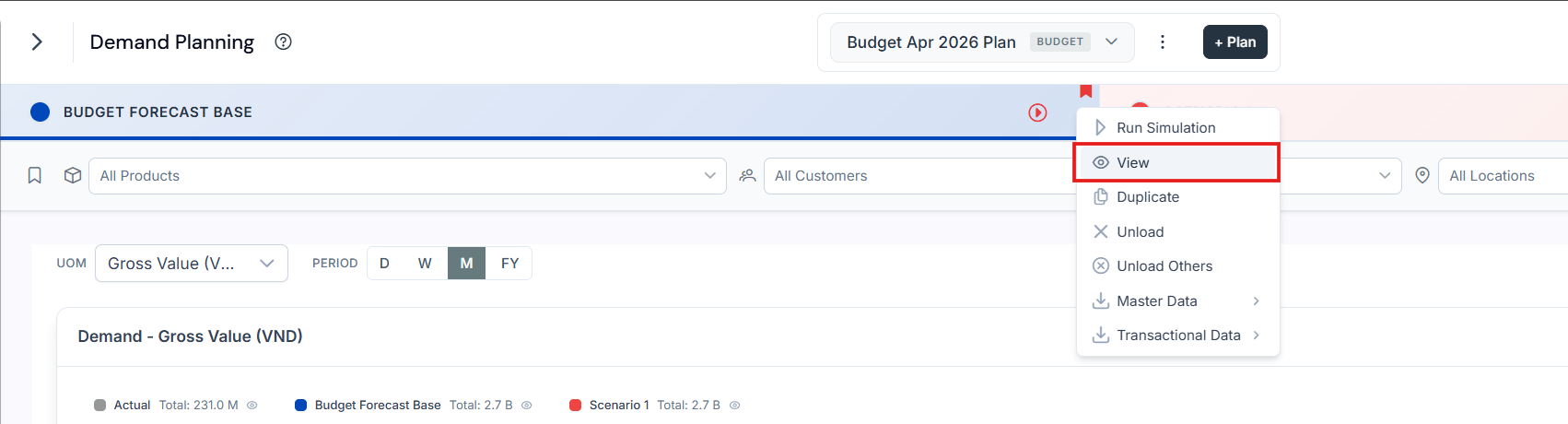
 ### Viewing details and collaboration tools
Once the drawer is open, you can explore all the key information about the object.
### Viewing details and collaboration tools
Once the drawer is open, you can explore all the key information about the object.
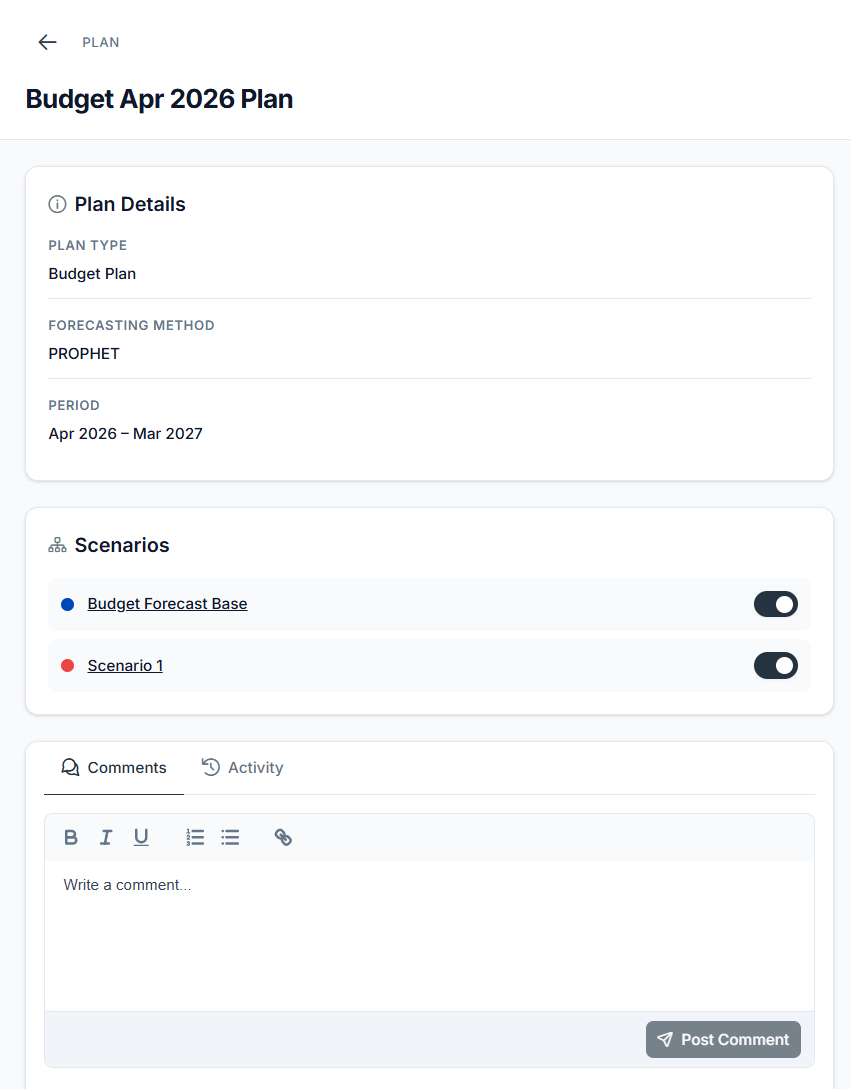 * A **structured data view** that presents the object's attributes clearly.
* A **Comments** tab where you and your colleagues can exchange feedback directly tied to the object.
* An **Activity Log** tab that records all changes and actions with timestamps and user details.
This combination keeps important context, conversations, and updates connected to the object itself.
### Structured data view
Each object detail drawer begins with a **structured data view** that presents the object's attributes in a clear and consistent format. This lets you quickly understand the essentials of the object you are working with, without digging into multiple pages.
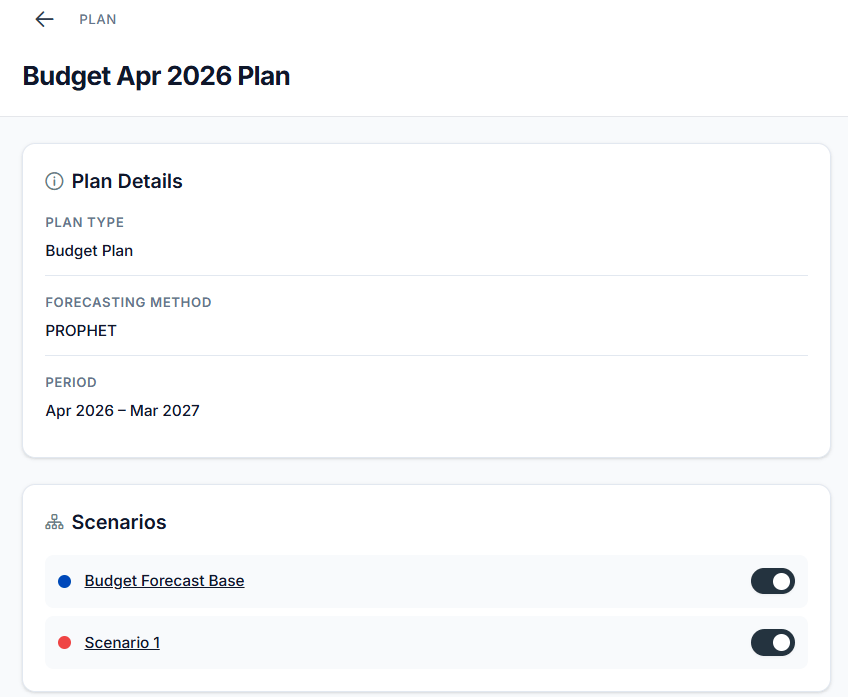
**Plan drawer** (for example, Budget Apr 2026 Plan)
The Plan drawer shows key planning attributes such as **plan type, forecasting method, planning period, and linked scenarios**. This gives you immediate context for how the plan was set up and which scenarios are connected.
* A **structured data view** that presents the object's attributes clearly.
* A **Comments** tab where you and your colleagues can exchange feedback directly tied to the object.
* An **Activity Log** tab that records all changes and actions with timestamps and user details.
This combination keeps important context, conversations, and updates connected to the object itself.
### Structured data view
Each object detail drawer begins with a **structured data view** that presents the object's attributes in a clear and consistent format. This lets you quickly understand the essentials of the object you are working with, without digging into multiple pages.
**Plan drawer** (for example, Budget Apr 2026 Plan)
The Plan drawer shows key planning attributes such as **plan type, forecasting method, planning period, and linked scenarios**. This gives you immediate context for how the plan was set up and which scenarios are connected.
 **Scenario drawer** (for example, Scenario 1)
The Scenario drawer highlights its **relationship back to the parent plan**, along with fields such as **supply plan** and **assigned events**. You can see which plan the scenario belongs to and whether it is linked to any downstream activities.
**Scenario drawer** (for example, Scenario 1)
The Scenario drawer highlights its **relationship back to the parent plan**, along with fields such as **supply plan** and **assigned events**. You can see which plan the scenario belongs to and whether it is linked to any downstream activities.
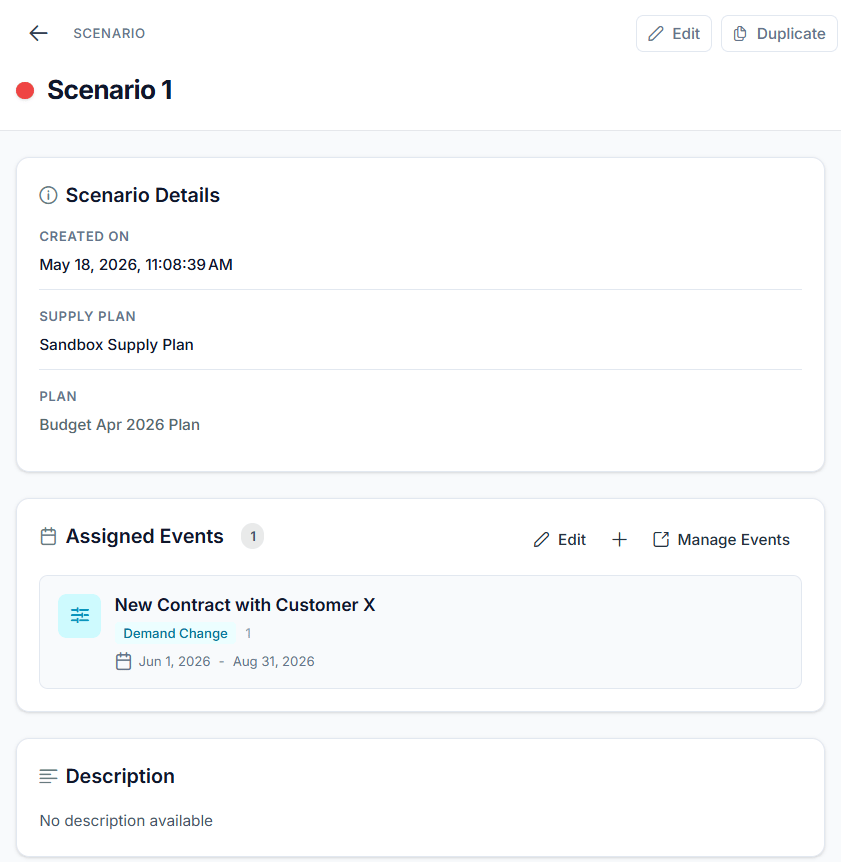 From a drawer you can jump straight to a linked object and use the back option to return without losing context. See [Navigation between linked objects](/collaboration/navigation-between-linked-objects).