> ## Documentation Index
> Fetch the complete documentation index at: https://docs.simcel.io/llms.txt
> Use this file to discover all available pages before exploring further.
# Task management
> Create, assign, and track tasks on a Kanban board or list, linked to your Plans, Scenarios, and Events.
## Definition
Task management gives your team a dedicated space to create, assign, and track work directly within SIMCEL, without relying on external tools. Tasks can be linked to Plans, Scenarios, and Events, keeping coordination grounded in the planning context where it belongs.
## Navigating the task board
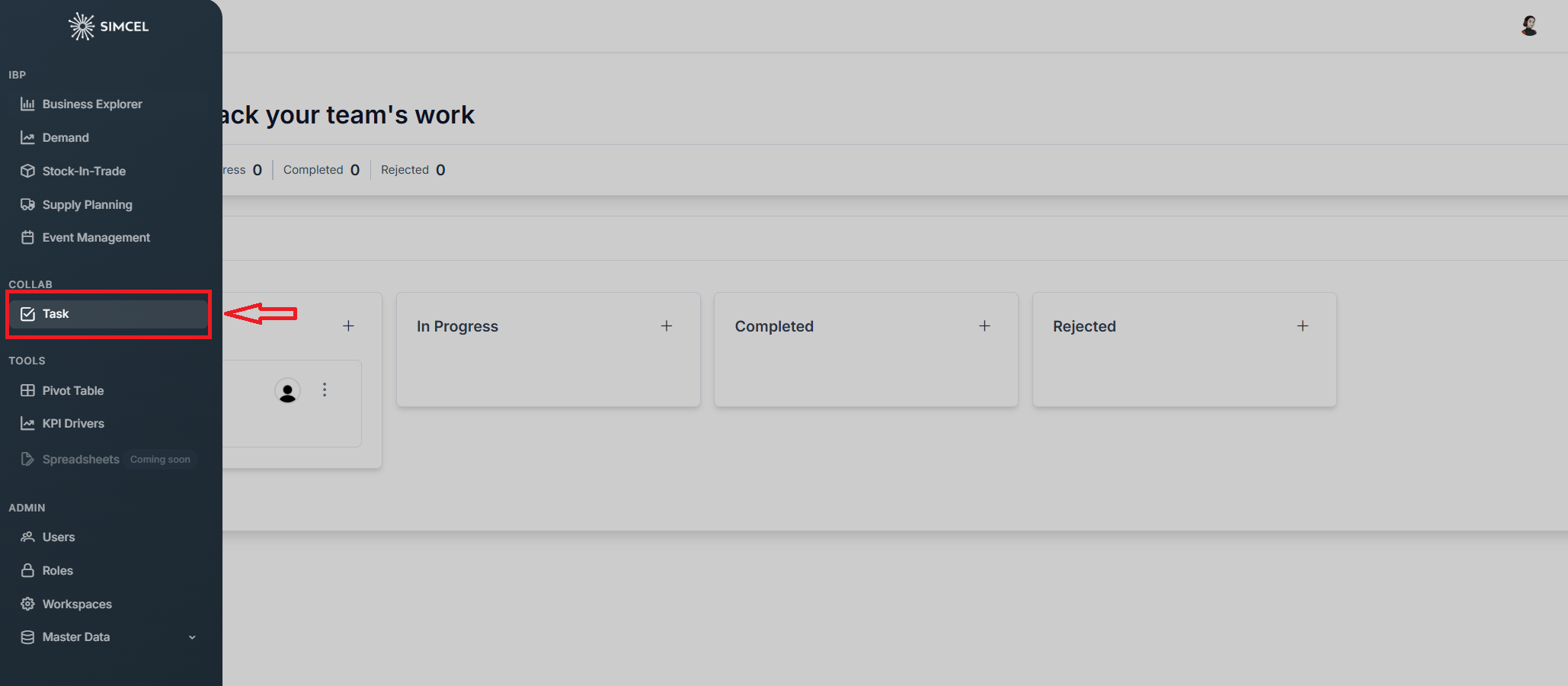
To access task management, open the **side navigation menu** and click **Tasks** under the **Collab** section. This opens the main task board.
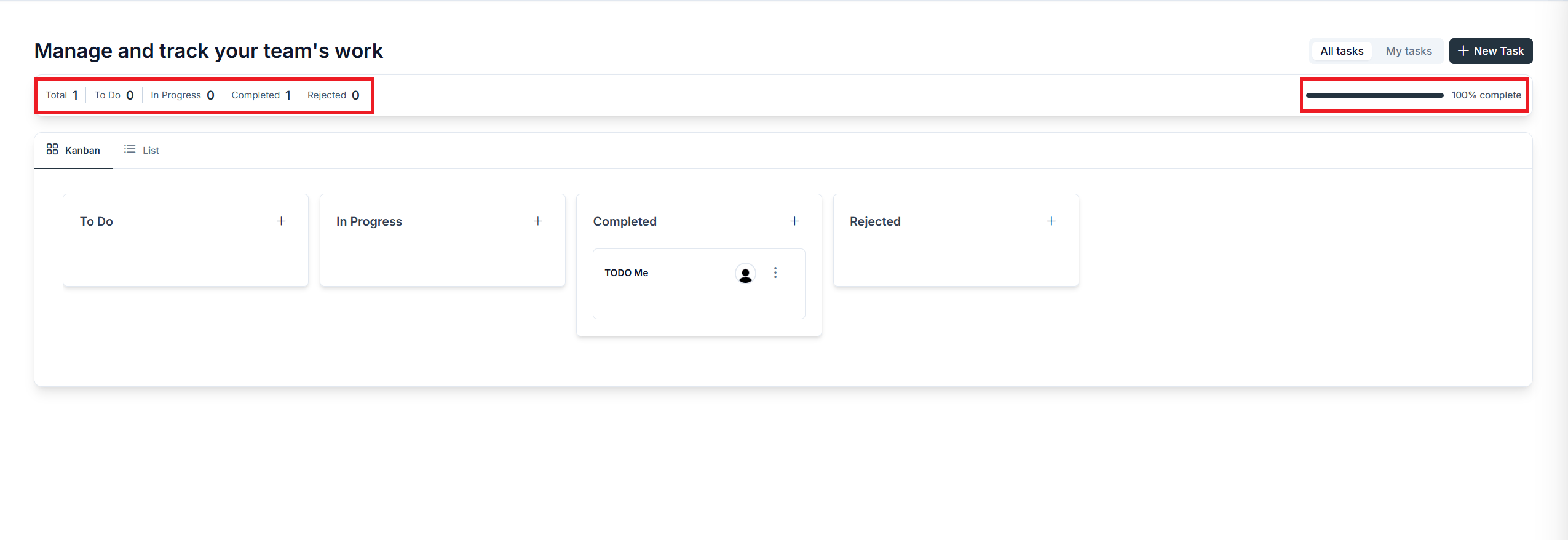
 At the top of the page, a summary bar shows the count of tasks by status (**Total**, **To Do**, **In Progress**, **Completed**, and **Rejected**) along with an overall **% complete** progress bar on the right.
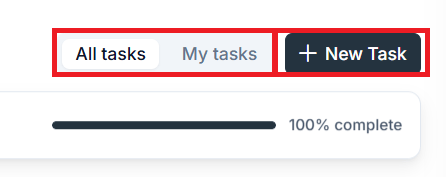
 Use the **All tasks** / **My tasks** toggle in the top right to switch between viewing all workspace tasks and only the tasks assigned to you. To create a new task, click **+ New Task** in the top right corner.
 ## Views
Task management offers two ways to view your tasks.
## Views
Task management offers two ways to view your tasks.
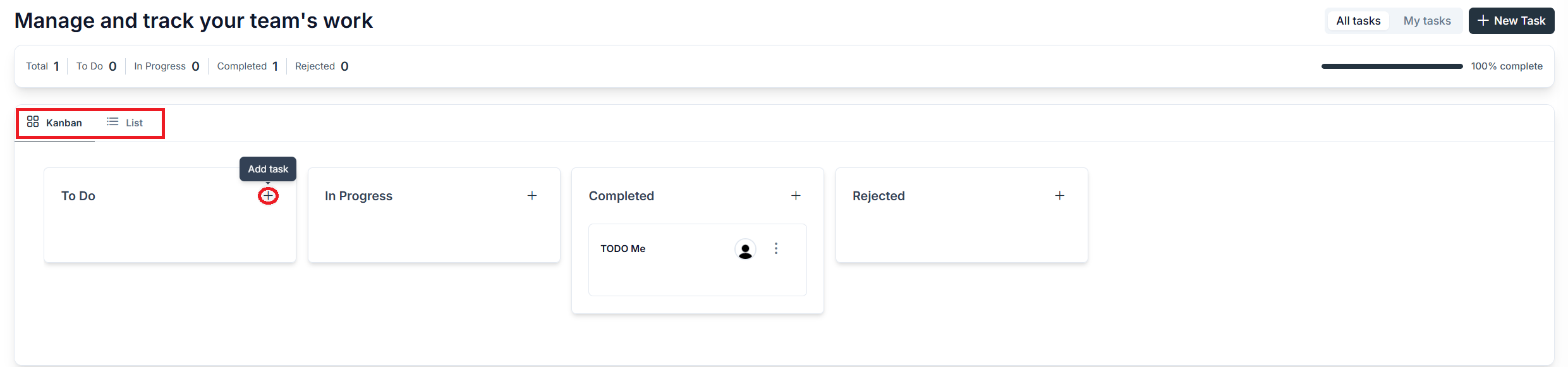 **Kanban** (the default view) displays tasks as cards organized into four columns by status. Drag and drop a card from one column to another to update its status instantly. Click the **+** icon within any column to quickly add a new task directly to that status.
 **List** switches to a table layout showing all tasks with columns for Title, Status, Assigned to, Start Date, Due Date, and Tags. Each column has a filter icon to narrow down results, and a **Search tasks** bar is available in the top right. Use **Clear Filters** to reset any active filters.
## Creating and editing a task
Click **+ New Task**, or the **+** button in any Kanban column, to create a task. This opens a detail panel on the right side of the screen.
**List** switches to a table layout showing all tasks with columns for Title, Status, Assigned to, Start Date, Due Date, and Tags. Each column has a filter icon to narrow down results, and a **Search tasks** bar is available in the top right. Use **Clear Filters** to reset any active filters.
## Creating and editing a task
Click **+ New Task**, or the **+** button in any Kanban column, to create a task. This opens a detail panel on the right side of the screen.
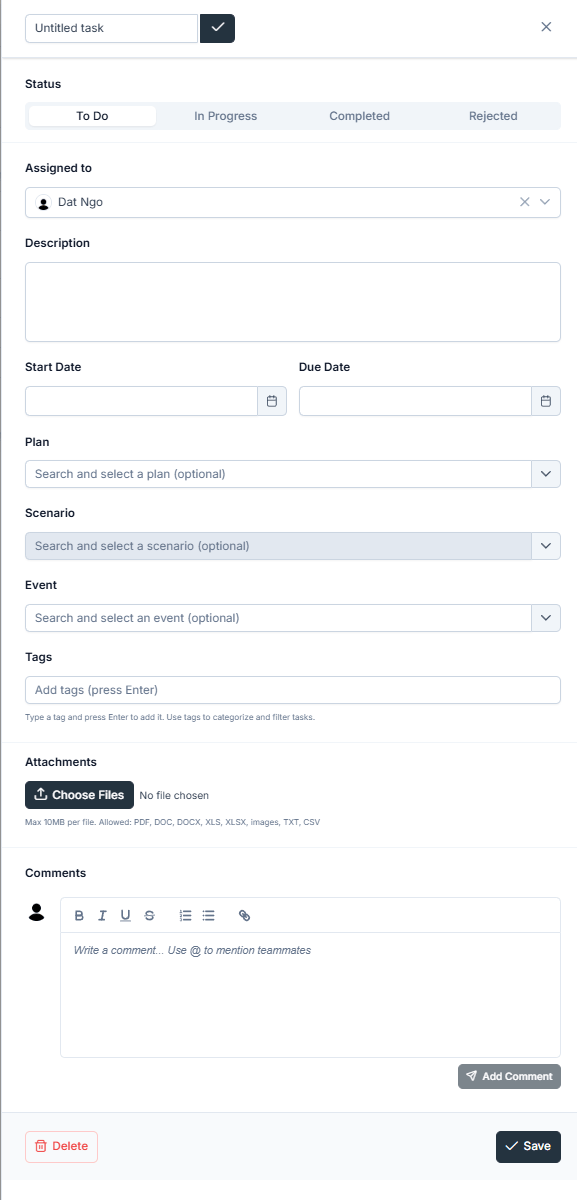 Fill in the following fields:
| Field | Description |
| ------------------------- | -------------------------------------------------------------------------------------------------------------------------------------------------------------------------------------------------------------------------------------------------------- |
| **Status** | The current status of the task: To Do, In Progress, Completed, or Rejected. This also determines which column the task appears in on the Kanban board. |
| **Assigned to** | The team member the task is assigned to. Start typing a name to search. |
| **Description** | Any notes, context, or instructions for the task. |
| **Start Date / Due Date** | The working timeline for the task, set using the date pickers. |
| **Plan** | Optionally link the task to a Plan. Once a Plan is selected, a shortcut link to that Plan appears below the field. |
| **Scenario** | Optionally link the task to a Scenario. This field becomes available after a Plan is selected. |
| **Event** | Optionally link the task to an Event, independent of any Plan or Scenario. |
| **Tags** | Type a tag and press **Enter** to add it. Tags help you categorize and filter tasks across the board. |
| **Attachments** | Click **Choose Files** to upload supporting documents. Accepted formats are PDF, DOC, DOCX, XLS, XLSX, images, TXT, and CSV, up to 10MB per file. |
| **Comments** | Leave a comment using the rich-text editor at the bottom. Formatting options include bold, italic, underline, strikethrough, ordered and unordered lists, and links. Type `@` followed by a teammate's name to mention them, then click **Add Comment**. |
## Managing tasks on the Kanban board
Each task card on the Kanban board displays the task title and the assignee's avatar. To open the full task detail, click anywhere on the card.
To access quick actions, click the three-dot menu on a card.
Fill in the following fields:
| Field | Description |
| ------------------------- | -------------------------------------------------------------------------------------------------------------------------------------------------------------------------------------------------------------------------------------------------------- |
| **Status** | The current status of the task: To Do, In Progress, Completed, or Rejected. This also determines which column the task appears in on the Kanban board. |
| **Assigned to** | The team member the task is assigned to. Start typing a name to search. |
| **Description** | Any notes, context, or instructions for the task. |
| **Start Date / Due Date** | The working timeline for the task, set using the date pickers. |
| **Plan** | Optionally link the task to a Plan. Once a Plan is selected, a shortcut link to that Plan appears below the field. |
| **Scenario** | Optionally link the task to a Scenario. This field becomes available after a Plan is selected. |
| **Event** | Optionally link the task to an Event, independent of any Plan or Scenario. |
| **Tags** | Type a tag and press **Enter** to add it. Tags help you categorize and filter tasks across the board. |
| **Attachments** | Click **Choose Files** to upload supporting documents. Accepted formats are PDF, DOC, DOCX, XLS, XLSX, images, TXT, and CSV, up to 10MB per file. |
| **Comments** | Leave a comment using the rich-text editor at the bottom. Formatting options include bold, italic, underline, strikethrough, ordered and unordered lists, and links. Type `@` followed by a teammate's name to mention them, then click **Add Comment**. |
## Managing tasks on the Kanban board
Each task card on the Kanban board displays the task title and the assignee's avatar. To open the full task detail, click anywhere on the card.
To access quick actions, click the three-dot menu on a card.
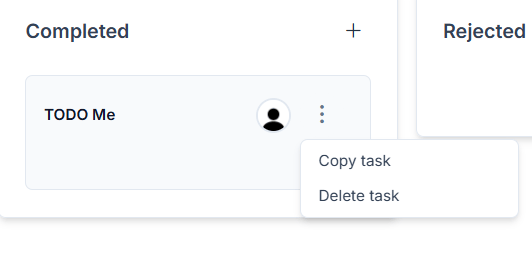 * **Copy task** duplicates the task with the same details.
* **Delete task** permanently removes the task.
* **Copy task** duplicates the task with the same details.
* **Delete task** permanently removes the task.
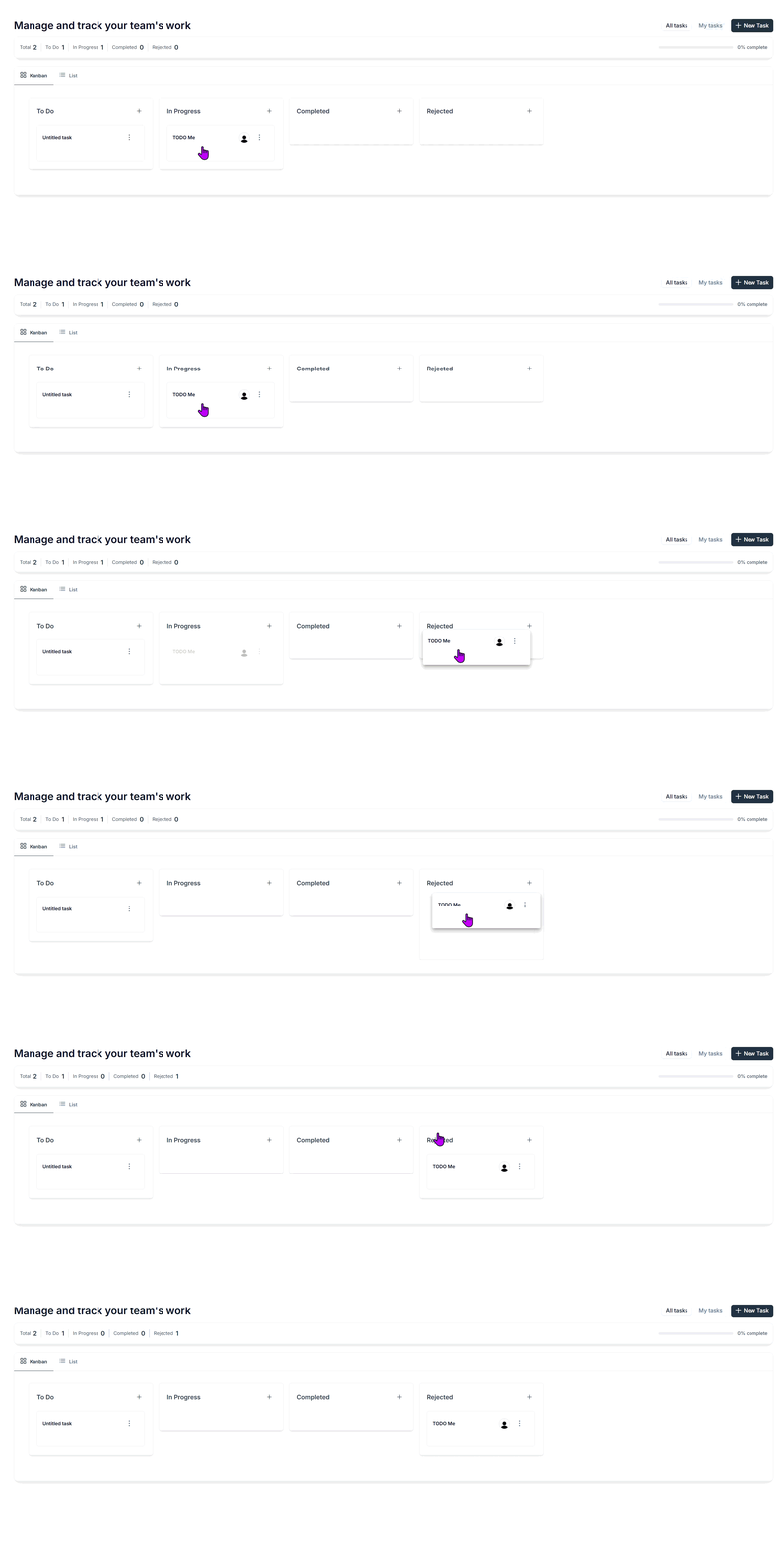 To move a task to a different status, either drag the card to the target column or open the task detail and change the **Status** field at the top.