> ## Documentation Index
> Fetch the complete documentation index at: https://docs.simcel.io/llms.txt
> Use this file to discover all available pages before exploring further.
# Demand Adjustment Event
> Create and manage event that adjust demand based on trade or marketing impacts.
## Definition
A **Demand Adjustment Event** is a specific occurrence or planned activity that is expected to cause a significant deviation from the typical demand patterns for a product or customer segment. These events can lead to either an increase or a decrease in demand and are essential for accurate demand planning. Demand adjustment events help you anticipate changes in demand so you can adjust your supply chain operations proactively.
## Access the Event Management page
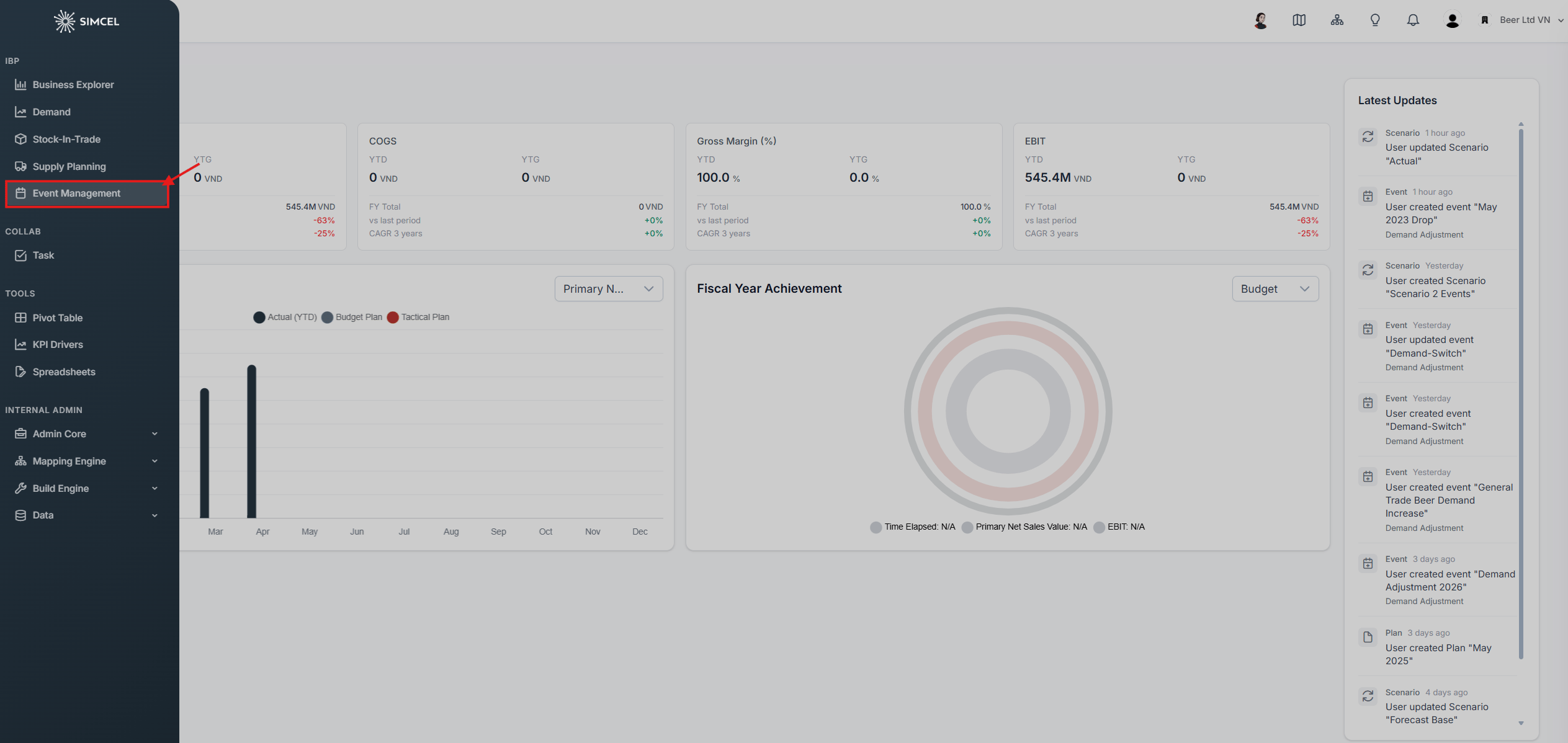
Click **Event Management** in the left side panel to open the SIMCEL Event Management page.
 ## Filter events in the event timeline
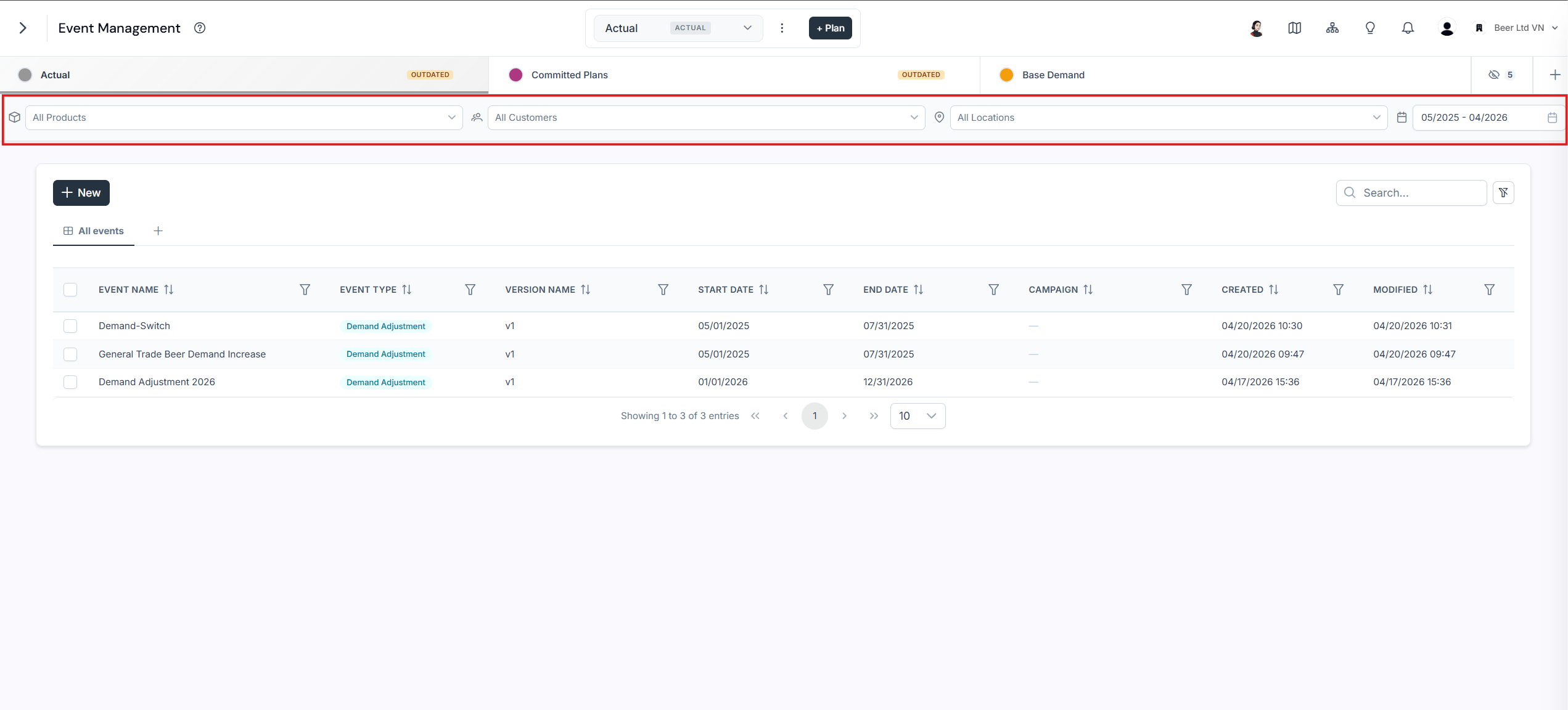
The event timeline provides the same filters as the demand planning page. You can filter events by their impacted segments.
## Filter events in the event timeline
The event timeline provides the same filters as the demand planning page. You can filter events by their impacted segments.
 You can open the Event Management page inside a tactical plan and create demand planning events there.
## Create trade and marketing events
### Event with one impact on sub-segments
Enter a name for the event.
Select **Demand Adjustment** as the event type.
Enter a version name for this set of impacts.
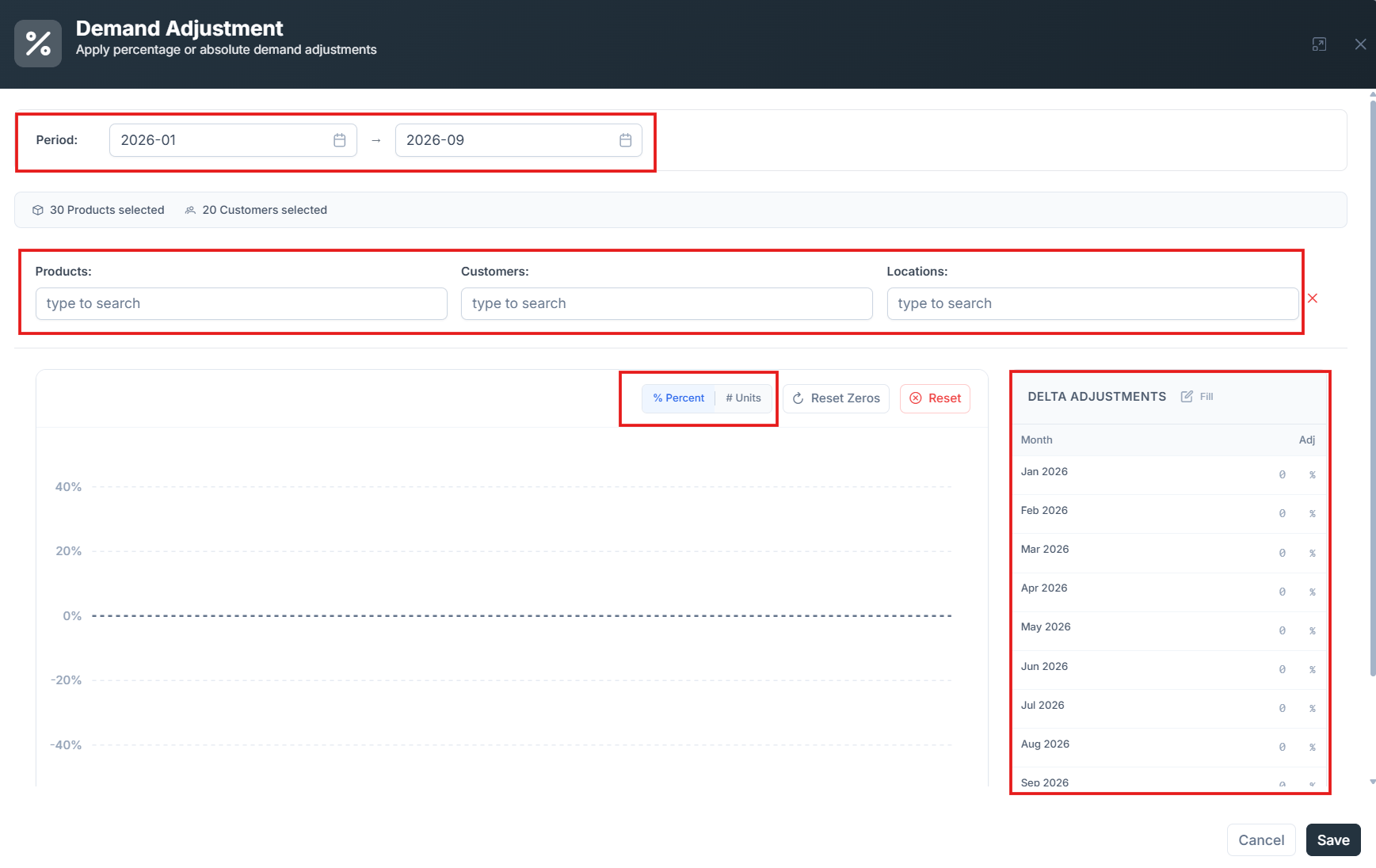
Click **Add Impacts** and, in the new box:
* Select the period.
* In the **product search box**, type and select the product segments.
* In the **customer search box**, type and select the customer segments.
* Select **% Percent** to adjust demand by percentage, or **# Units** to adjust by absolute units.
* In the **Delta Adjustment** section, set the adjustment value manually.
* Save the impact.
Click **Save** to store the event.
You can open the Event Management page inside a tactical plan and create demand planning events there.
## Create trade and marketing events
### Event with one impact on sub-segments
Enter a name for the event.
Select **Demand Adjustment** as the event type.
Enter a version name for this set of impacts.
Click **Add Impacts** and, in the new box:
* Select the period.
* In the **product search box**, type and select the product segments.
* In the **customer search box**, type and select the customer segments.
* Select **% Percent** to adjust demand by percentage, or **# Units** to adjust by absolute units.
* In the **Delta Adjustment** section, set the adjustment value manually.
* Save the impact.
Click **Save** to store the event.
 ### Event with multiple impacts on multiple segments
Enter a name for the event.
Select **Demand Adjustment** as the event type.
Enter a version name for this set of impacts.
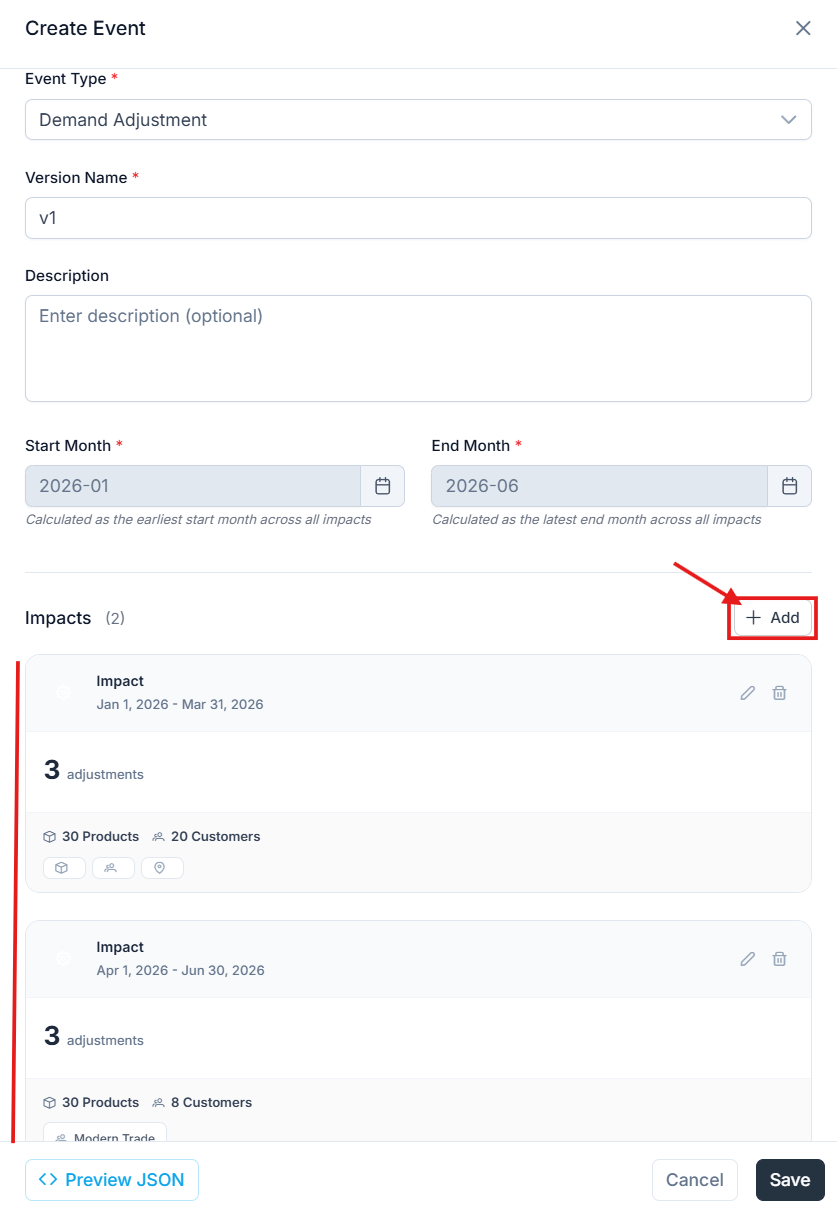
Click **Add Impacts** and, in the new box:
* In the **product search box**, type and select the product segment.
* In the **customer search box**, type and select the customer segment.
* Select **% Percent** to adjust demand by percentage, or **# Units** to adjust by absolute units.
* In the **Delta Adjustment** section, set the adjustment value manually.
* Select the period.
* Save the impact.
Click **Add Impacts** again and, in the new box:
* In the **product search box**, type and select the product segment.
* In the **customer search box**, type and select the customer segment.
* Select **% Percent** to adjust demand by percentage, or **# Units** to adjust by absolute units.
* In the **Delta Adjustment** section, set the adjustment value manually.
* Select the period.
* Save the impact.
Click **Save** to store the event with both impacts.
### Event with multiple impacts on multiple segments
Enter a name for the event.
Select **Demand Adjustment** as the event type.
Enter a version name for this set of impacts.
Click **Add Impacts** and, in the new box:
* In the **product search box**, type and select the product segment.
* In the **customer search box**, type and select the customer segment.
* Select **% Percent** to adjust demand by percentage, or **# Units** to adjust by absolute units.
* In the **Delta Adjustment** section, set the adjustment value manually.
* Select the period.
* Save the impact.
Click **Add Impacts** again and, in the new box:
* In the **product search box**, type and select the product segment.
* In the **customer search box**, type and select the customer segment.
* Select **% Percent** to adjust demand by percentage, or **# Units** to adjust by absolute units.
* In the **Delta Adjustment** section, set the adjustment value manually.
* Select the period.
* Save the impact.
Click **Save** to store the event with both impacts.