> ## Documentation Index
> Fetch the complete documentation index at: https://docs.simcel.io/llms.txt
> Use this file to discover all available pages before exploring further.
# Forecast Override Event
> Set top-down demand targets with override event.
## What is a forecast override?
A **Forecast Override** event is designed to enable top-down sales target setting within the demand planning process. Rather than relying solely on bottom-up statistical forecasts, you can directly input strategic demand targets — such as monthly sales goals for a product line, customer segment, or channel — based on business priorities, commercial strategy, or executive direction.
You can define these targets at any level of aggregation — national, regional, customer group, or product family — and SIMCEL automatically disaggregates the override down to the transaction level, which is the most granular forecastable unit in the system (typically product x customer x week).
This atomization process relies on historical patterns of trend, seasonality, and distribution behavior to spread the override intelligently across lower levels, preserving realistic demand dynamics and operational feasibility.
The result: your team can enforce top-down sales intent while staying coherent with statistical models and historical performance, giving you an integrated and flexible demand planning workflow.
## How to create a forecast override event
* Navigate to the **Events** module.
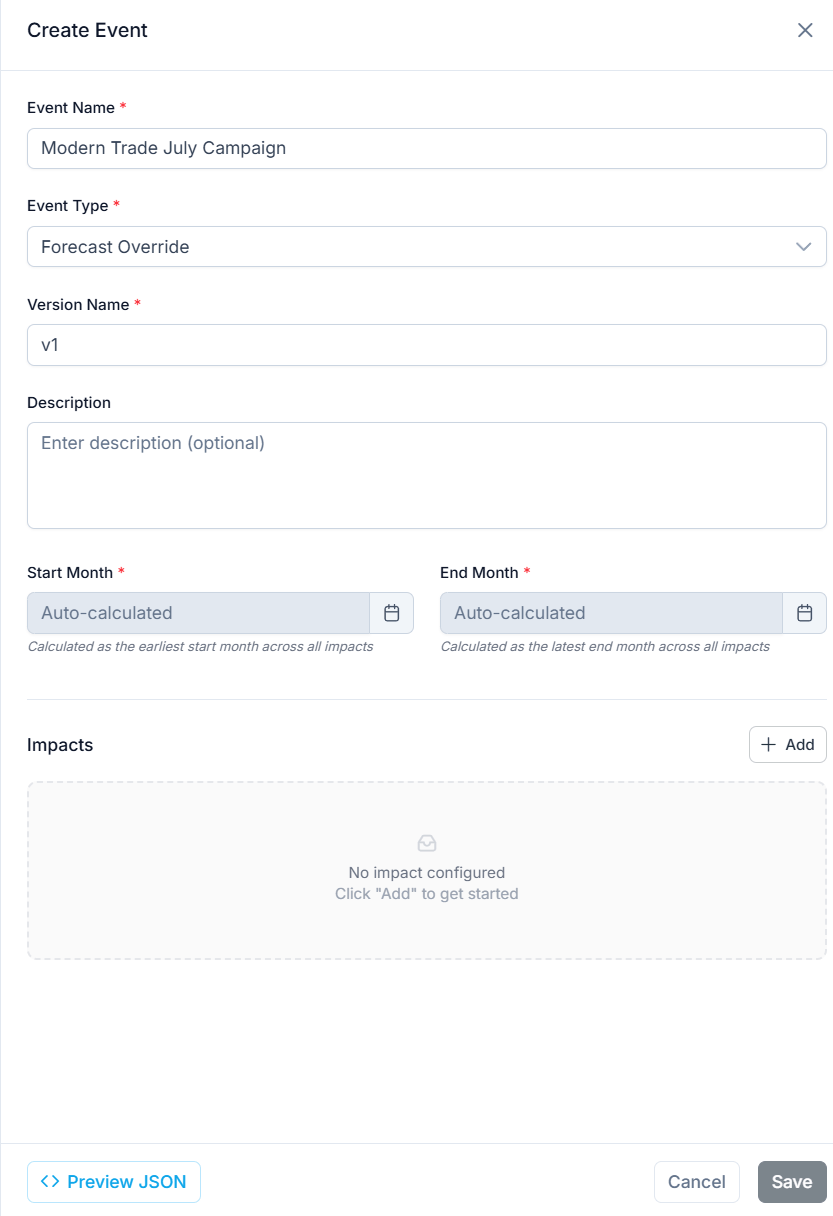
* Create a new event of type `Forecast Override`.
* Set the **Event name** (for example, `Modern Trade July Campaign`).
* Set the **Version** (optional).
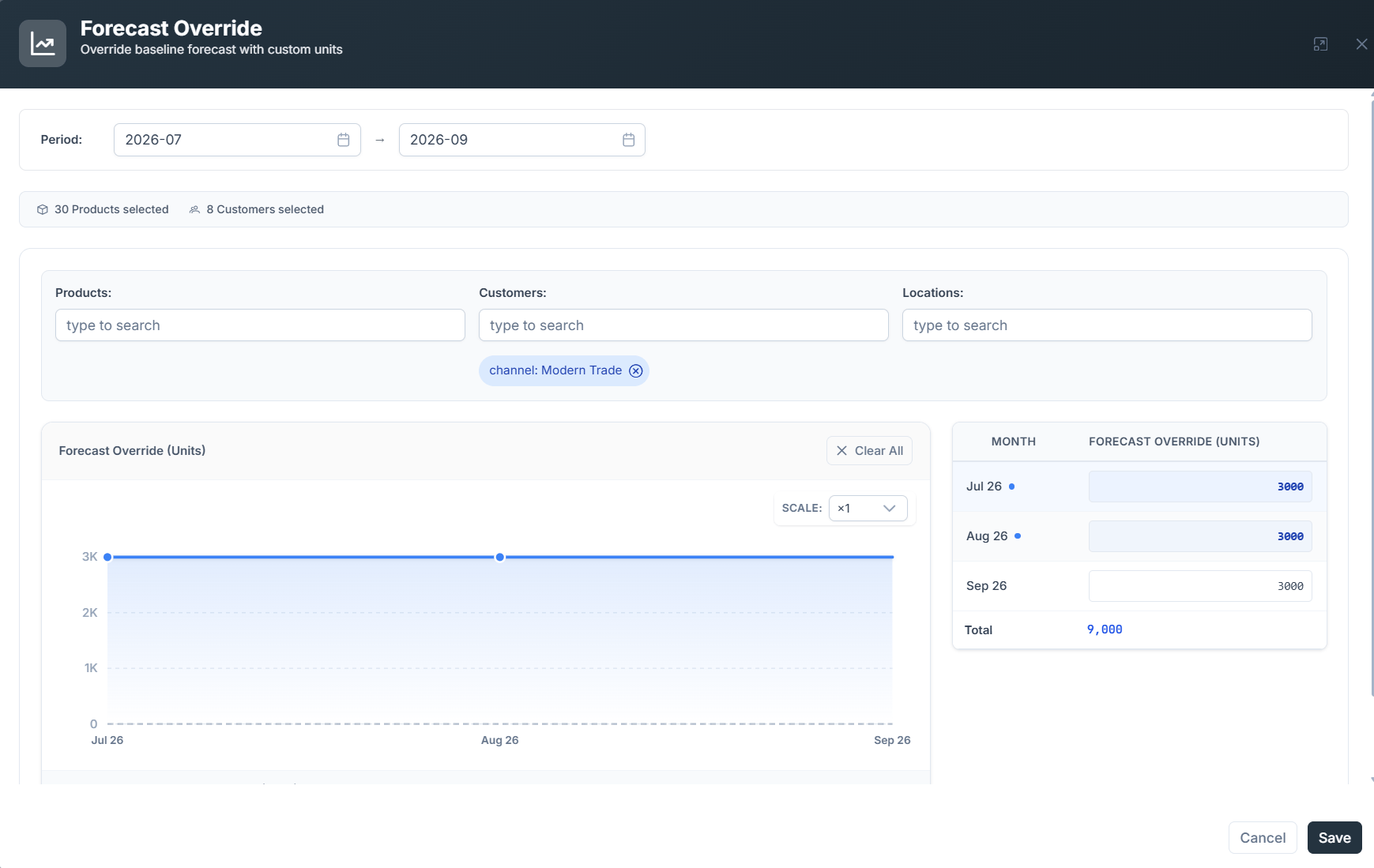
Click **Add** to set up the target. In the dialog that opens:
* Select the segment you want to affect (for example, `Modern Trade` from the customer segmentation tree).
* Enter the value to override, either absolute units or a monetary amount.
* Click **Save** to close the dialog.
* Click **Save** to finalize the override event.
* The new event is now available for assignment to a scenario.
* Open the relevant scenario and click **Edit**.
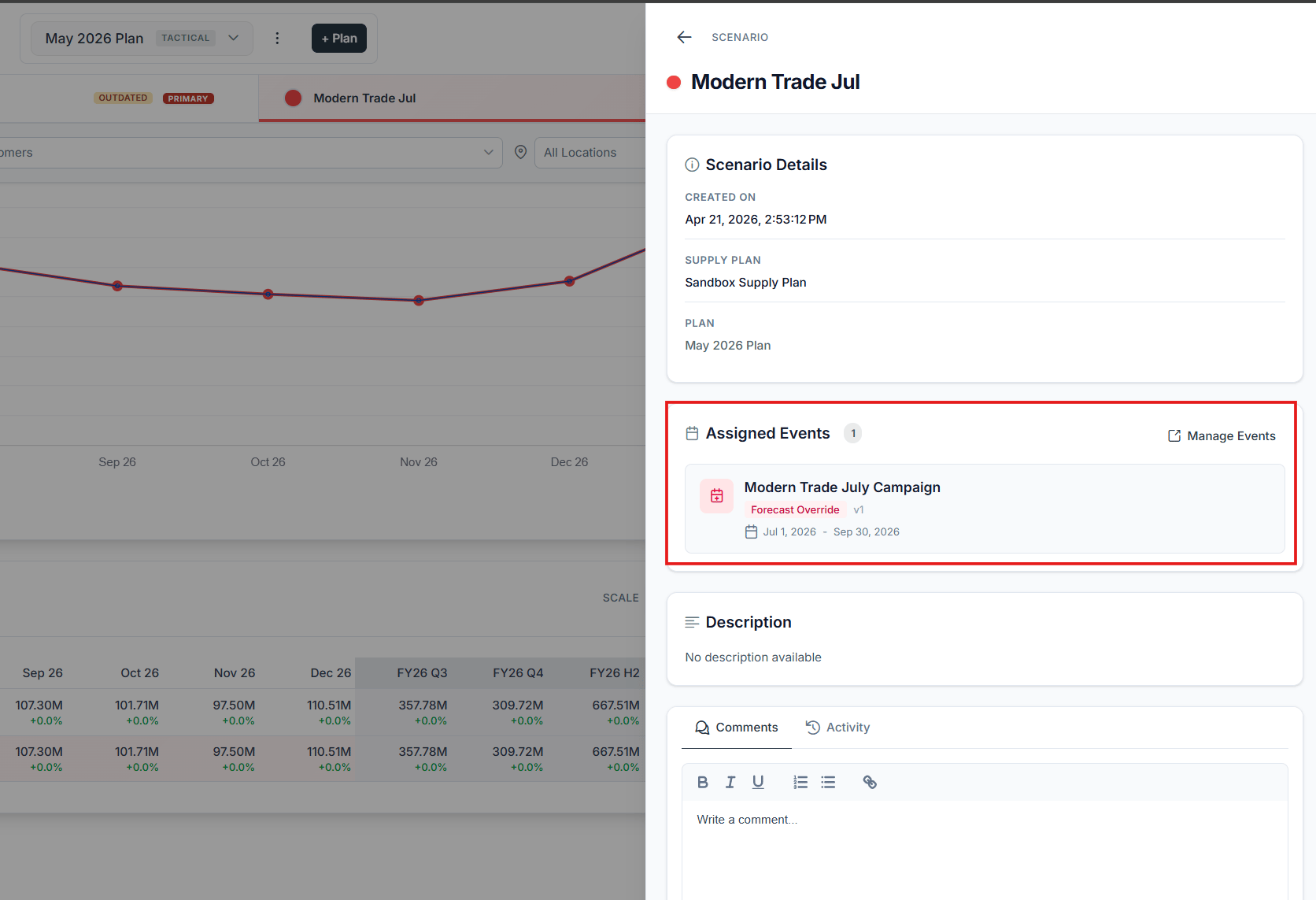
* In the **Event** section, select and assign the new `Forecast Override` event.
 After a few seconds, SIMCEL recomputes the demand forecast, incorporating the override logic.