> ## Documentation Index
> Fetch the complete documentation index at: https://docs.simcel.io/llms.txt
> Use this file to discover all available pages before exploring further.
# New Demand Stream Event
> Add new product or customer demand with no history, or adjust forecasts using internal estimates.
## Definition
A New Demand Stream event is usually created when you need to account for demand without prior historical data. In other words, it covers launching a new product or establishing a connection with a new group of customers.
A New Demand Stream event also refines existing demand forecasts for products that already have historical sales records. It lets you integrate your internal demand estimates (Sales Out) to adjust the baseline forecast.
## Creating a New Demand Stream event
Click **Event** in the left side panel to open the SIMCEL Event Management page.
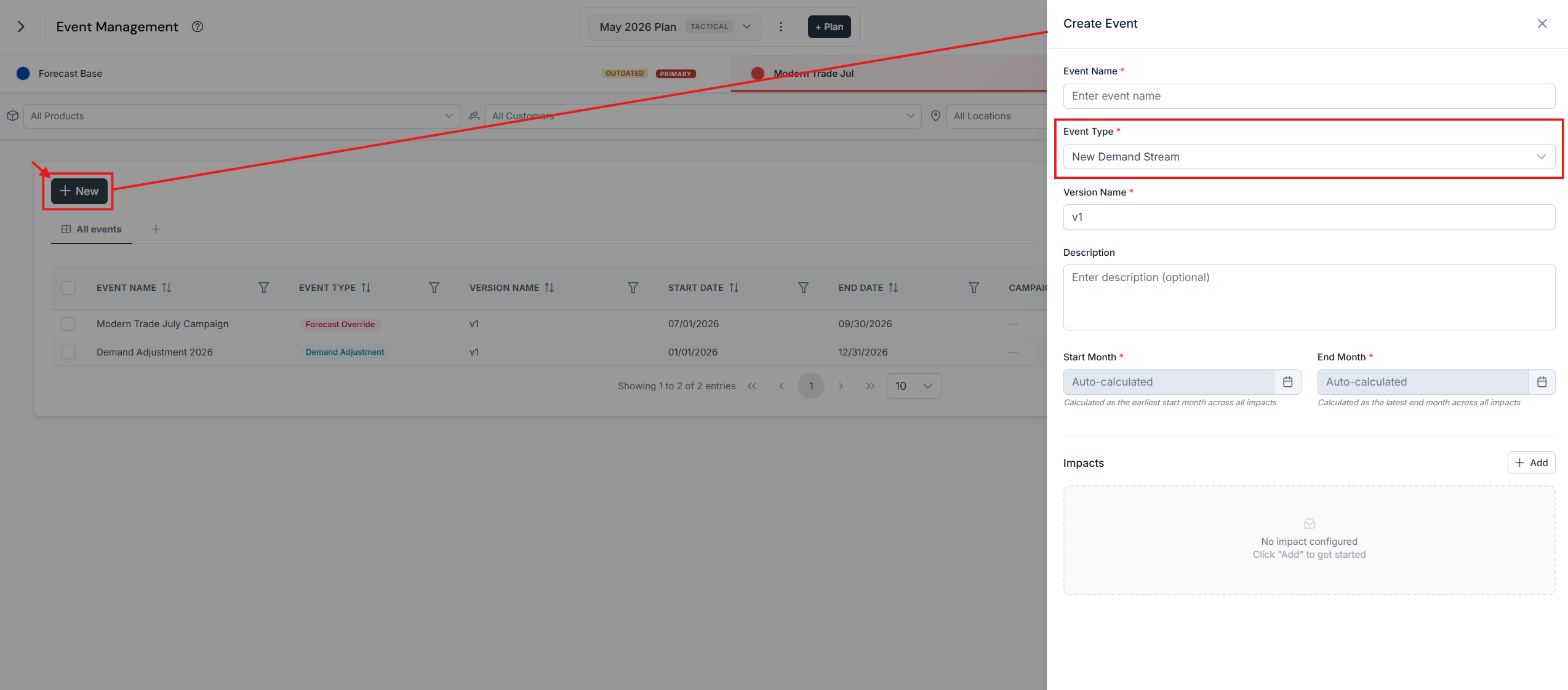
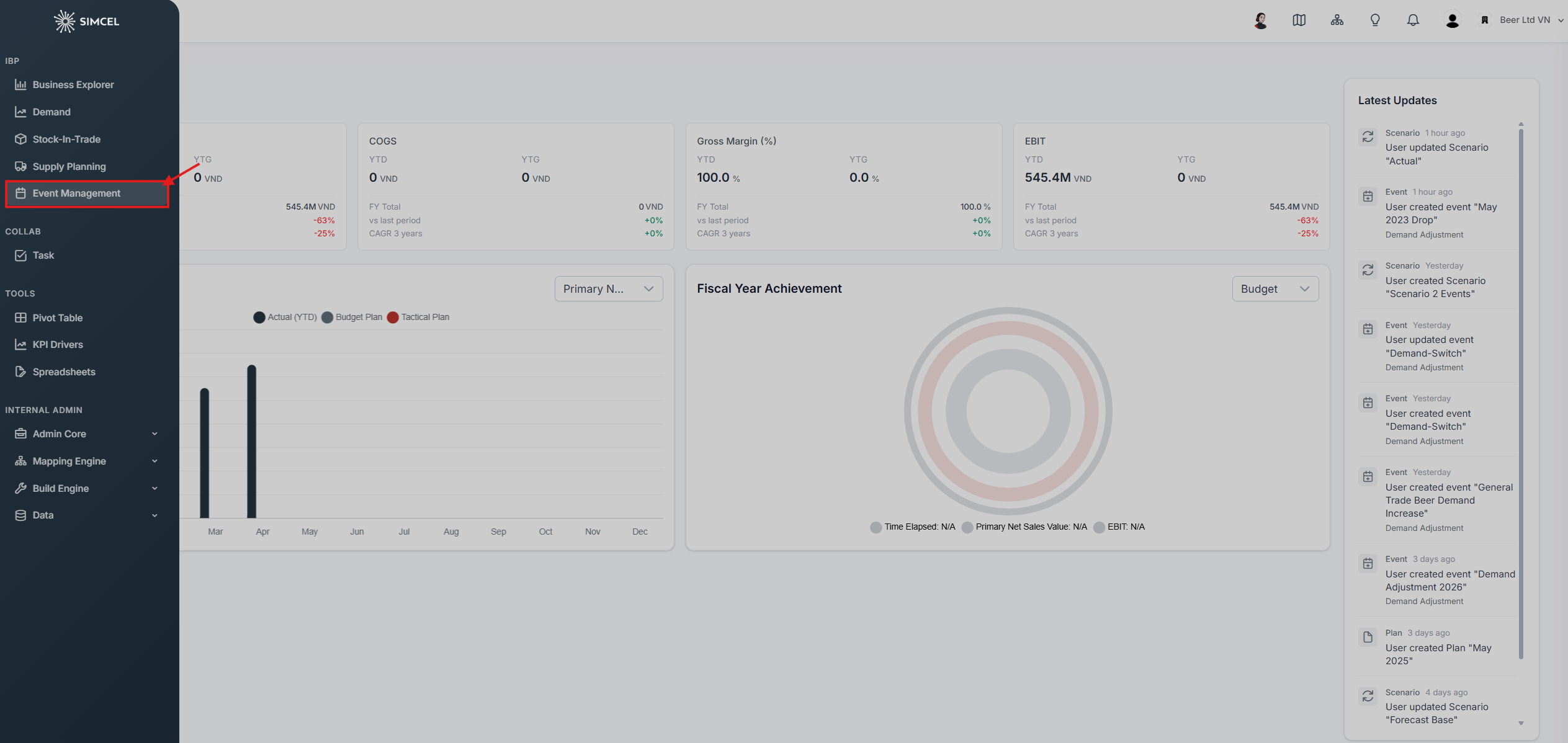 To create a New Demand Stream event:
* Click **New**.
* Select **New Demand Stream**.
* Click **Add**.
To create a New Demand Stream event:
* Click **New**.
* Select **New Demand Stream**.
* Click **Add**.
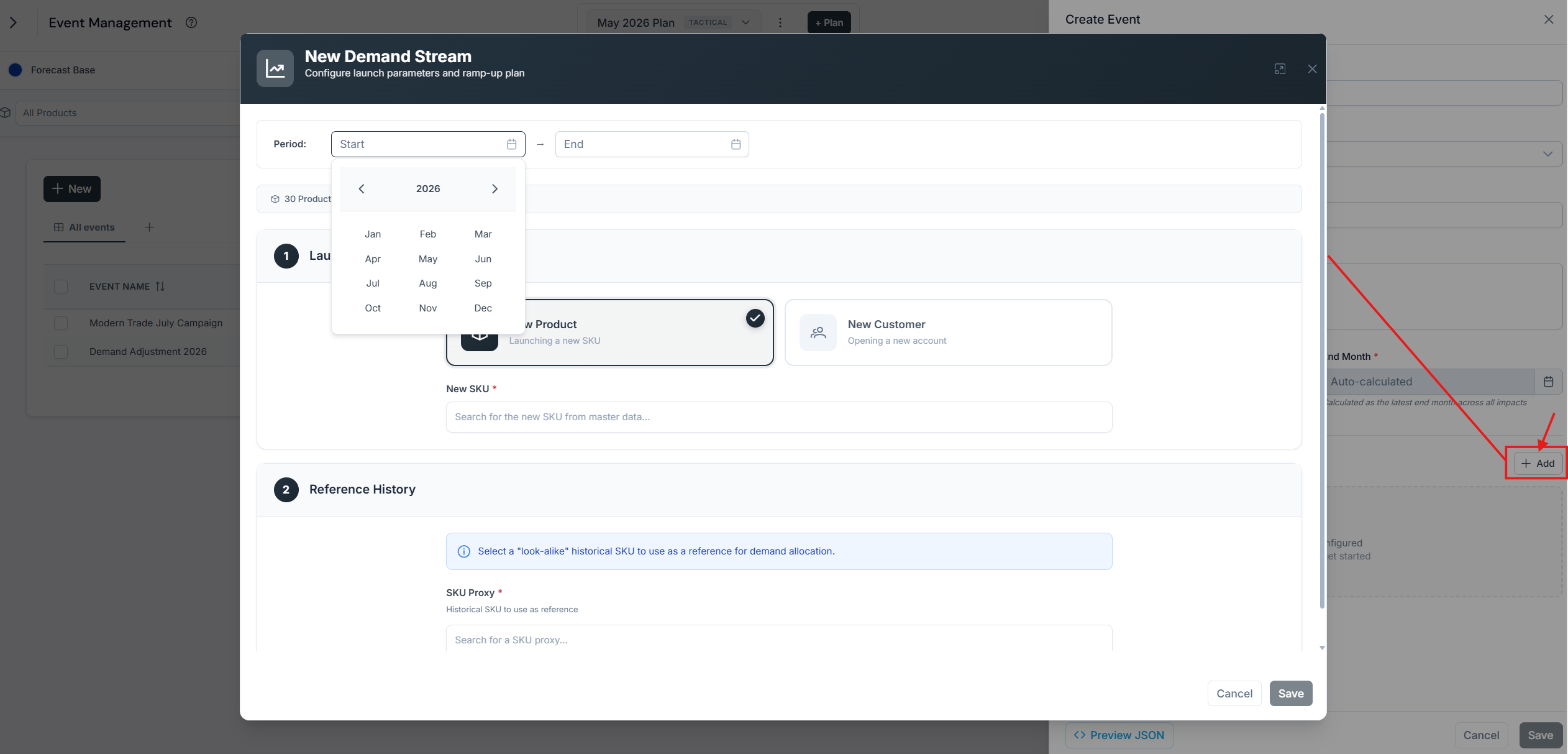 This screen gives you access to the definition of the new demand stream and its related impact on the selected segment.
## Create a New Demand Stream for a New Product Introduction (NPI)
To create an event reflecting a New Product Introduction, update the master data beforehand to include the new product and its related data.
Now create an event with an NPI on the overall business.
* Name the new event.
* Name the version.
* Select the period.
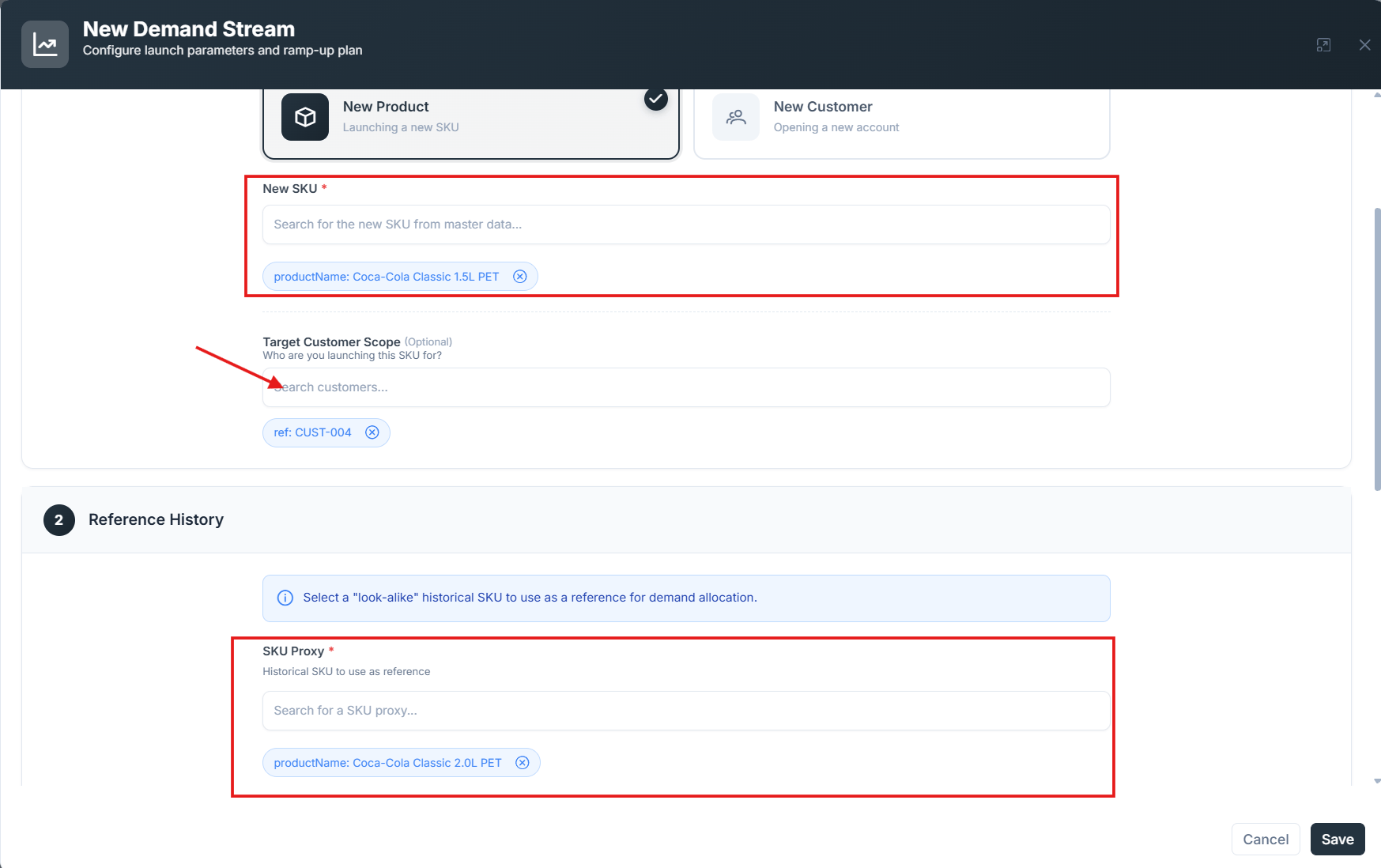
In the **New product** menu, select a product reference.
In the **Product proxy** drop-down, type and select a product reference.
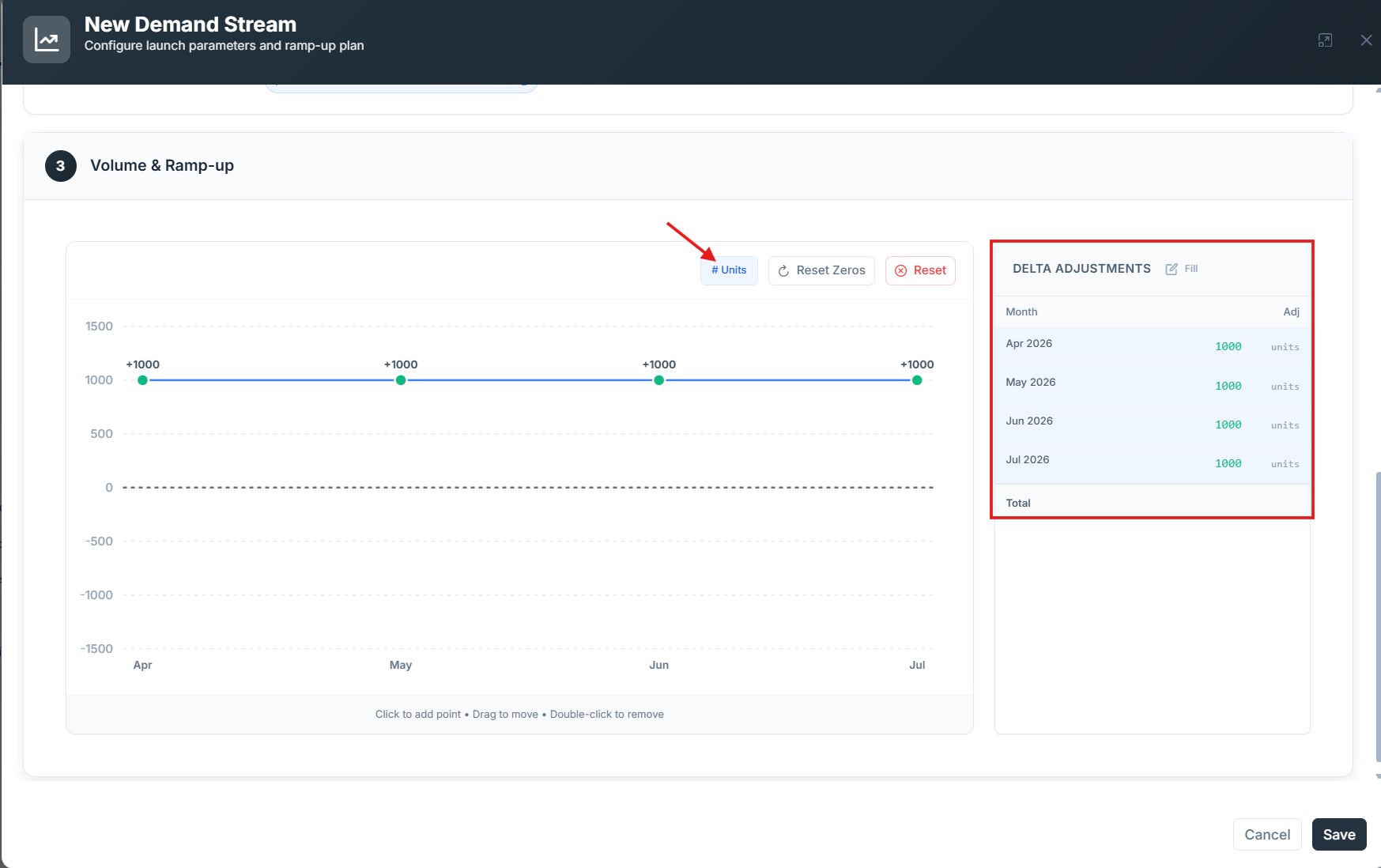
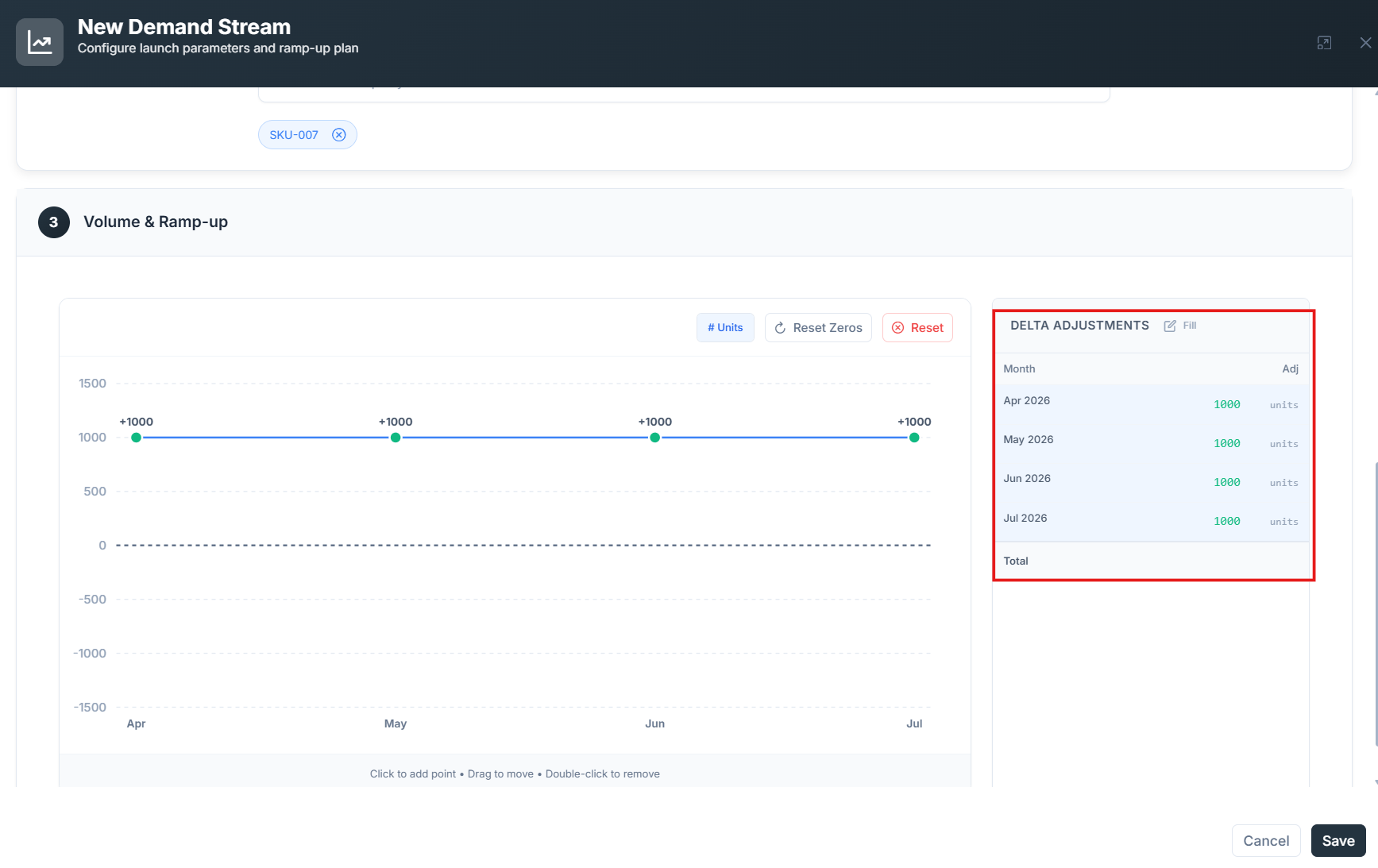
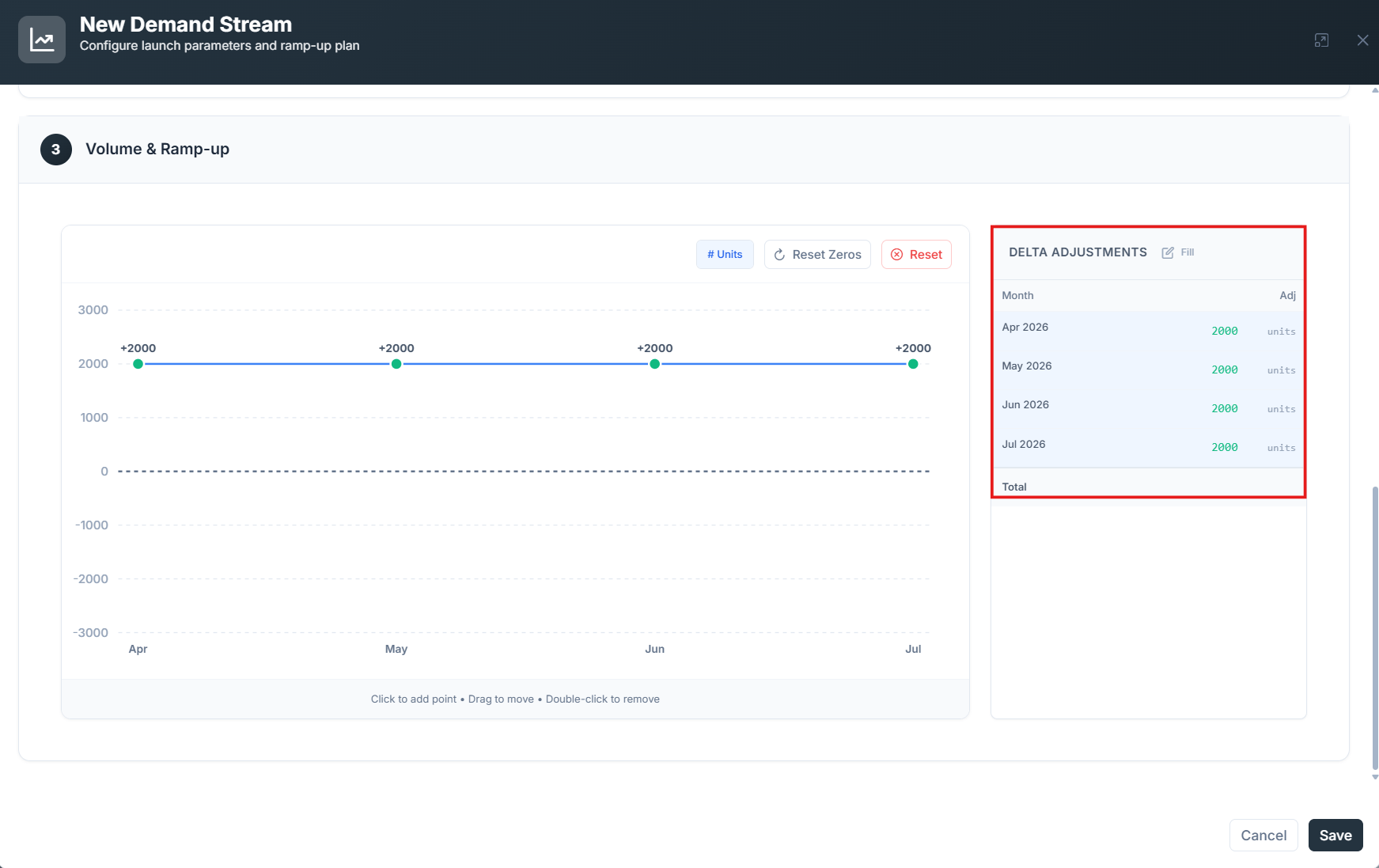
Provide the **monthly demand** for the new demand stream. You can type each month's value, or copy a row from a spreadsheet and paste it into SIMCEL.
Click **Save** to save the impact.
Save the event once you have finished editing.
This screen gives you access to the definition of the new demand stream and its related impact on the selected segment.
## Create a New Demand Stream for a New Product Introduction (NPI)
To create an event reflecting a New Product Introduction, update the master data beforehand to include the new product and its related data.
Now create an event with an NPI on the overall business.
* Name the new event.
* Name the version.
* Select the period.
In the **New product** menu, select a product reference.
In the **Product proxy** drop-down, type and select a product reference.
Provide the **monthly demand** for the new demand stream. You can type each month's value, or copy a row from a spreadsheet and paste it into SIMCEL.
Click **Save** to save the impact.
Save the event once you have finished editing.
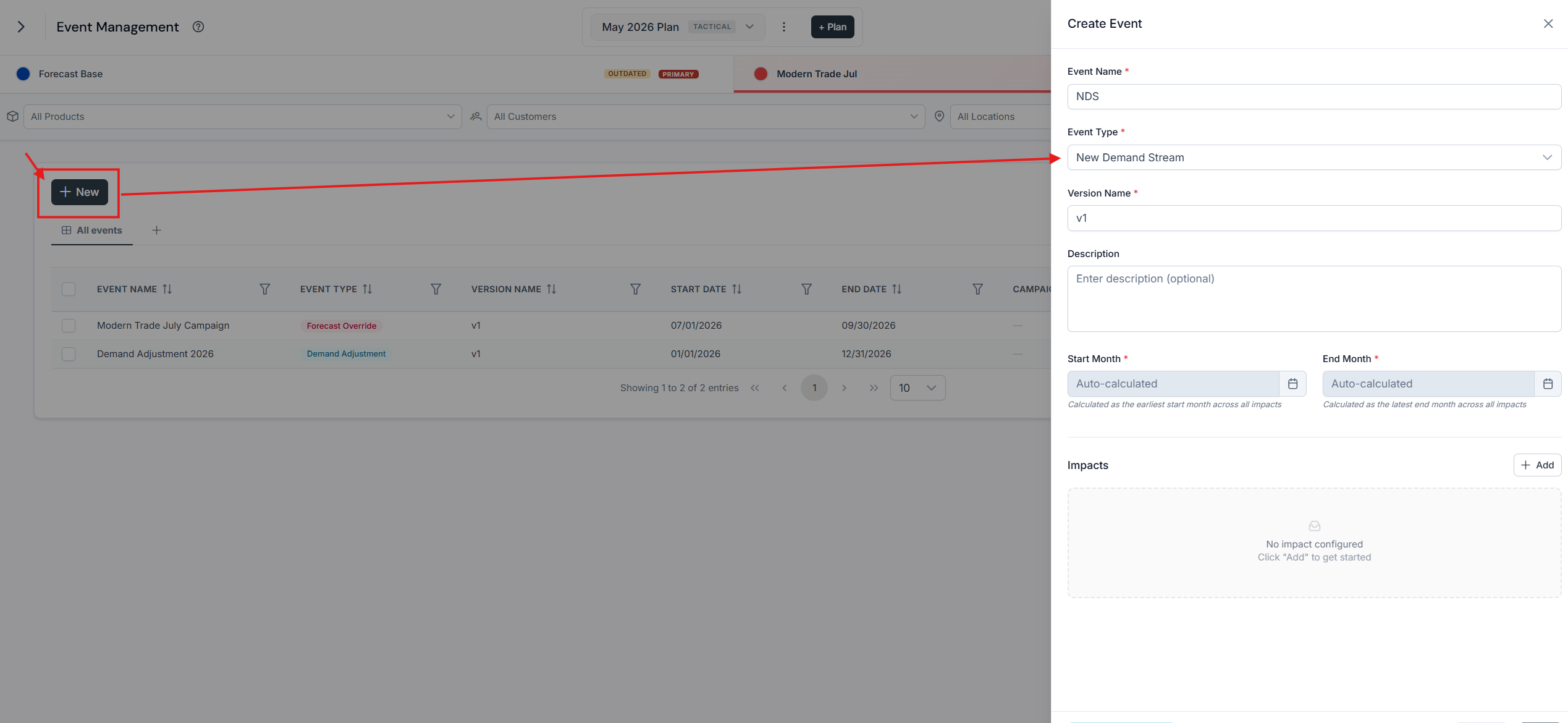
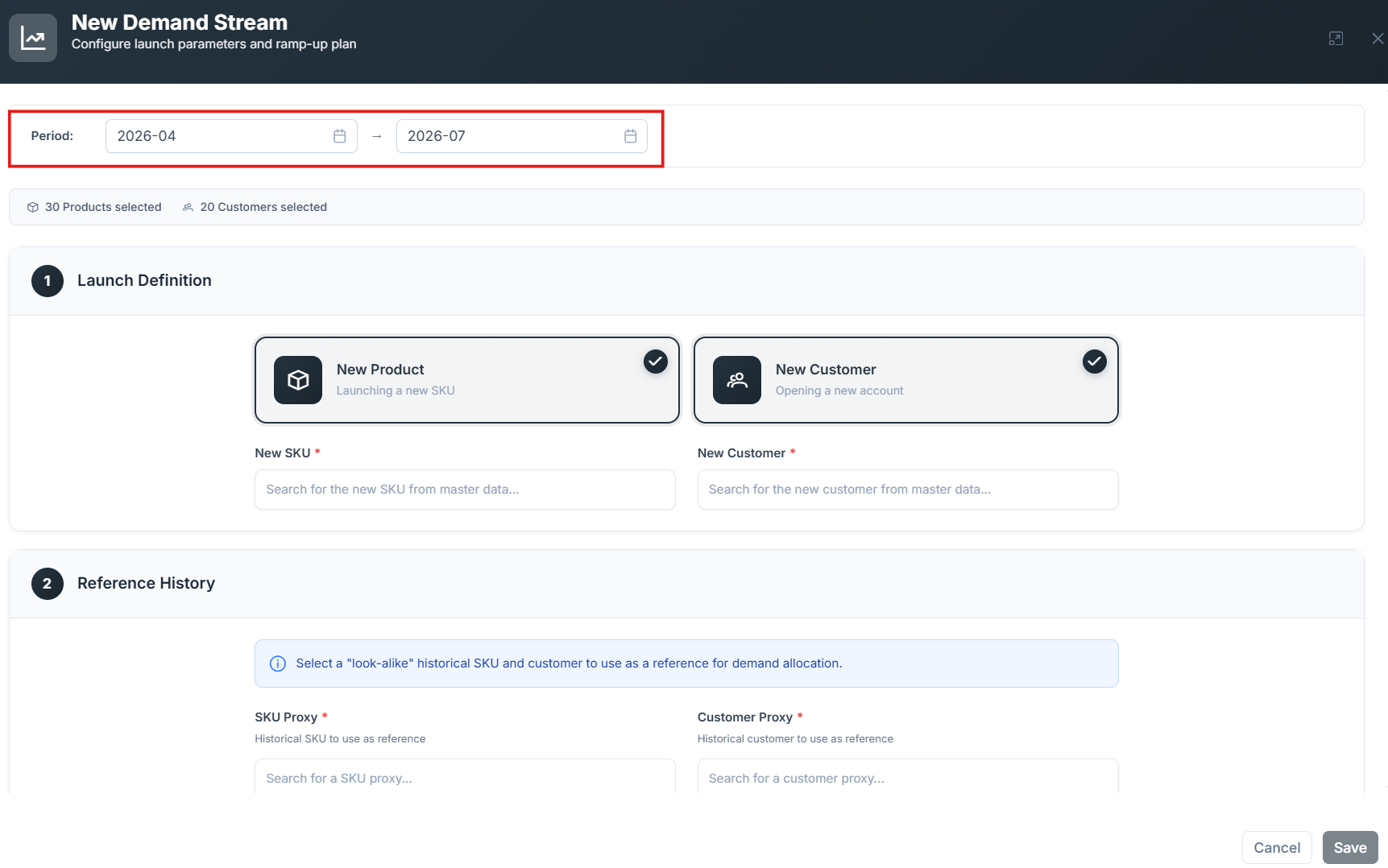
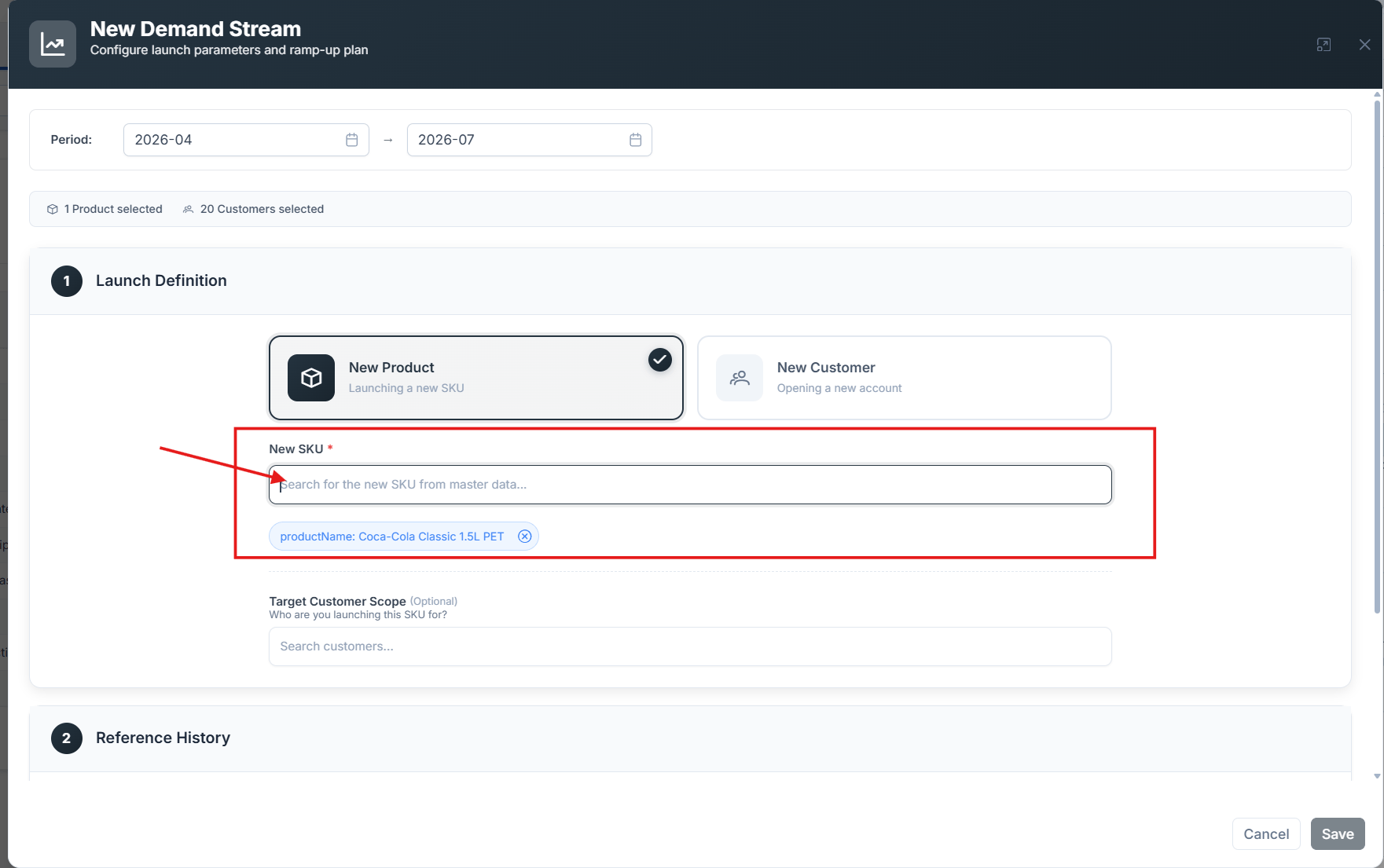 To create a New Demand Stream, you must first select a single unique product in the **Select Product** search box. This enables the product proxy drop-down.
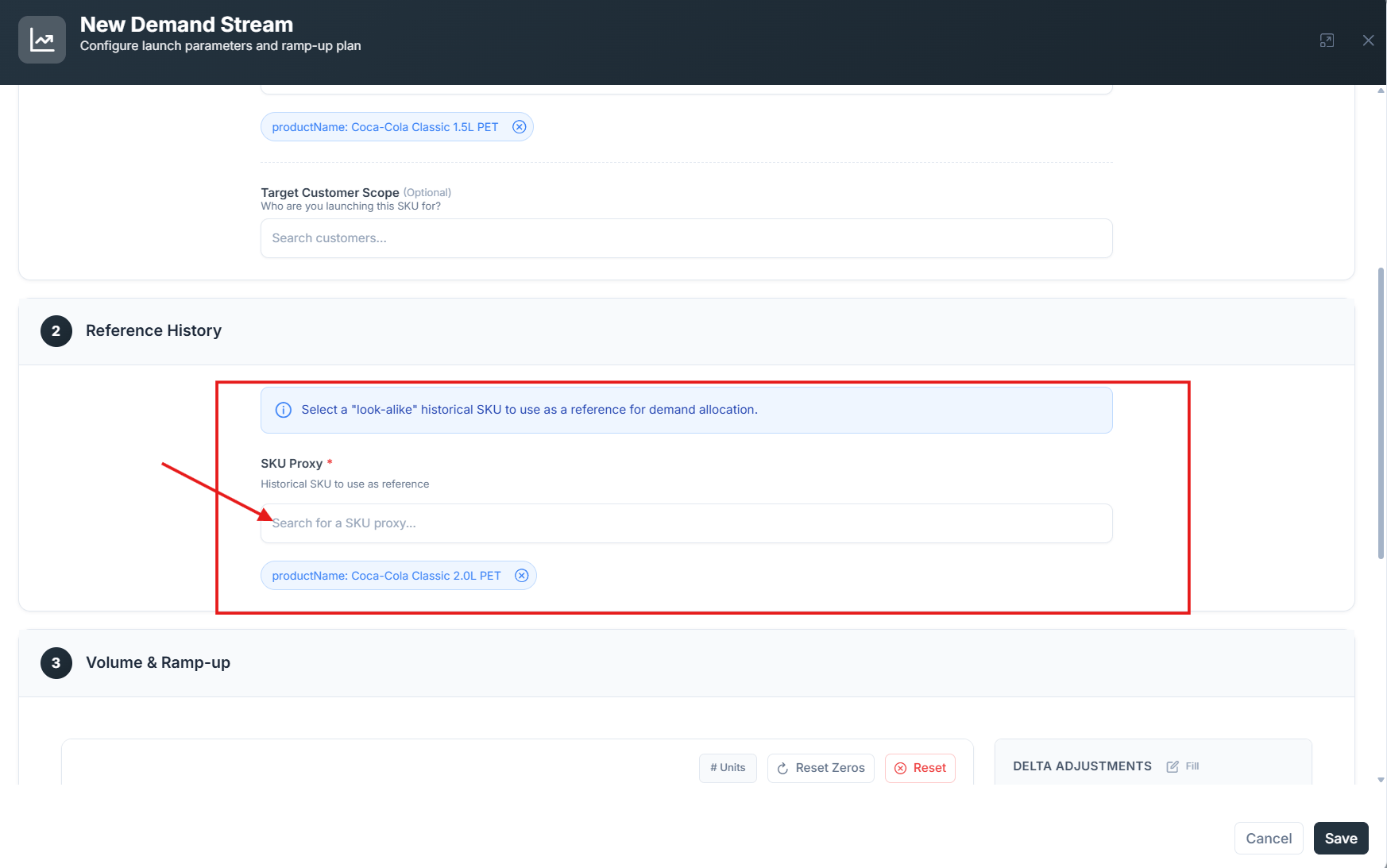 Selecting a proxy tells SIMCEL to use the historical demand profile from the proxy product to allocate the new product's demand to lower-level segments, such as channel, province, or customer reference.
 ## Create a New Demand Stream with multiple customer segment impacts
You can also create an NDS/NPI event and set a specific impact per segment, which is useful when the product introduction happens differently across customer segments.
* Create a New Demand Stream reflecting a New Product Introduction.
* Name the event and the version.
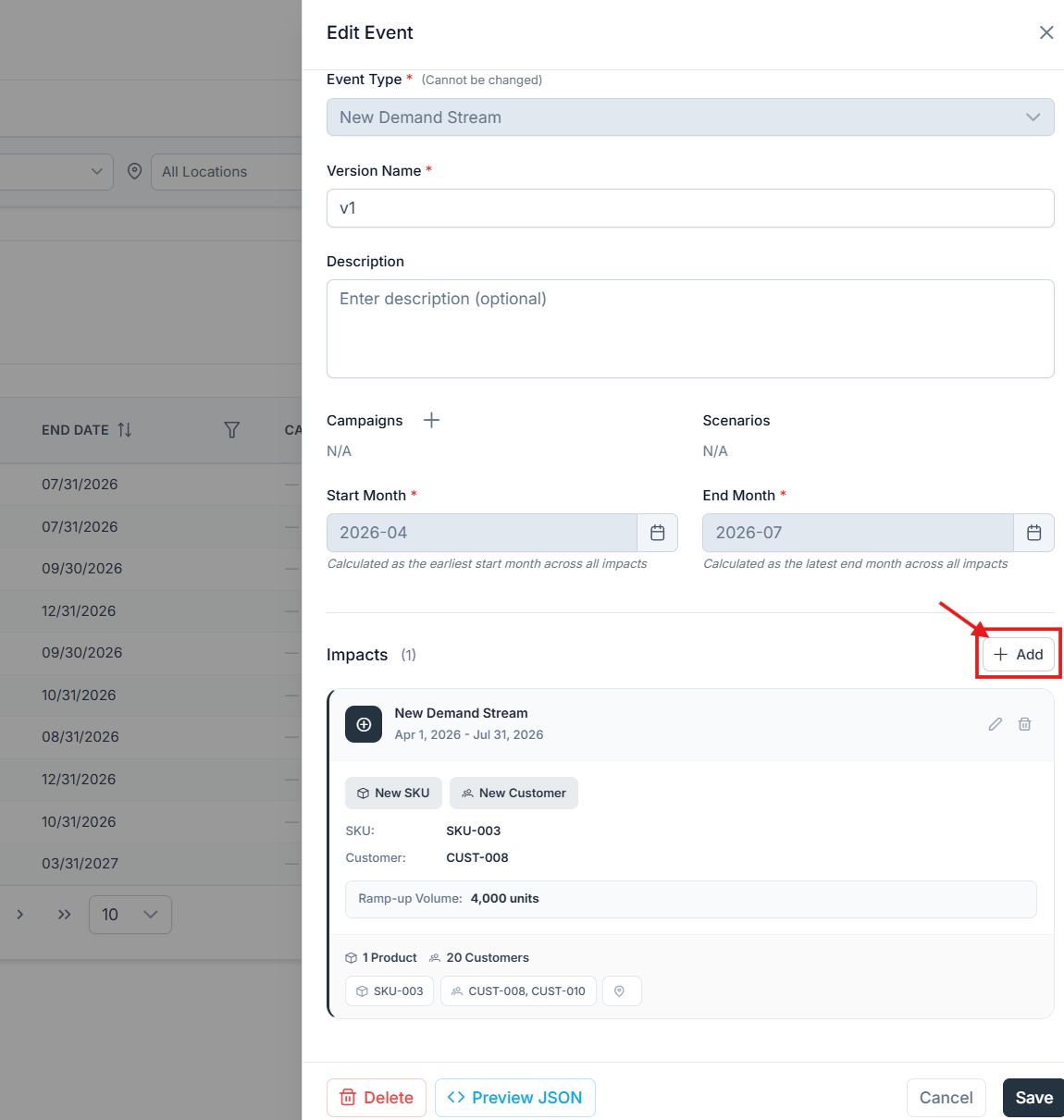
* Click **Add** to set up a new impact.
* Set up the period.
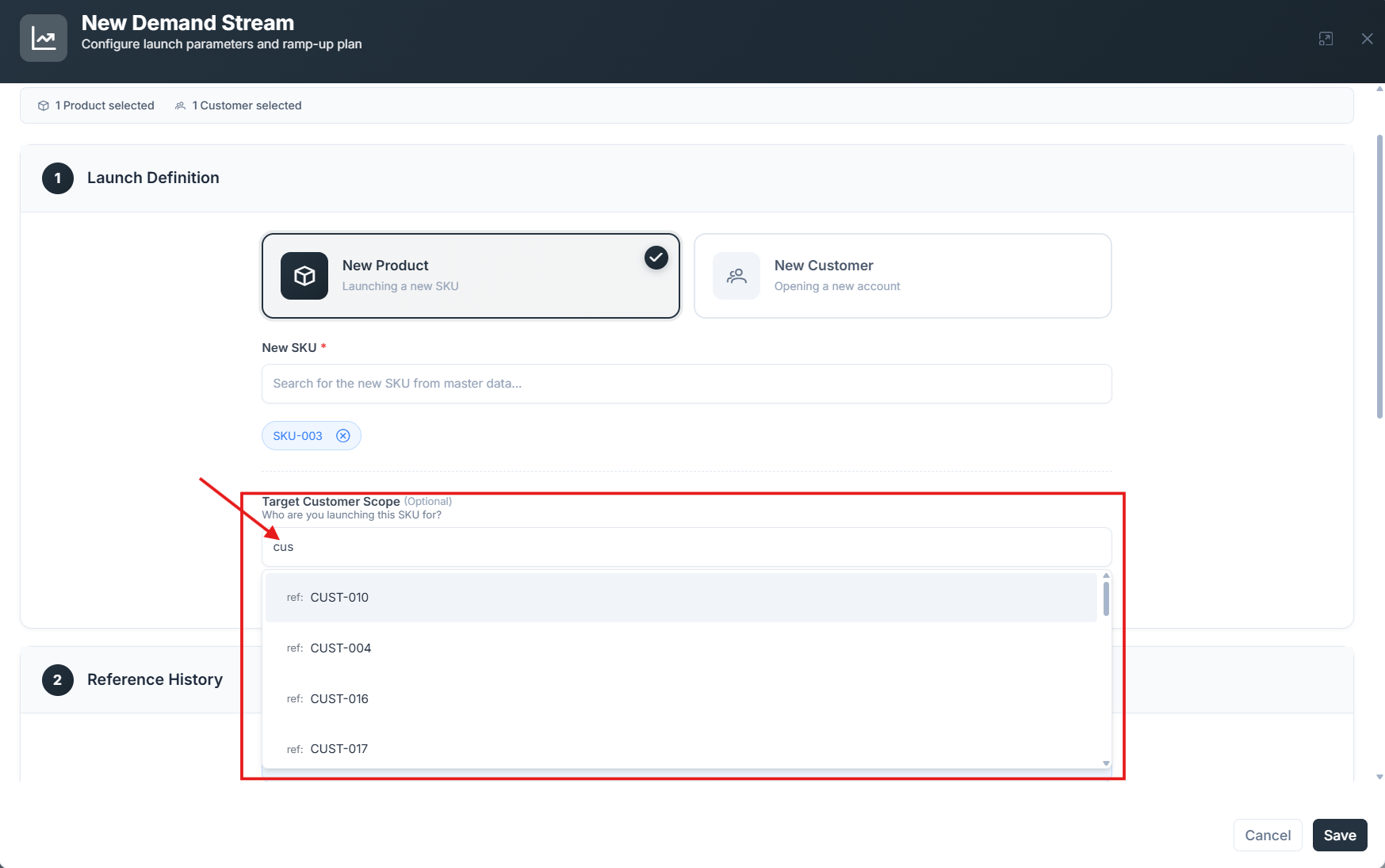
* In **Target Customer Scope** under **Launch Definition**, select a customer segment.
* Update the **Monthly Demand** value, or keep it unchanged.
* Click **Save** to save the impact.
* Click **+ Add** within this event to add one more NPI.
* Enter the same product and product proxy information as the first segment, but select a different customer segment in the customer drop-down.
* Define the monthly demand value for this extra NPI.
Save the event.
## Create a New Demand Stream with multiple customer segment impacts
You can also create an NDS/NPI event and set a specific impact per segment, which is useful when the product introduction happens differently across customer segments.
* Create a New Demand Stream reflecting a New Product Introduction.
* Name the event and the version.
* Click **Add** to set up a new impact.
* Set up the period.
* In **Target Customer Scope** under **Launch Definition**, select a customer segment.
* Update the **Monthly Demand** value, or keep it unchanged.
* Click **Save** to save the impact.
* Click **+ Add** within this event to add one more NPI.
* Enter the same product and product proxy information as the first segment, but select a different customer segment in the customer drop-down.
* Define the monthly demand value for this extra NPI.
Save the event.
 This creates an NDS event for a new product where the demand stream is set for two specific customer segments only.
If the chosen segment is unavailable for the proxy product — meaning the proxy lacks data or a demand pattern for that segment — no sales data is generated, even if you set a ramp-up period for that segment.
This creates an NDS event for a new product where the demand stream is set for two specific customer segments only.
If the chosen segment is unavailable for the proxy product — meaning the proxy lacks data or a demand pattern for that segment — no sales data is generated, even if you set a ramp-up period for that segment.