> ## Documentation Index
> Fetch the complete documentation index at: https://docs.simcel.io/llms.txt
> Use this file to discover all available pages before exploring further.
# Scenario
> Create, manage, and promote demand scenarios to primary execution plans.
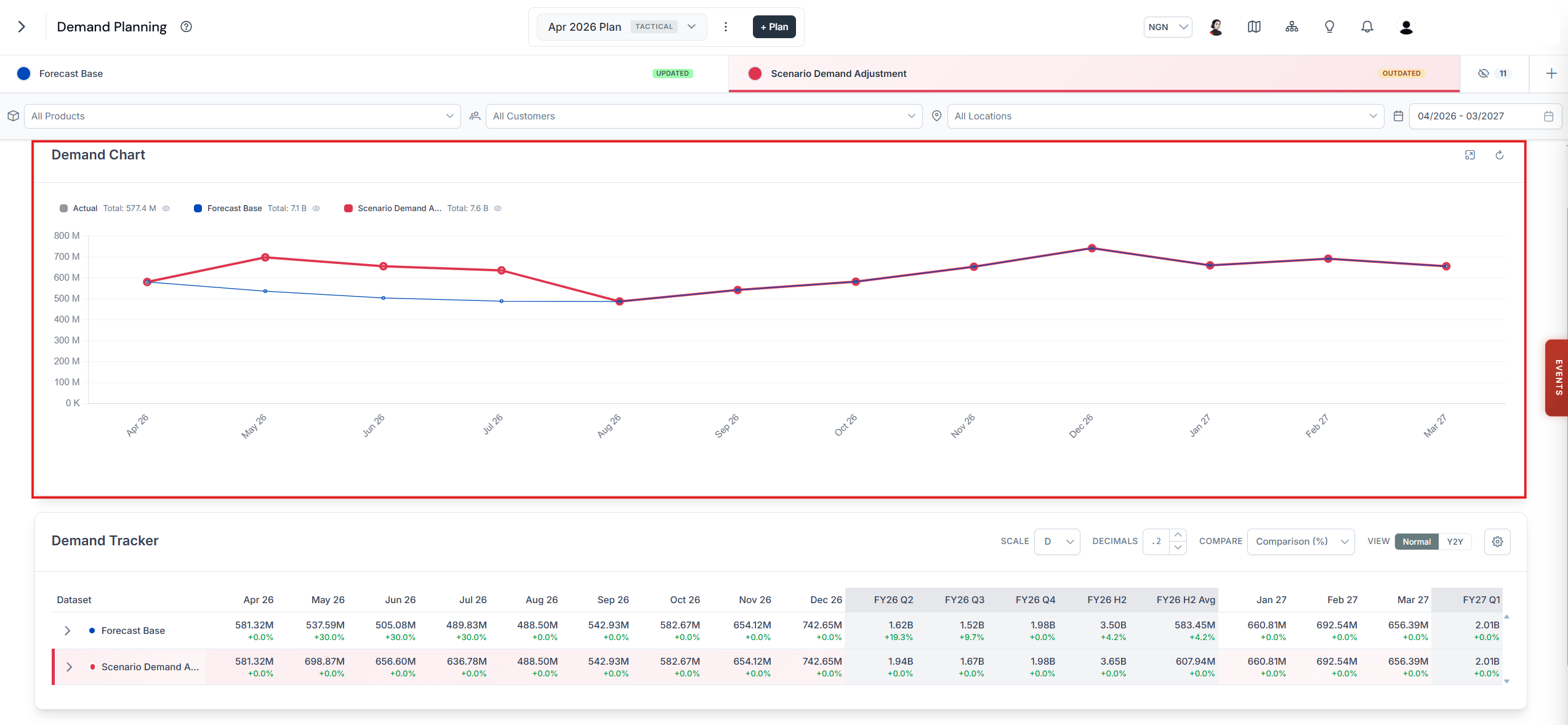
A scenario combines a supply plan with one or more demand event versions so you can model a possible future and compare it against other plans.
## Create a future demand planning scenario
Use a scenario to bring together one or multiple trade and marketing events.
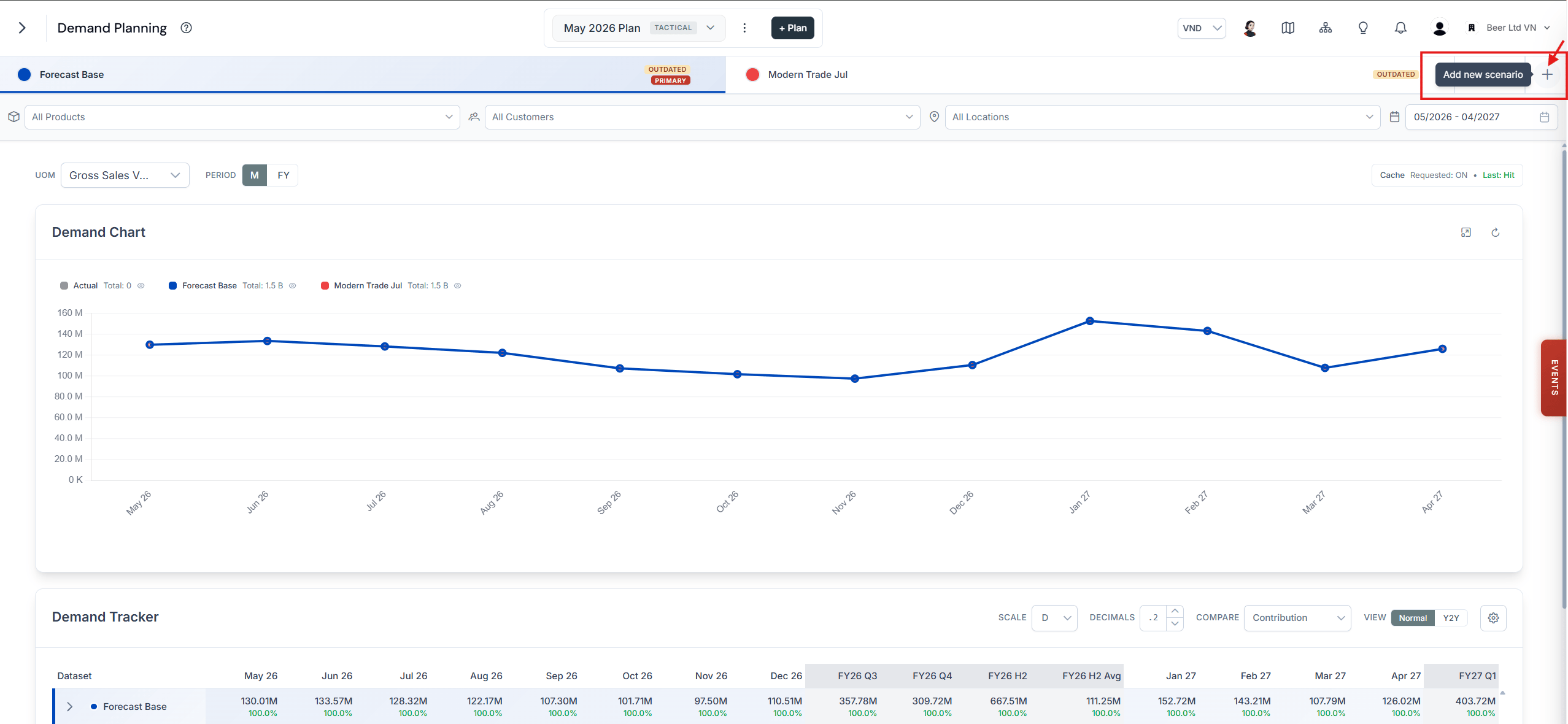
On the demand planning page, click **+ Add New Scenario**.
 Give the scenario a name that describes the plan you are modelling.
Choose the supply plan the scenario runs against.
Choose the demand event version whose impacts the scenario should include.
Click **Save** to create the scenario.
Give the scenario a name that describes the plan you are modelling.
Choose the supply plan the scenario runs against.
Choose the demand event version whose impacts the scenario should include.
Click **Save** to create the scenario.
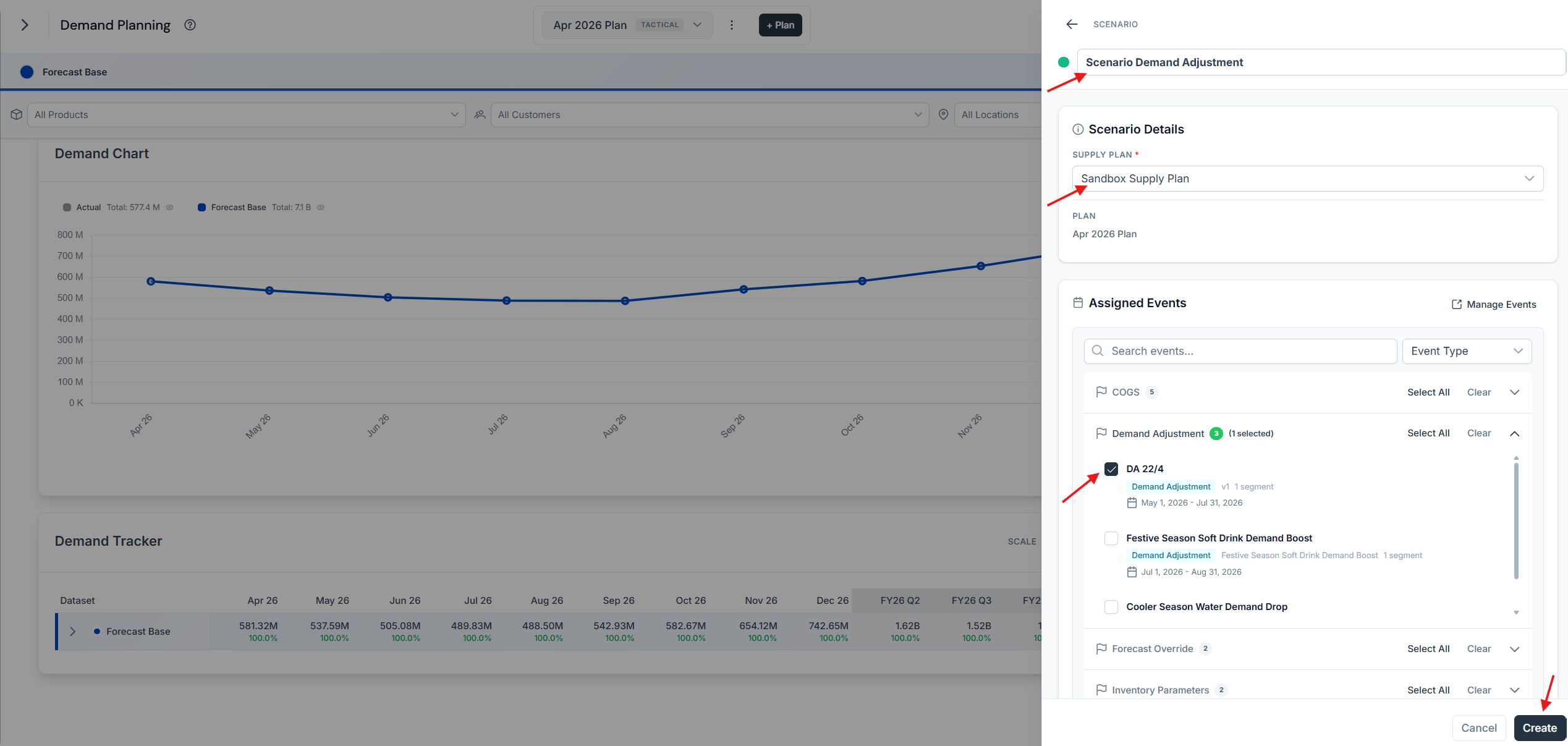 The events you selected are now reflected in the scenario's demand.
 ## Select a scenario as the primary scenario
Making a scenario primary converts it into the plan that the entire business uses as its reference.
First, make sure the scenario is displayed on the main page. See the section on selecting datasets to display as data series.
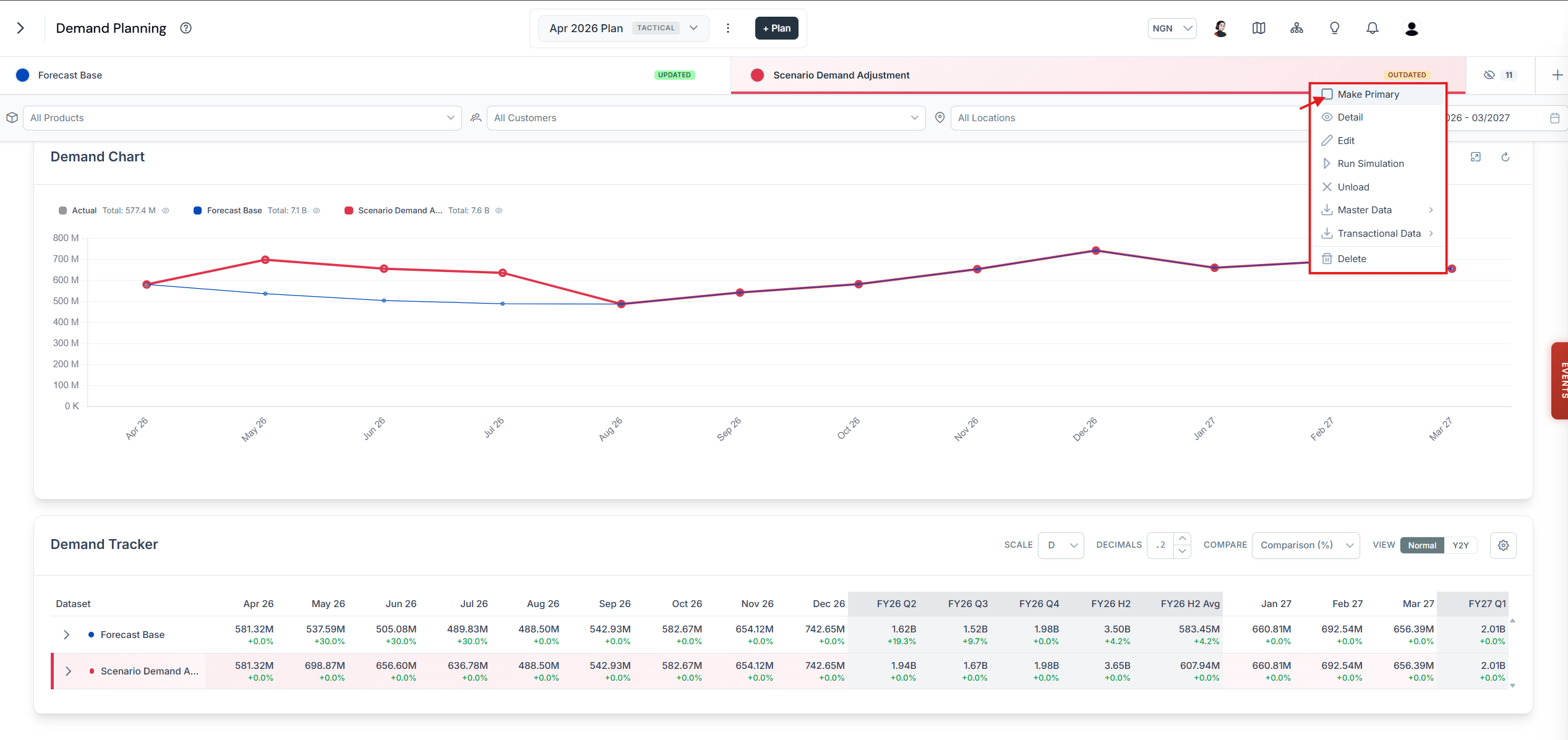
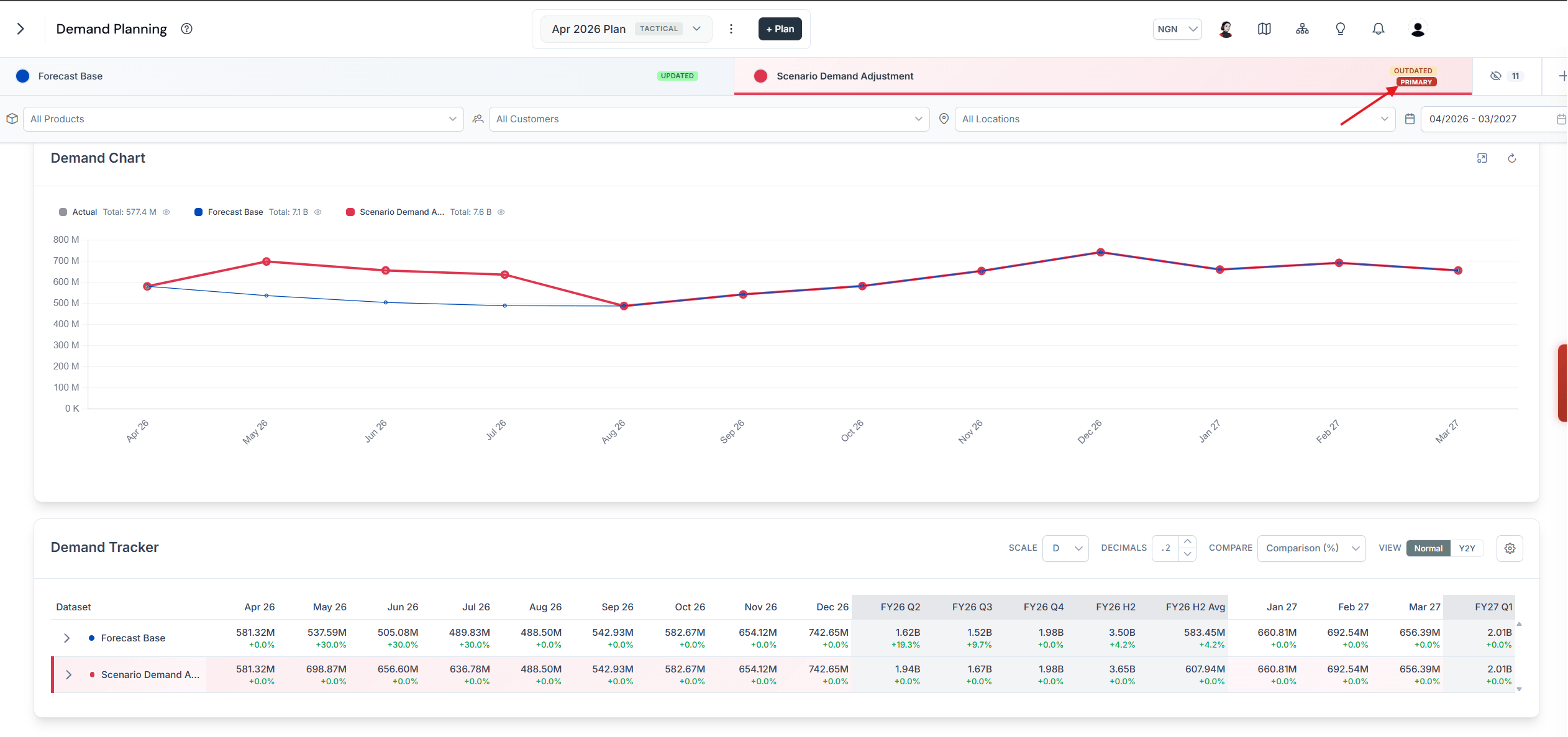
Next, click the menu icon and select **Make Primary**. When the scenario is set as the execution plan, a **Primary** symbol appears next to it.
## Select a scenario as the primary scenario
Making a scenario primary converts it into the plan that the entire business uses as its reference.
First, make sure the scenario is displayed on the main page. See the section on selecting datasets to display as data series.
Next, click the menu icon and select **Make Primary**. When the scenario is set as the execution plan, a **Primary** symbol appears next to it.