> ## Documentation Index
> Fetch the complete documentation index at: https://docs.simcel.io/llms.txt
> Use this file to discover all available pages before exploring further.
# Set Base Demand
> Manage and assign demand events to adjust base demand with past or future impacts.
## Demand events
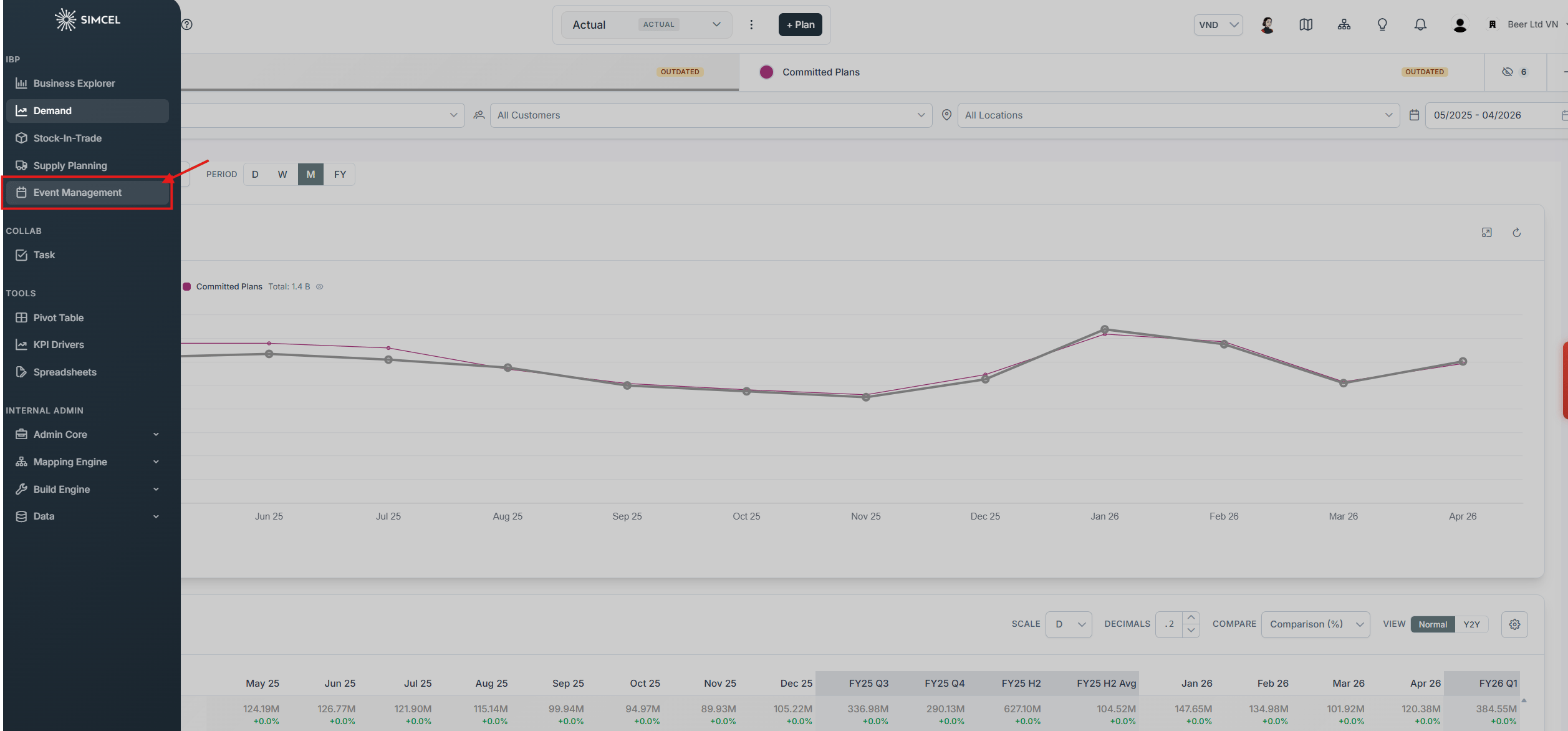
Under the **IBP** section on the left-hand side panel, click **Event Management**.
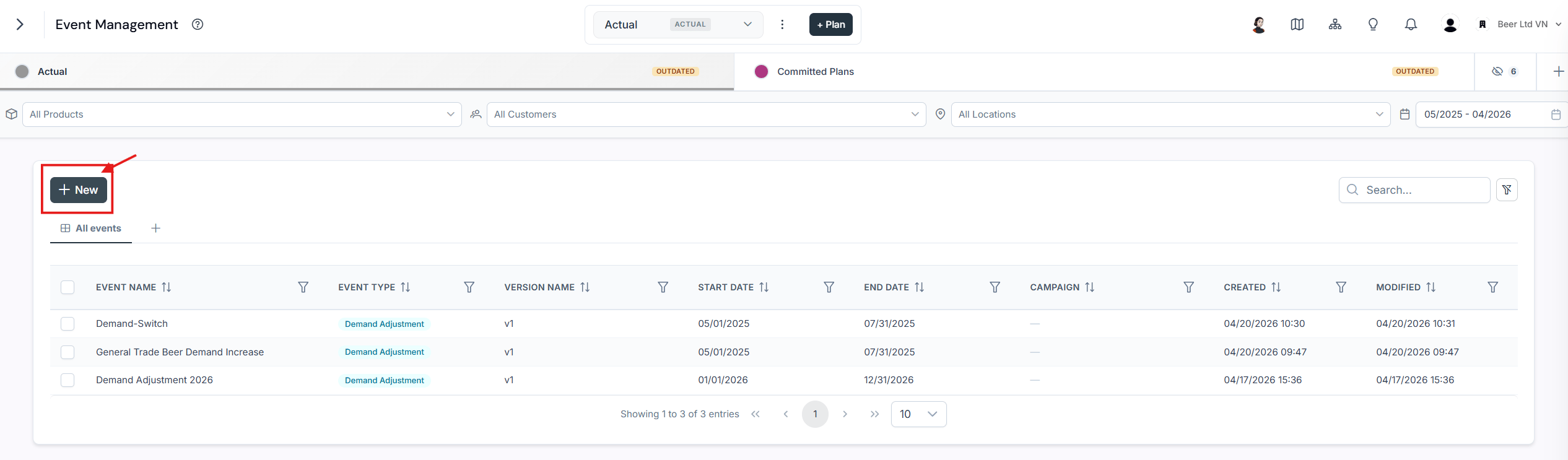
 On the Event Management page you can see the list of events. Click **New** to create a new event.
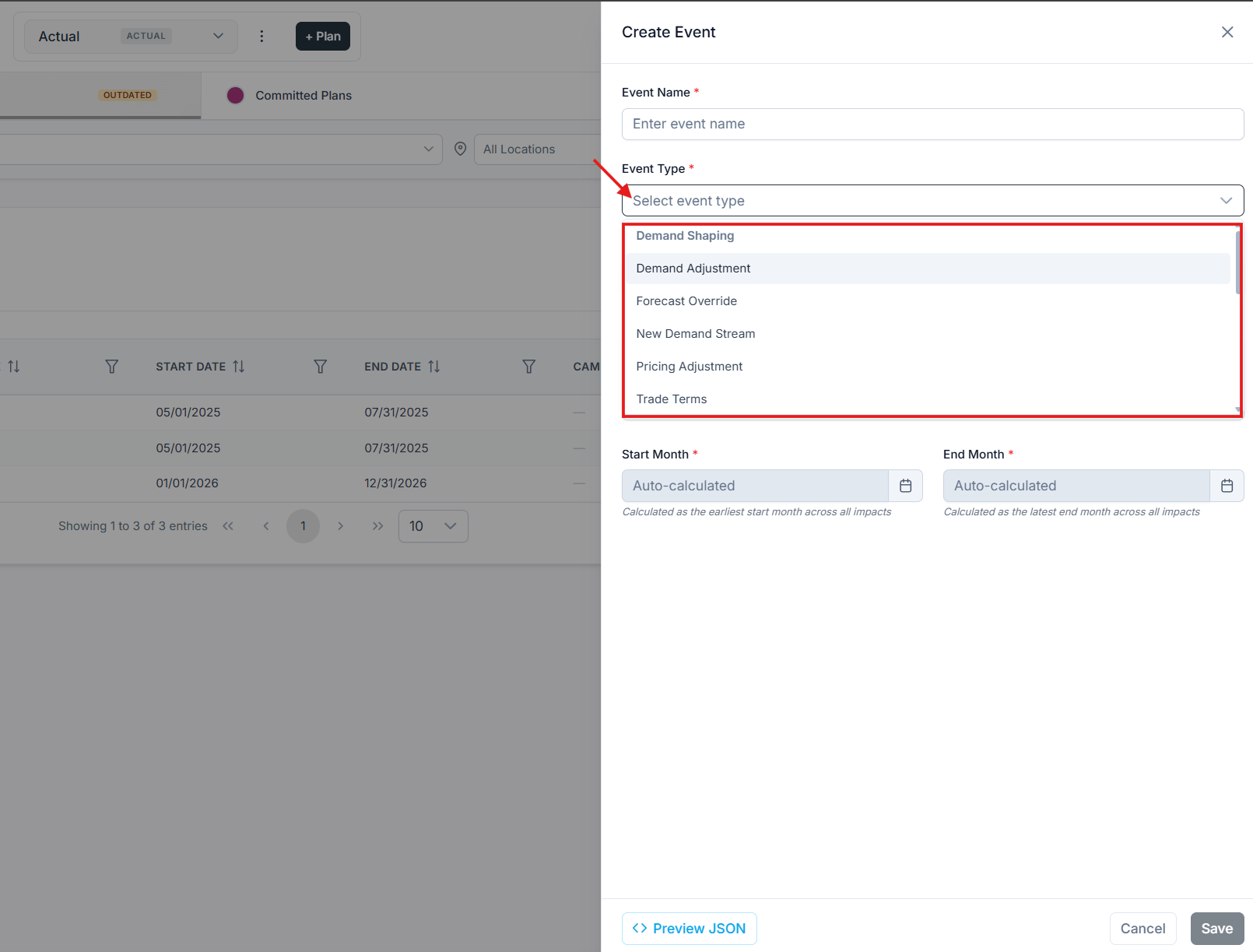
 You can choose between multiple types of events:
* **Demand Adjustment** - Increase or decrease demand due to internal or external events.
* **New Demand Stream** - Manually create future demand for new products.
* **Forecast Override** - Manually override the initial future demand forecasted by SIMCEL.
* **Pricing Adjustment** - Manually set or adjust the price of your products.
* **Trade Terms** - Model trade expenses and calculate the net sales value.
You can choose between multiple types of events:
* **Demand Adjustment** - Increase or decrease demand due to internal or external events.
* **New Demand Stream** - Manually create future demand for new products.
* **Forecast Override** - Manually override the initial future demand forecasted by SIMCEL.
* **Pricing Adjustment** - Manually set or adjust the price of your products.
* **Trade Terms** - Model trade expenses and calculate the net sales value.
 ## Create and assign an unplanned event
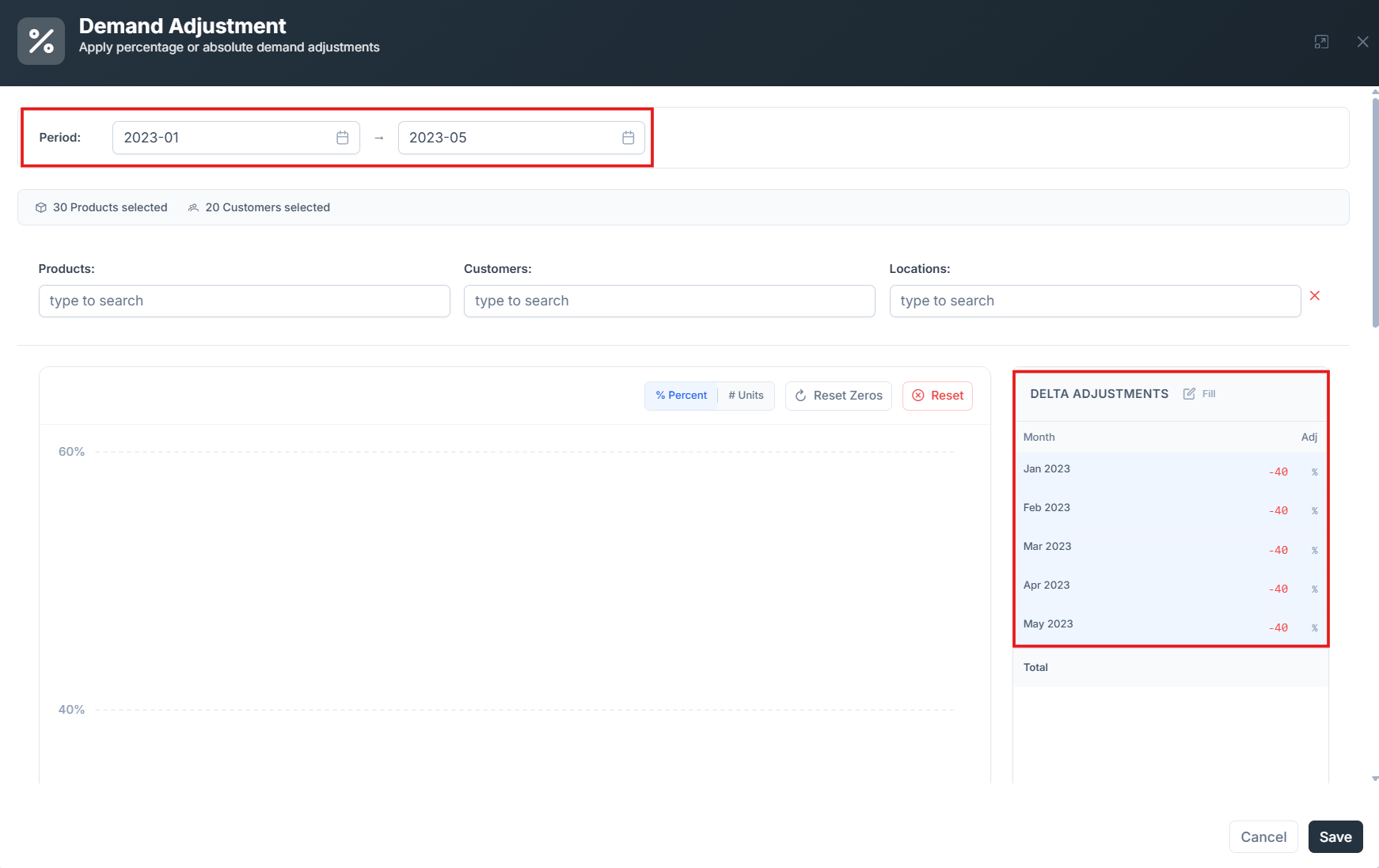
Imagine demand decreased by 40% in May 2023. Create an event to capture it.
Name the new event **May 2023 drop**.
Select **Demand Adjustment**.
Name the version **V1**.
Select the period from **Jan 2023** to **May 2023**.
In the **Delta Adjustment** section, set the value to **-40%**.
Write a description of the event. This is optional.
Click **Save**.
## Create and assign an unplanned event
Imagine demand decreased by 40% in May 2023. Create an event to capture it.
Name the new event **May 2023 drop**.
Select **Demand Adjustment**.
Name the version **V1**.
Select the period from **Jan 2023** to **May 2023**.
In the **Delta Adjustment** section, set the value to **-40%**.
Write a description of the event. This is optional.
Click **Save**.
 There are two methods for adjusting values:
* **By percentage** - For example, a demand decrease of 40%.
* **By absolute value** - For example, a decrease of 50,000 units.
Switch between these options in the unit selection.
## Assign the event to actual
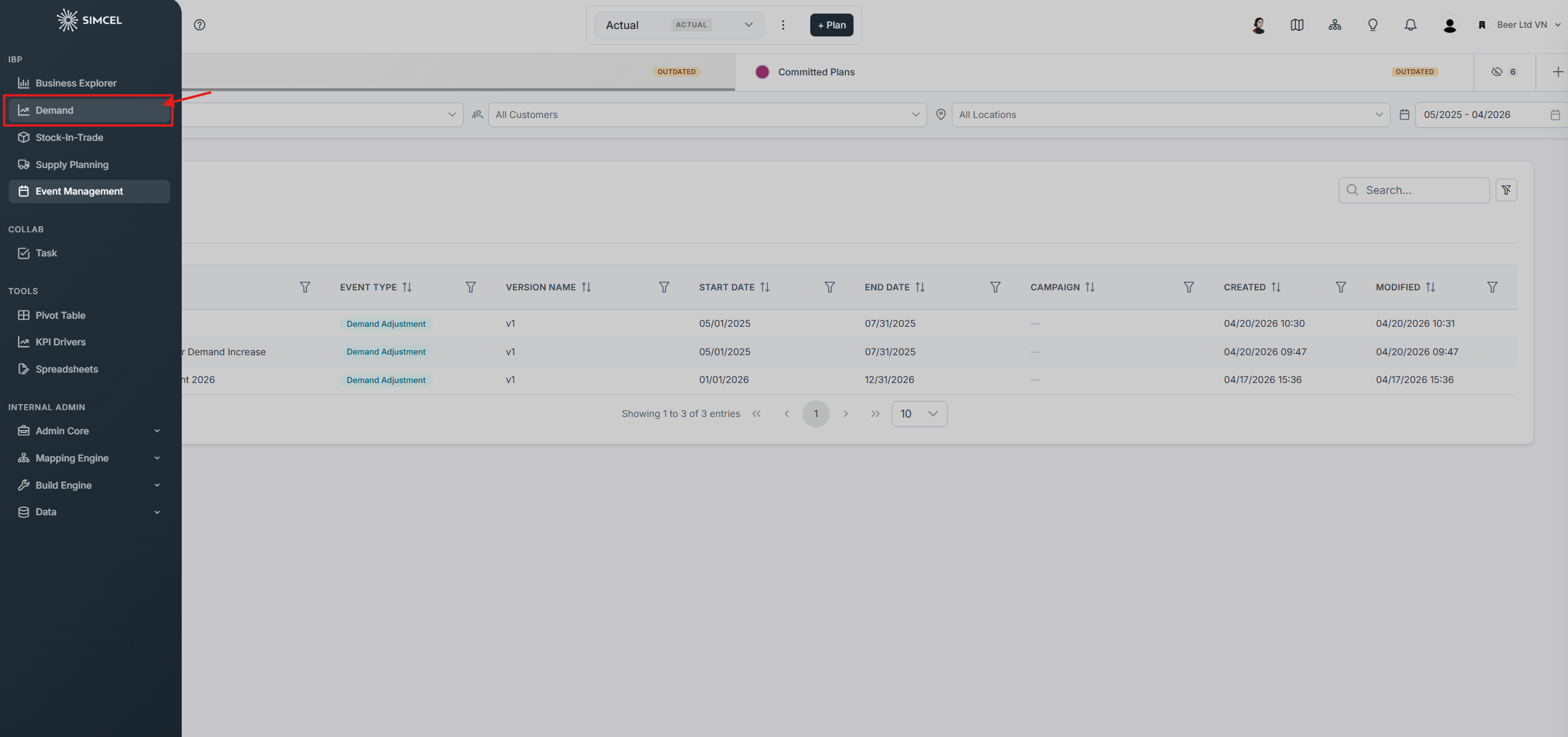
Go back to the **Demand Planning** page by choosing **Demand** in the left side panel.
There are two methods for adjusting values:
* **By percentage** - For example, a demand decrease of 40%.
* **By absolute value** - For example, a decrease of 50,000 units.
Switch between these options in the unit selection.
## Assign the event to actual
Go back to the **Demand Planning** page by choosing **Demand** in the left side panel.
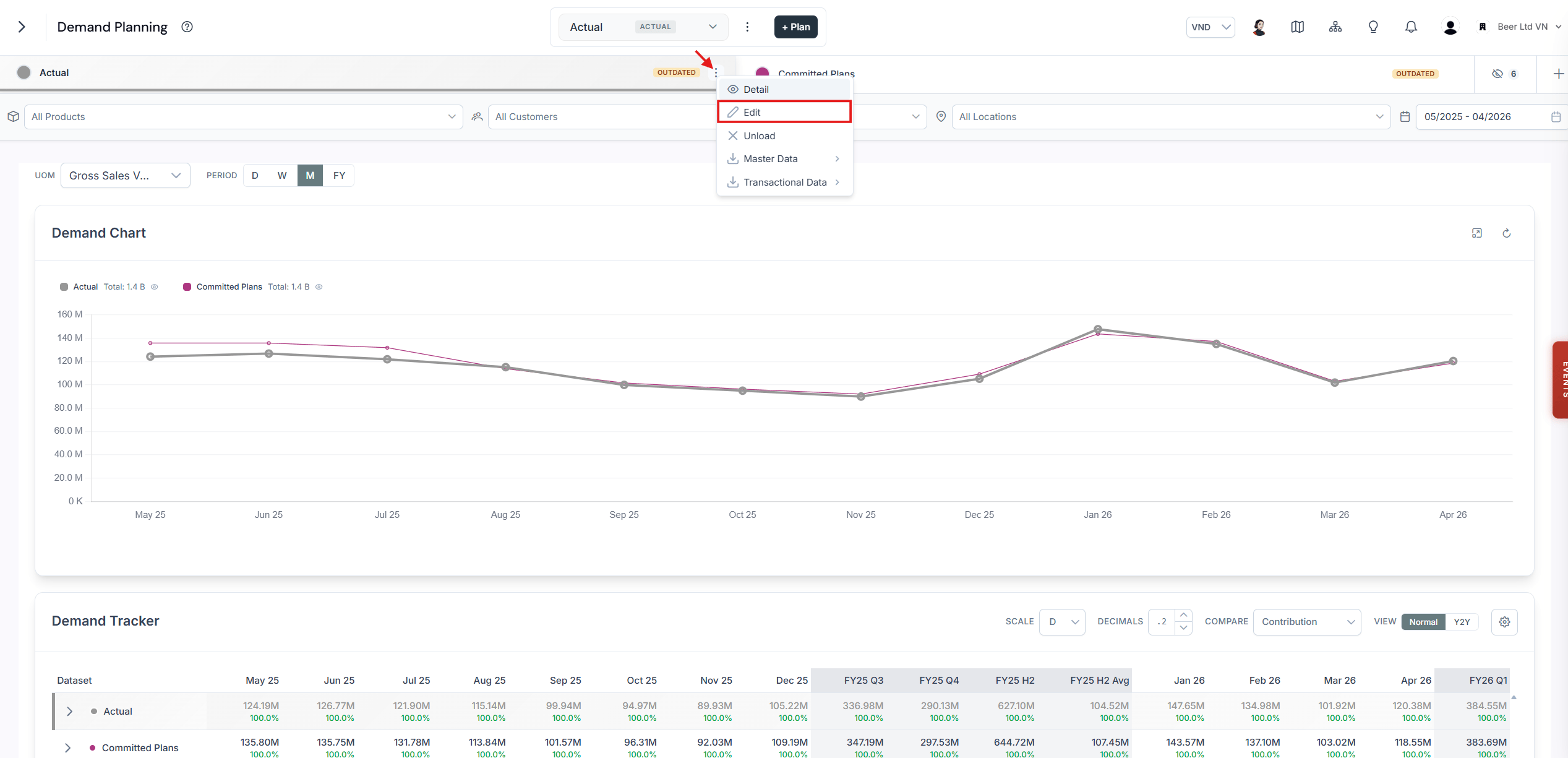
 To assign the event to **Actual** and adjust the **Base Demand**, click the menu button next to **Actual** and click **Edit**.
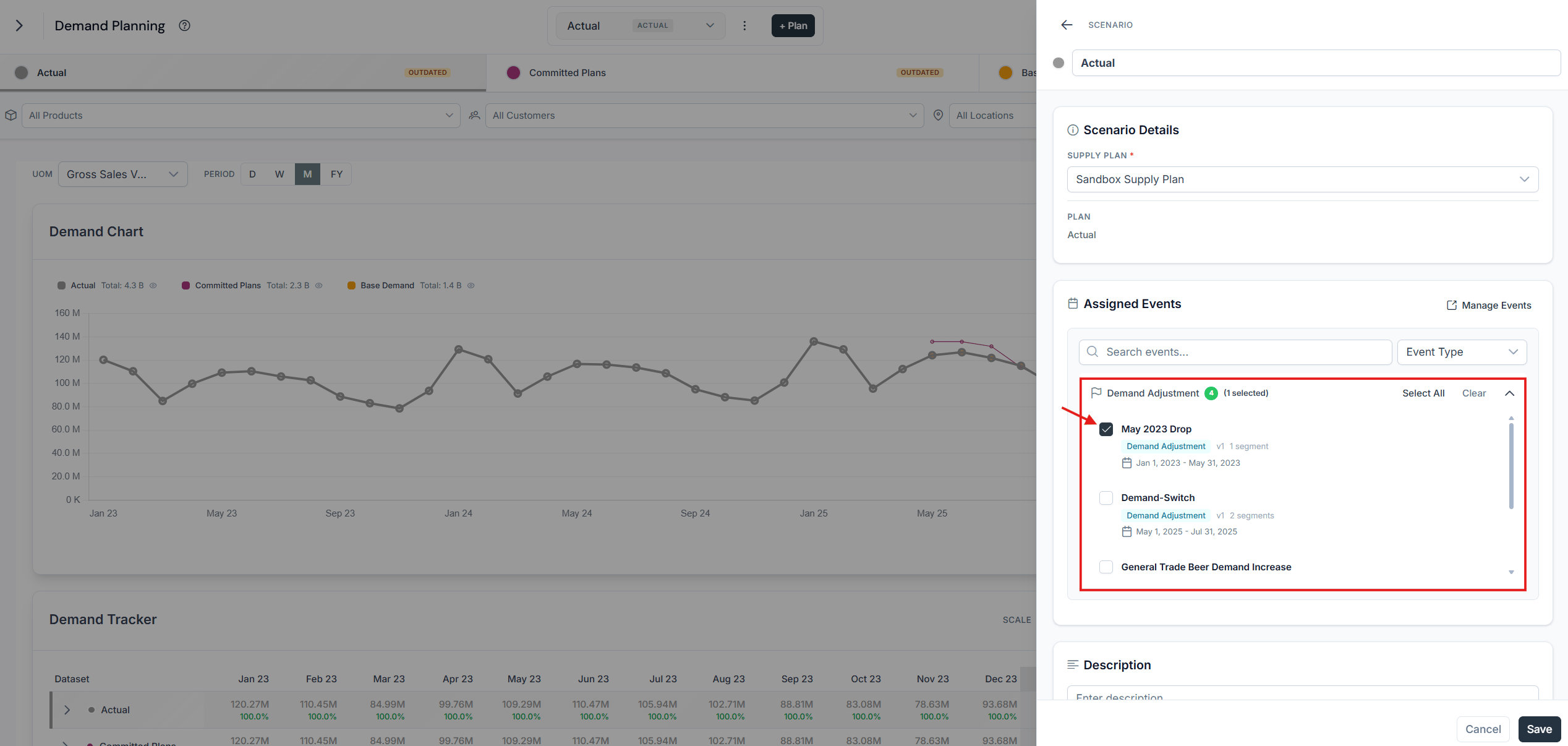
 Select the newly created event **May 2023 drop**, then click **Save**.
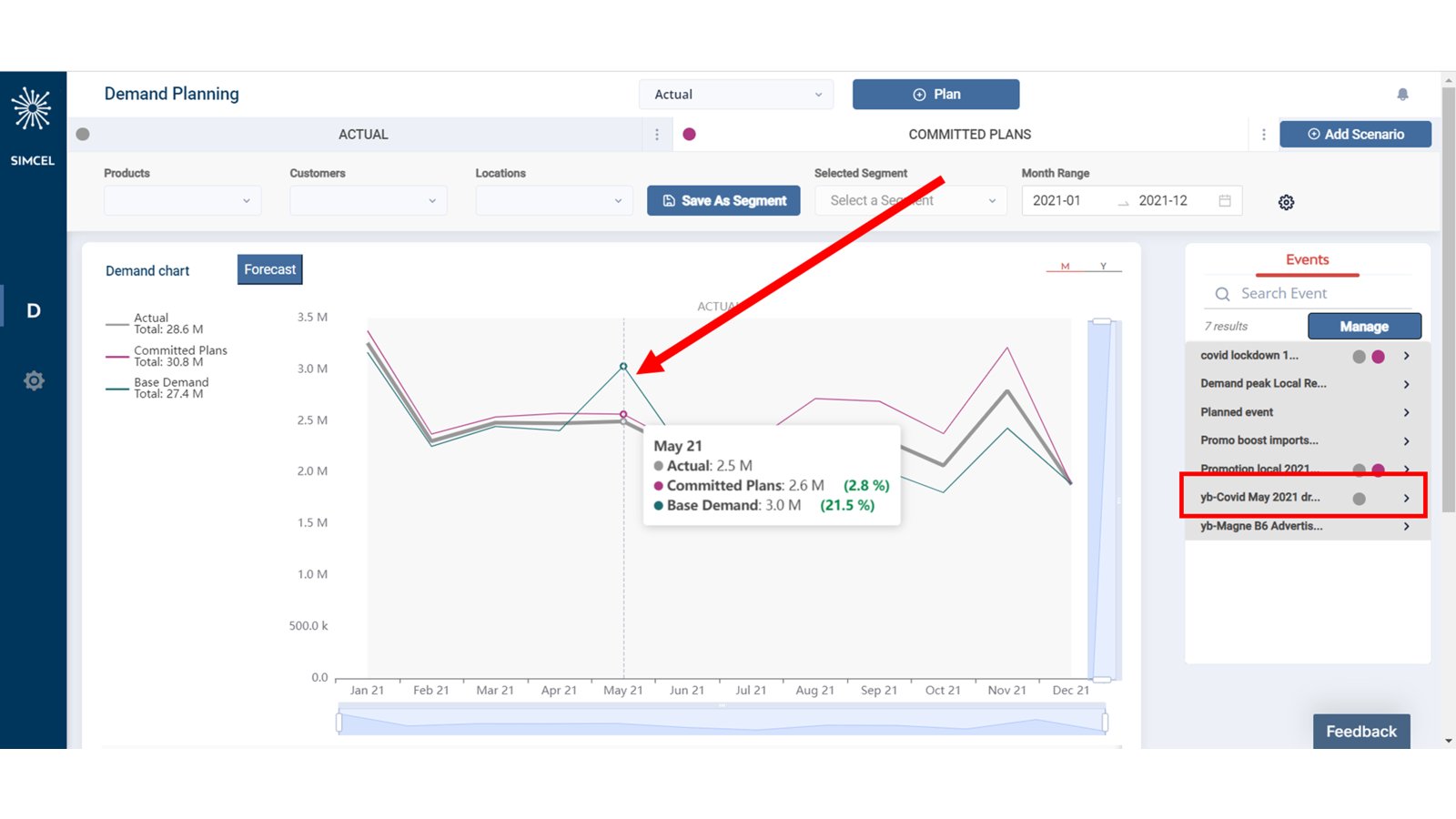
 You have assigned an unplanned event to the Actual plan, and you can already see the change on the Base Demand.
 ## Adjust base demand with realized performance
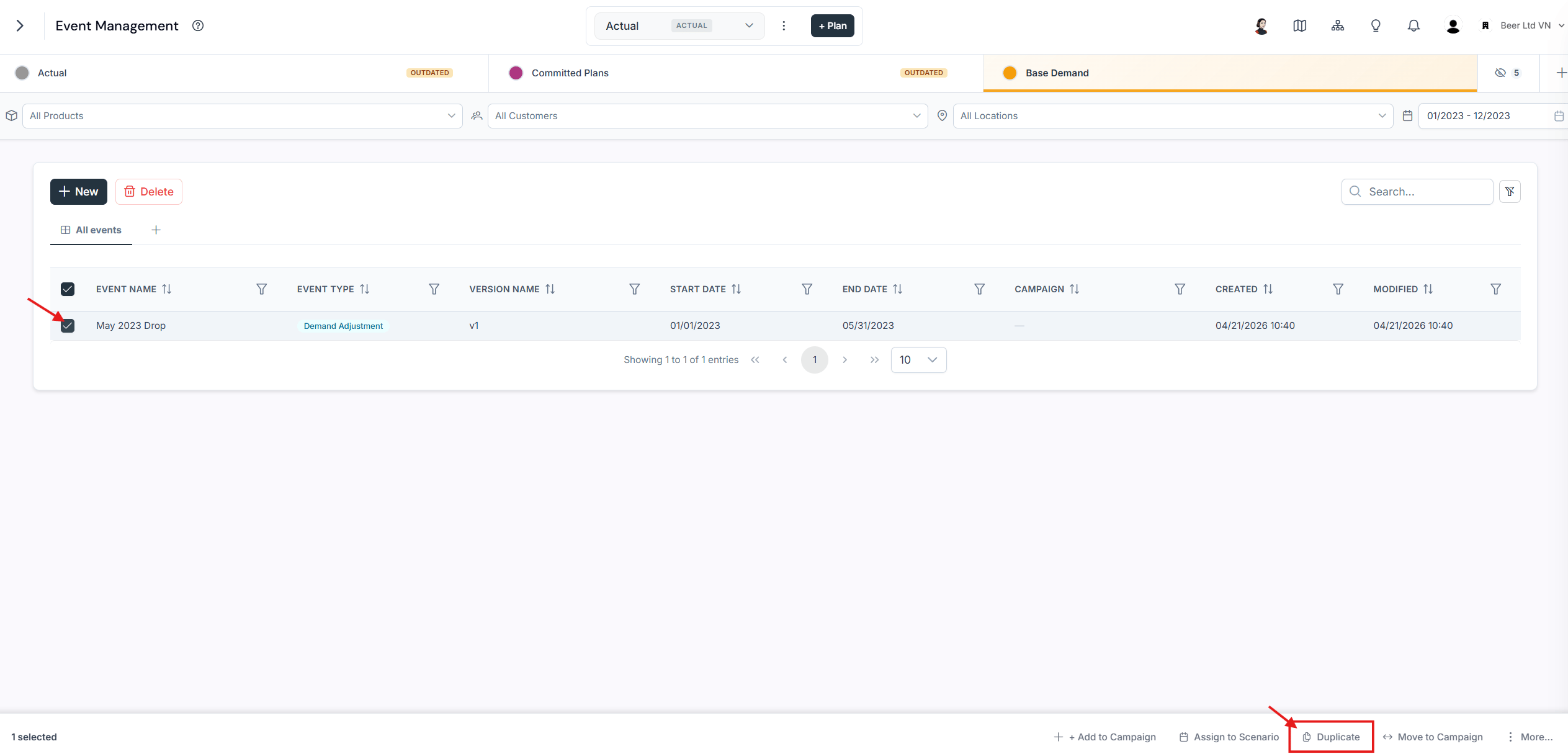
Go back to the Event Management page, expand **May 2023 drop**, and click **Duplicate**.
## Adjust base demand with realized performance
Go back to the Event Management page, expand **May 2023 drop**, and click **Duplicate**.
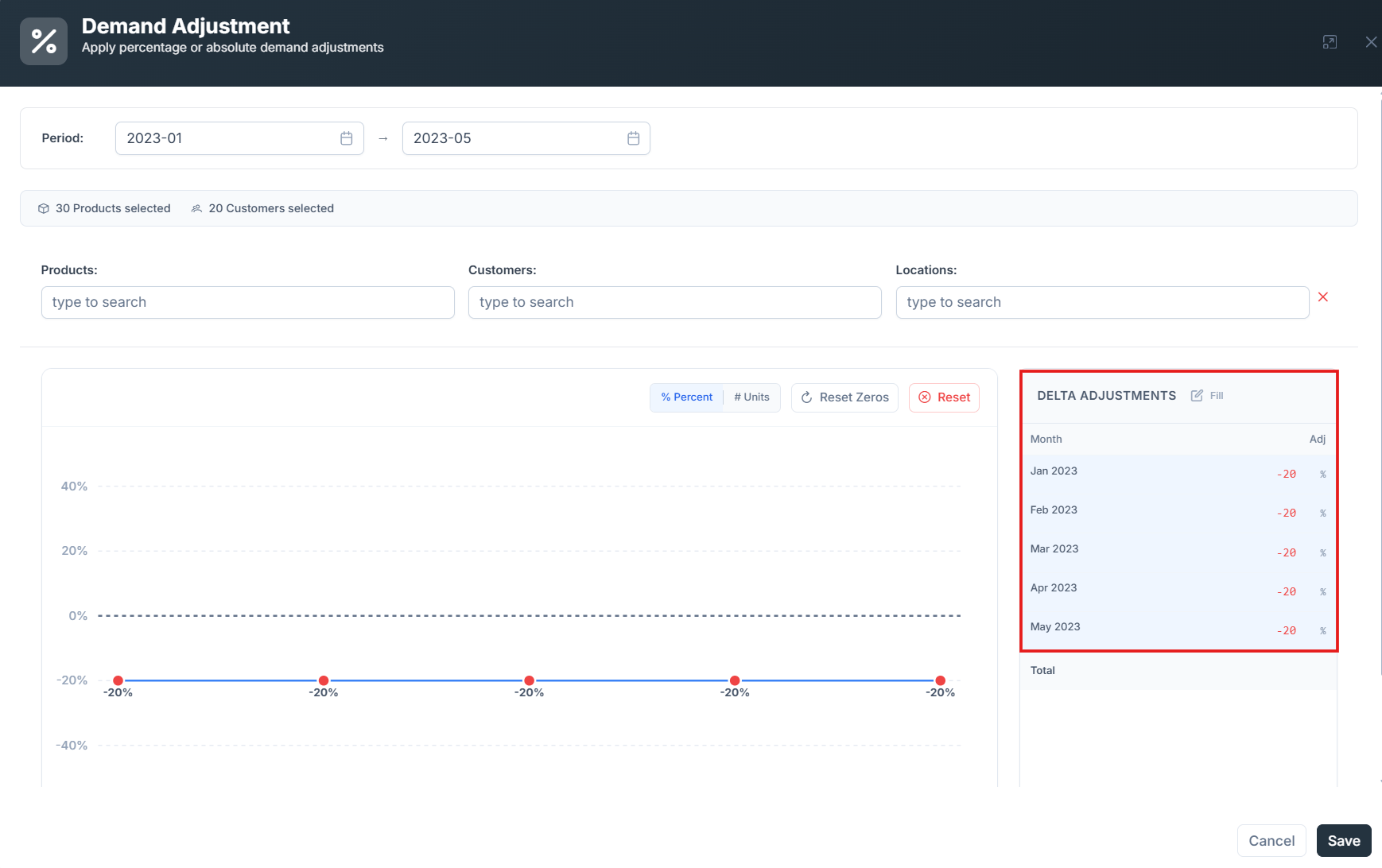
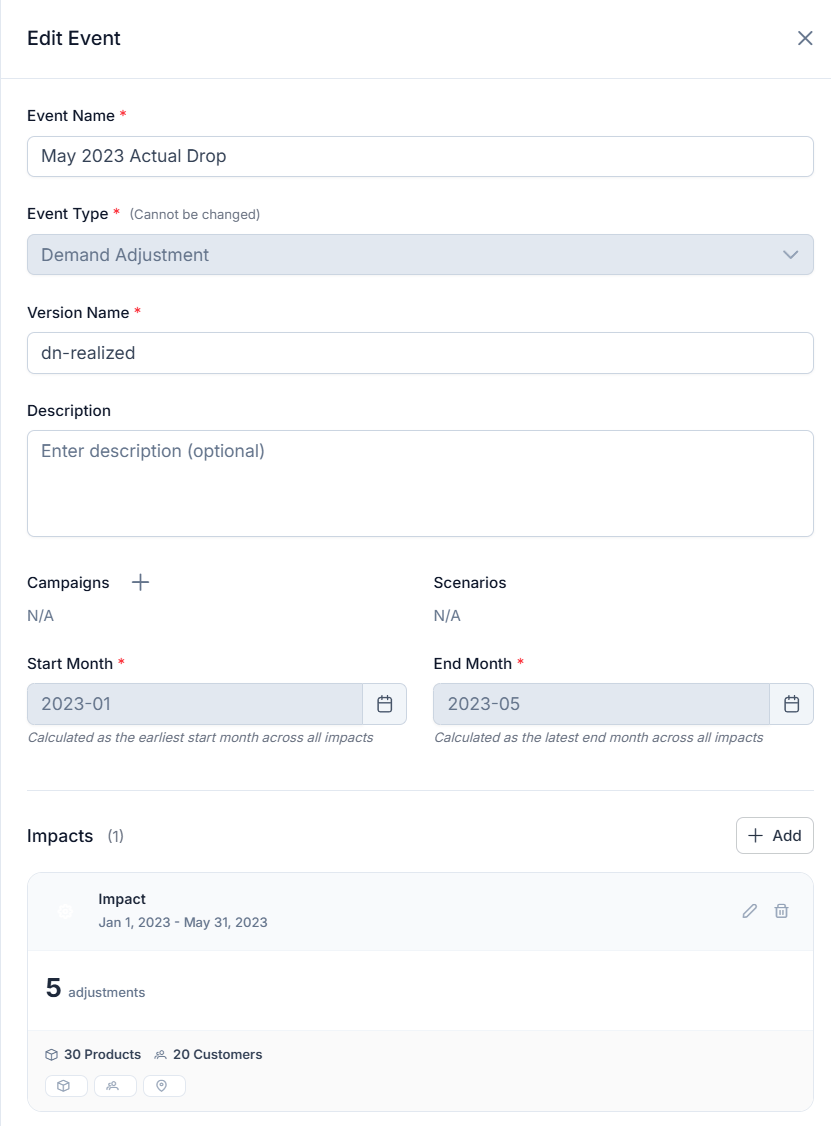
 Edit the version name to **\[user initials]-realized**, set the demand impact to decrease by 20% only, and click **Save**.
 Assign the newly duplicated event to **Actual** and click **Save**.
You have adjusted your Base Demand with the actual performance of a planned trade and marketing event.
Assign the newly duplicated event to **Actual** and click **Save**.
You have adjusted your Base Demand with the actual performance of a planned trade and marketing event.