> ## Documentation Index
> Fetch the complete documentation index at: https://docs.simcel.io/llms.txt
> Use this file to discover all available pages before exploring further.
# Tactical Plan
> Define and manage medium-term plans that drive operational execution in SIMCEL.
## Definitions
### Tactical plan
In supply chain management, a tactical plan is a medium-term plan that outlines the actions and strategies used to achieve the organization's overall supply chain goals and objectives.
Tactical planning typically covers a time frame of six months to two years, and it focuses on implementing the strategic plan.
In SIMCEL, it refers to the plans that are created regularly (weekly, monthly, and so on) and that are used to create the committed plan.
Beyond the tactical plan, SIMCEL also features a **Budget Plan**, or strategic plan, aimed at setting broad business goals across 2 to 5 years and focusing on key areas like brand, channels, and regions.
## Creating a new tactical plan
Click **+ Plan** to open the SIMCEL plan menu.
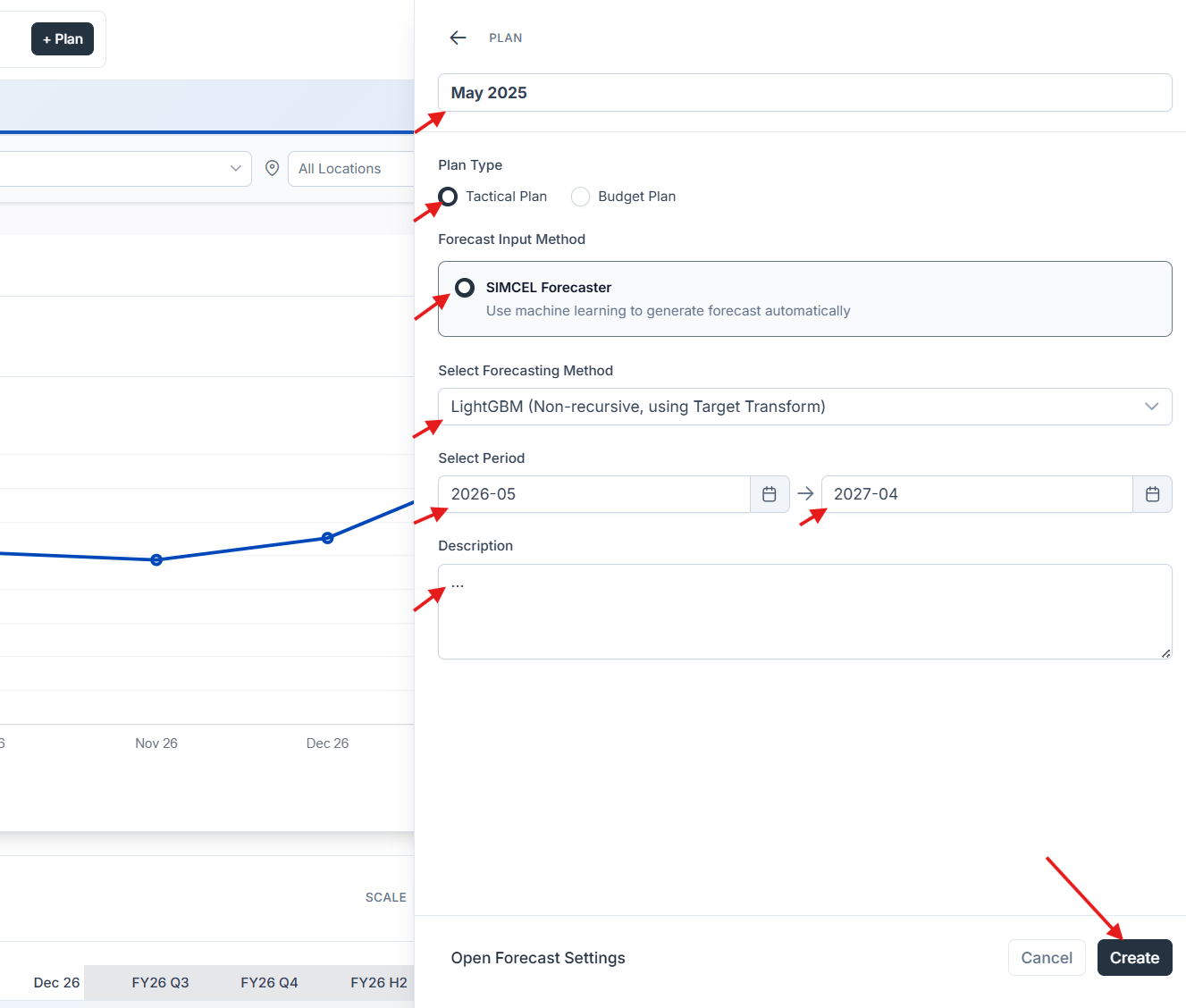
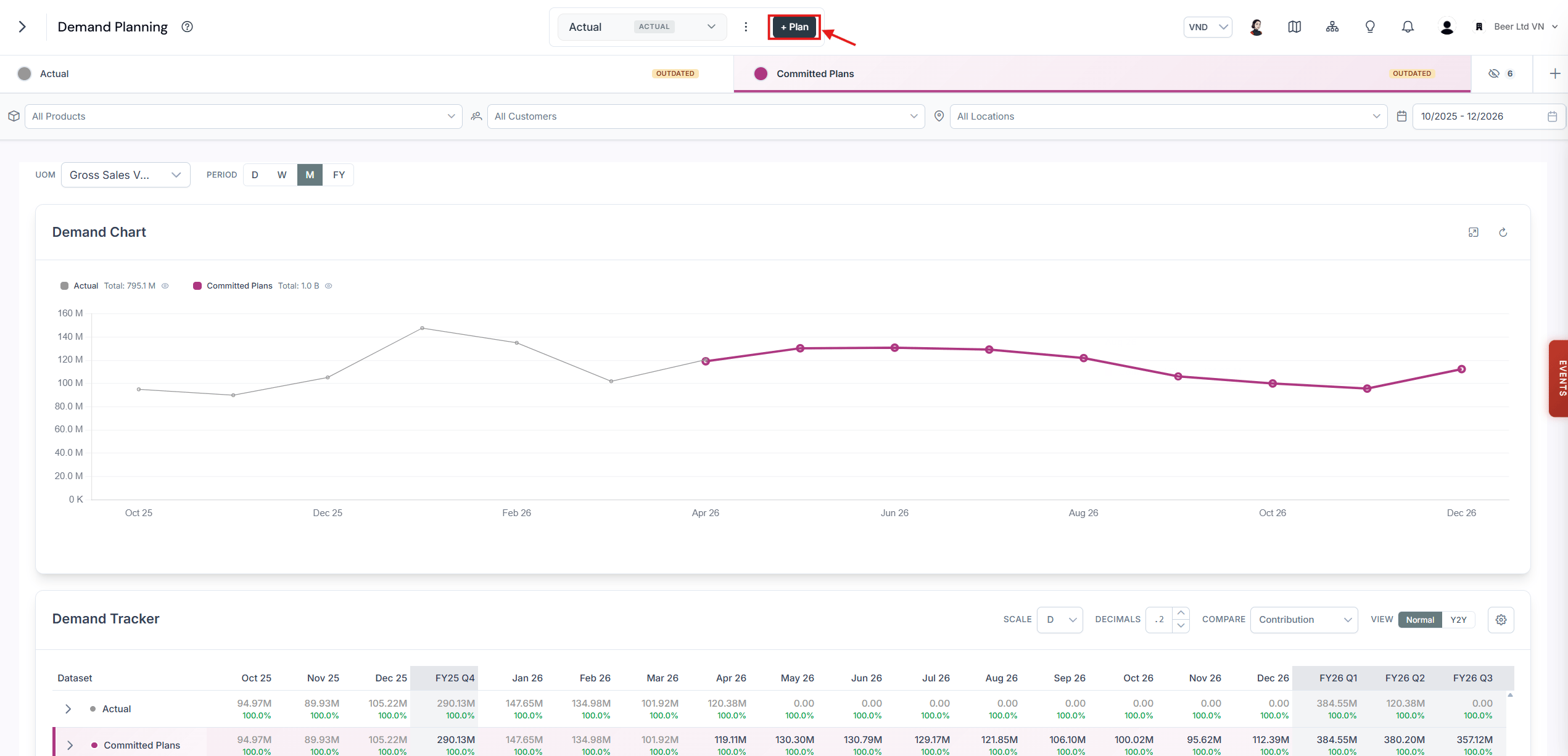 To create a new tactical plan, for example a plan for February 2026:
Set the title of the plan to **Feb 2026**.
Select **Tactical plan**.
Select the forecasting method. You can try the **Light Gradient-Boosting Machine (LightGBM)** method.
Set the **Plan Period** to **Feb 2026 - Jan 2027**.
Add a description. This is optional.
Click **Create**.
To create a new tactical plan, for example a plan for February 2026:
Set the title of the plan to **Feb 2026**.
Select **Tactical plan**.
Select the forecasting method. You can try the **Light Gradient-Boosting Machine (LightGBM)** method.
Set the **Plan Period** to **Feb 2026 - Jan 2027**.
Add a description. This is optional.
Click **Create**.
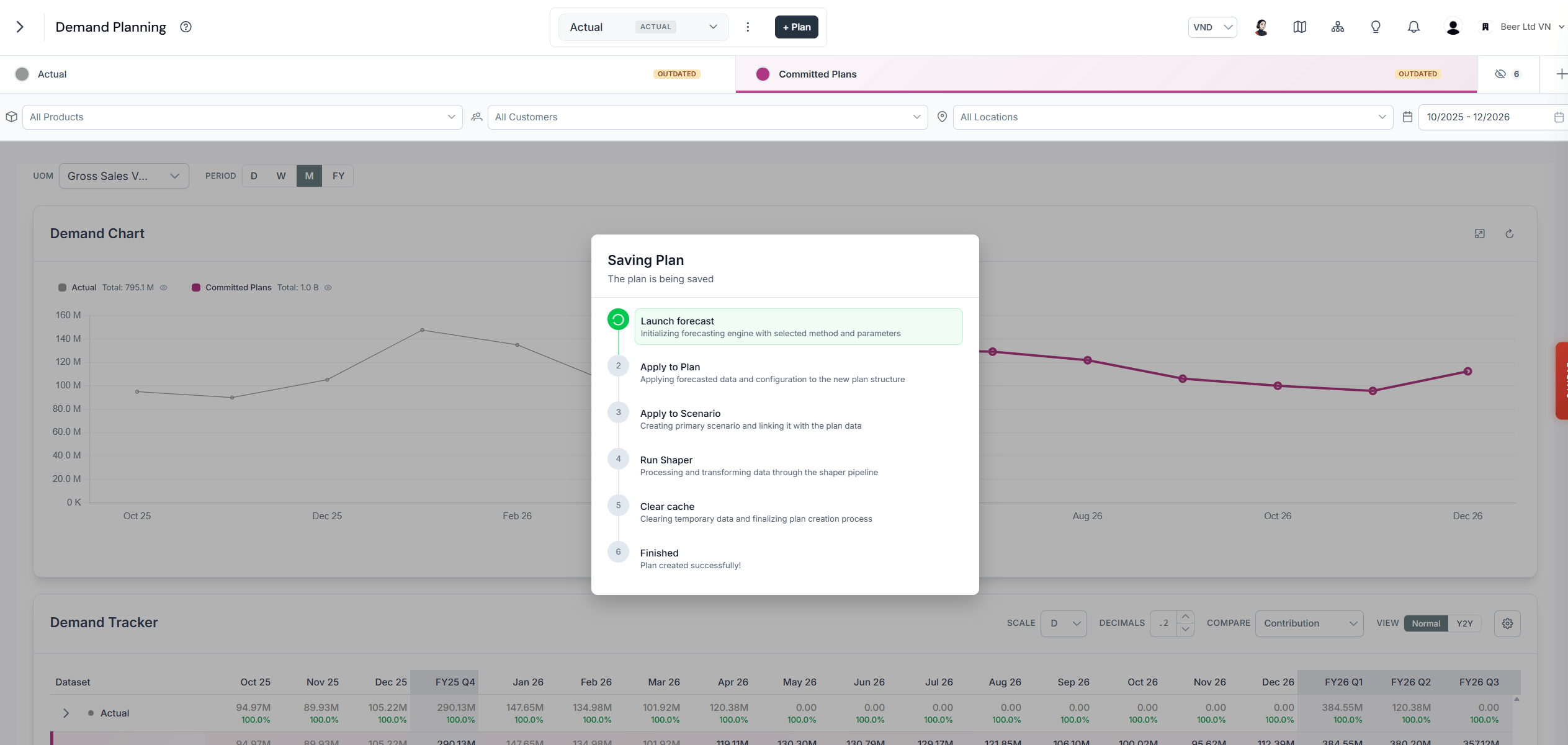
 The screen shows a loading page while the forecaster generates the demand projection for the new plan. This may take a few minutes.
 Once the loading completes, you have successfully created your first plan in SIMCEL to forecast your future demand.
The default scenario displayed is the **Forecast Base**, which shows the unbiased demand projection, free from any event influencing the demand.
Once the loading completes, you have successfully created your first plan in SIMCEL to forecast your future demand.
The default scenario displayed is the **Forecast Base**, which shows the unbiased demand projection, free from any event influencing the demand.
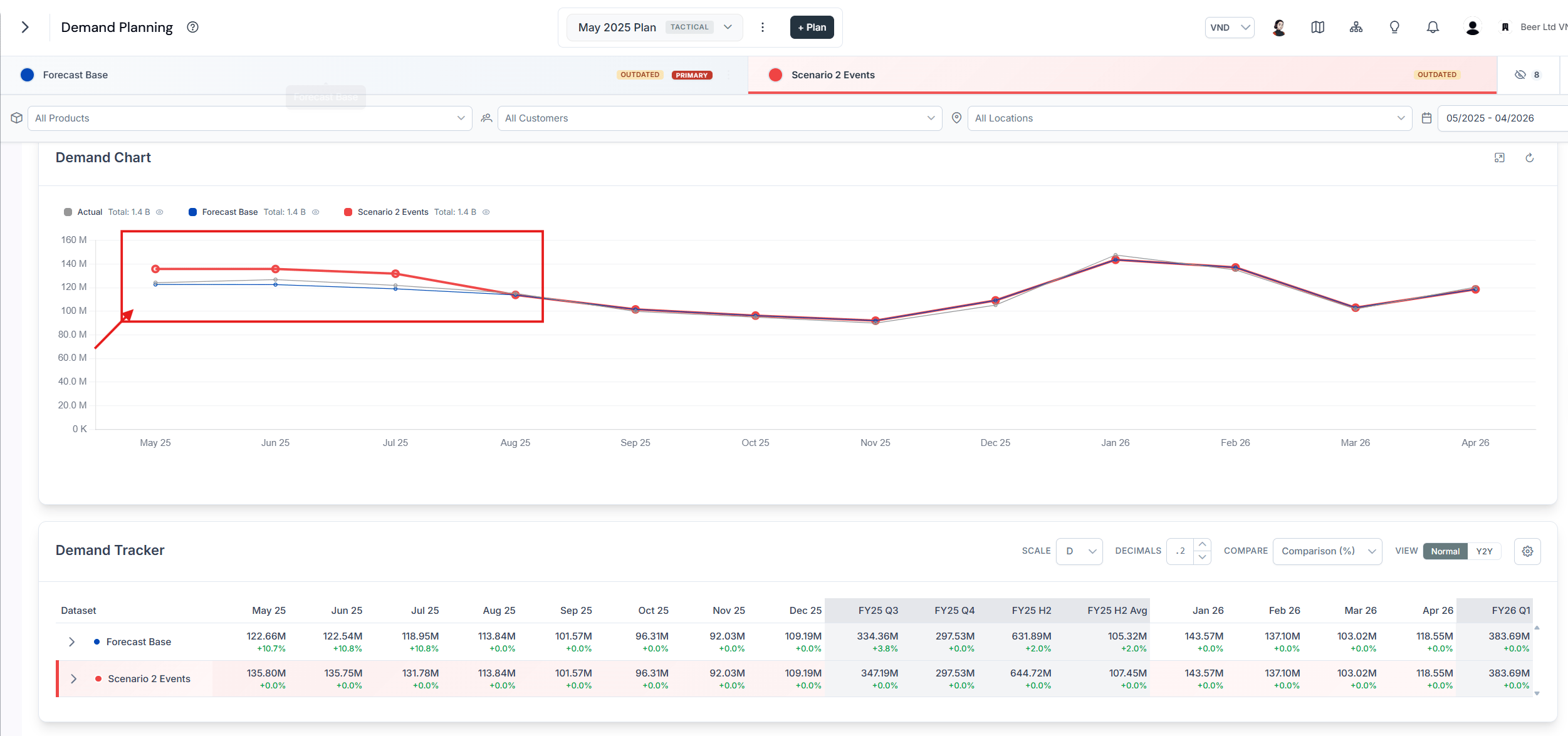
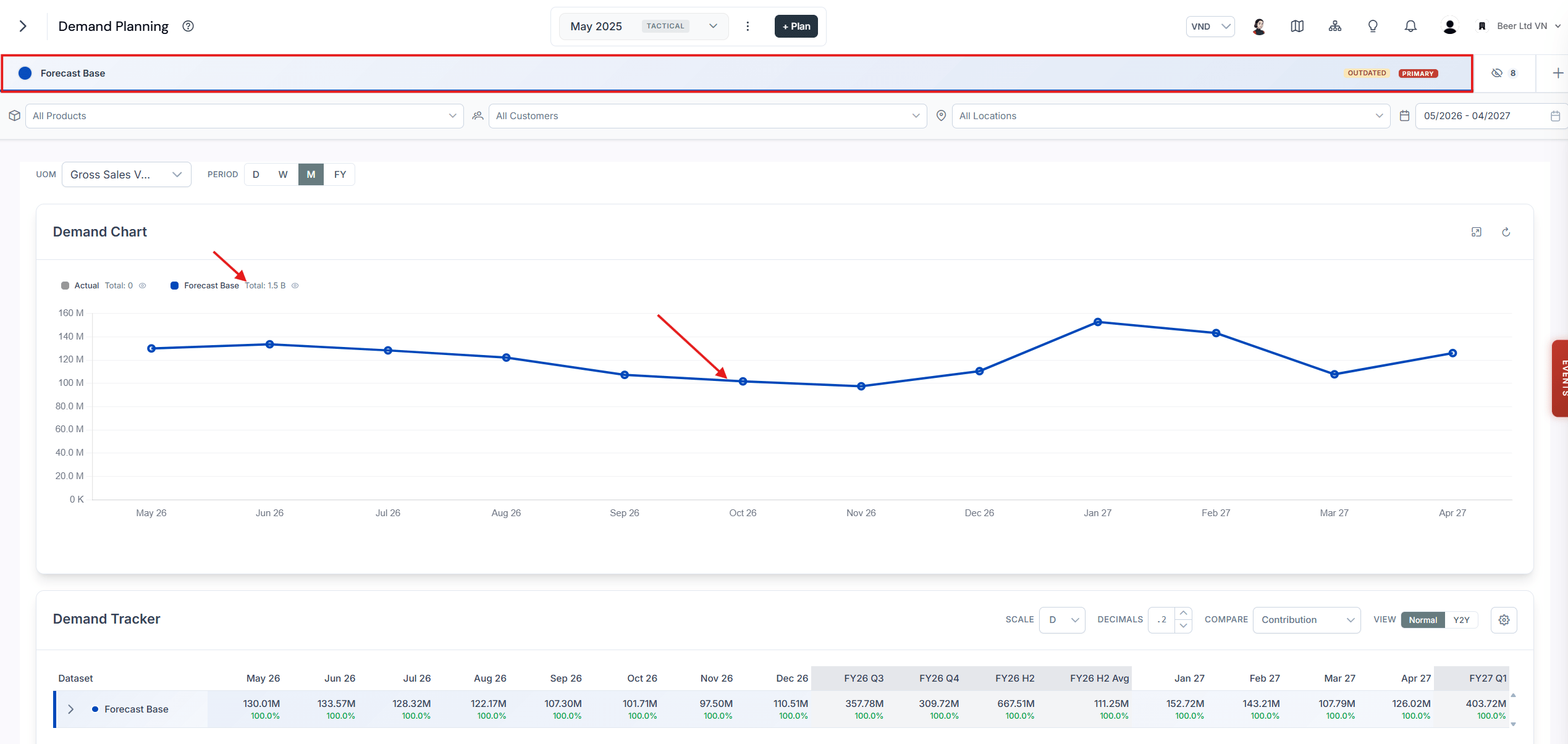 The **Demand Chart** widget shows a line chart with a time series of the demand and the total of the displayed period on the left-hand side for each scenario.
## Filtering events in the event timeline
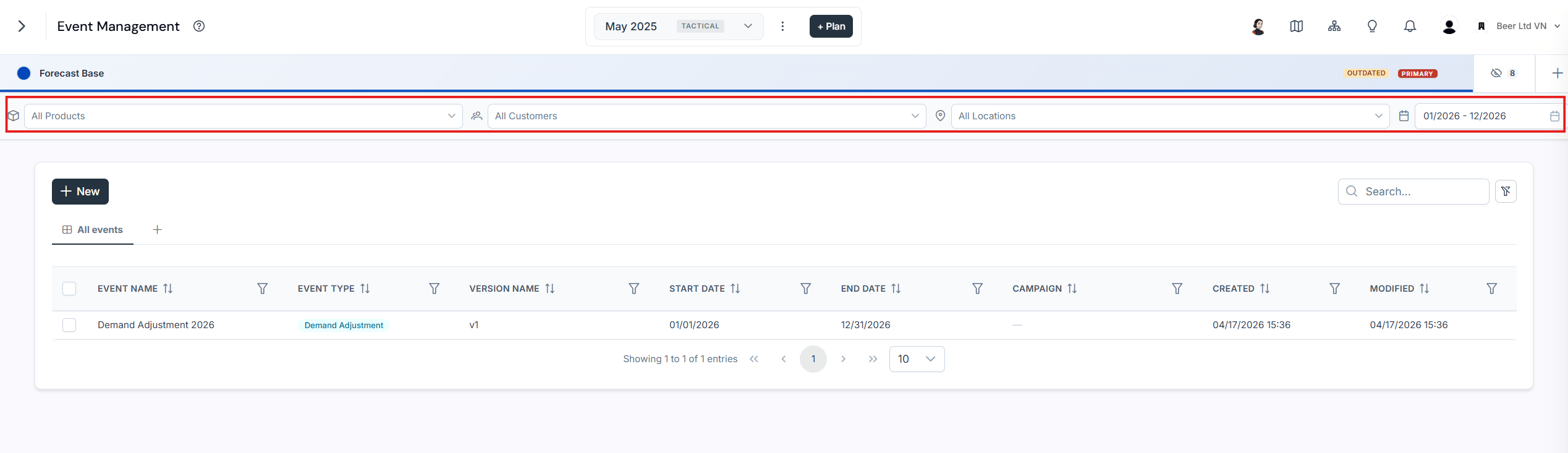
The event timeline provides the same filters as the Demand Planning page. Use them to filter the events based on their impacted segments.
The **Demand Chart** widget shows a line chart with a time series of the demand and the total of the displayed period on the left-hand side for each scenario.
## Filtering events in the event timeline
The event timeline provides the same filters as the Demand Planning page. Use them to filter the events based on their impacted segments.
 ## Create a future demand planning scenario
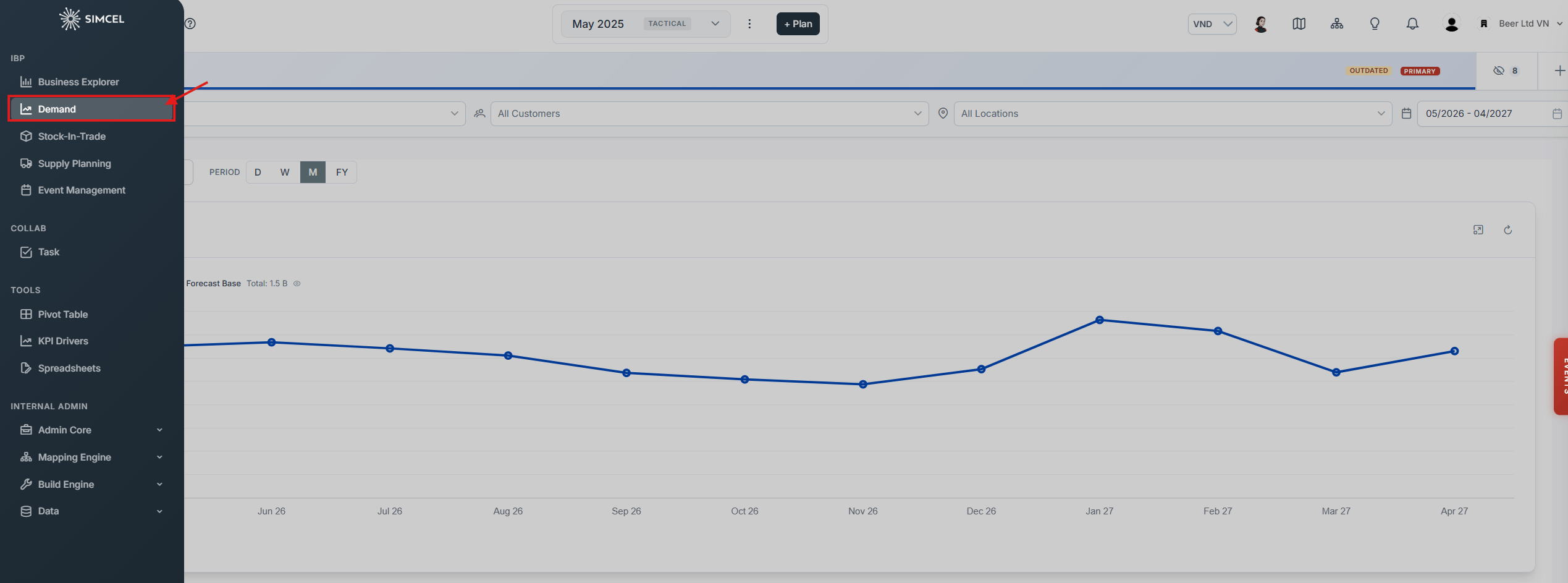 Open the **Event Management** page in the left panel and create your demand planning events.
### Create an event with one impact on sub-segments
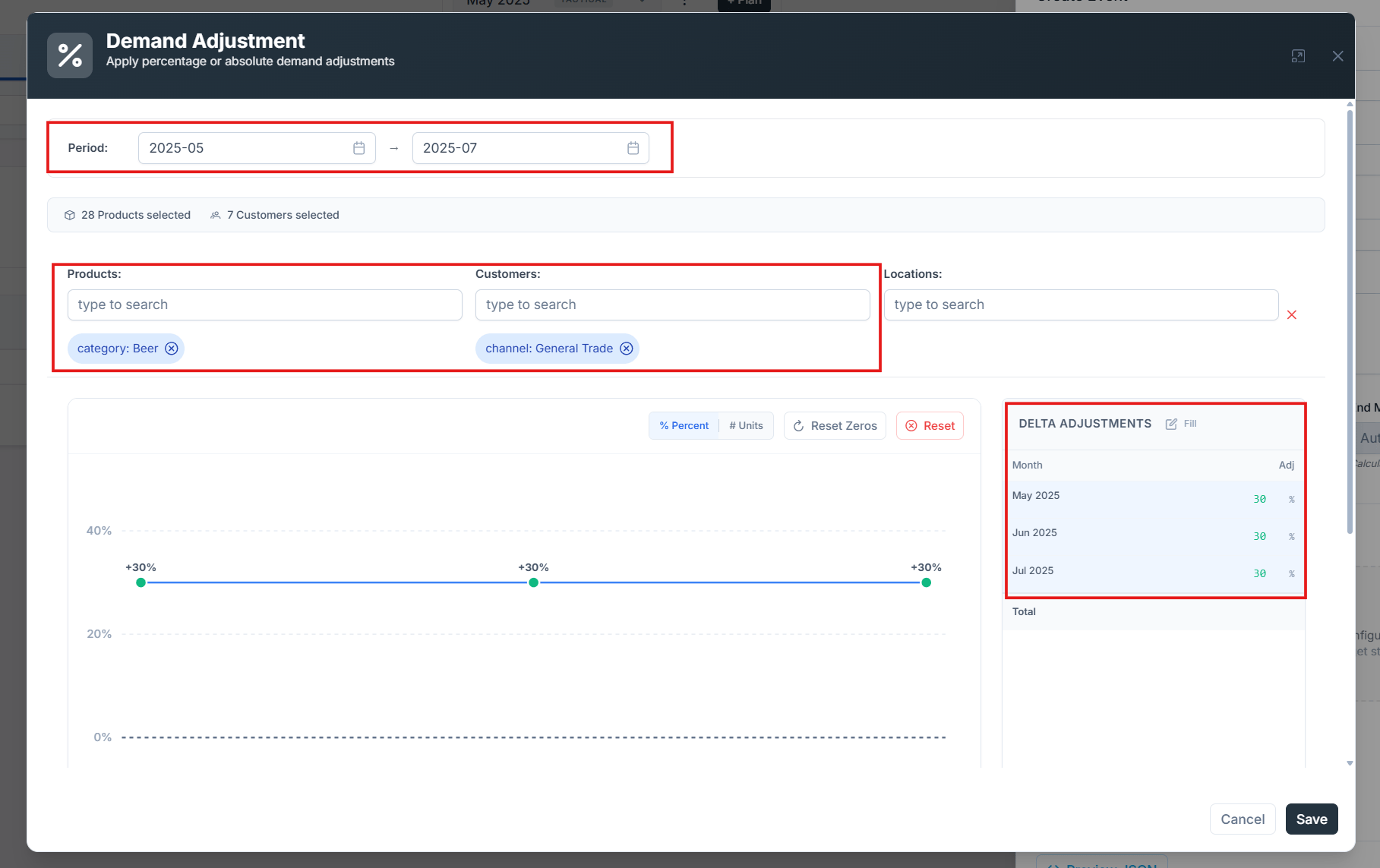
Suppose you want to create an event where the demand of all beer products on the General Trade channel increases by 30% for the **Beer** category on the **General Trade** channel.
Name the new event **General Trade Beer Demand Increase**.
Select **Demand Adjustment**.
Name the version **V1**.
Select the period from **May 2025** to **July 2025**.
In the product search box, type and select **Beer**.
In the customer search box, type and select the **General Trade** channel.
In the **Adjustment on Demand** section, select **Increase** and set it to **30%**.
Save the event.
Open the **Event Management** page in the left panel and create your demand planning events.
### Create an event with one impact on sub-segments
Suppose you want to create an event where the demand of all beer products on the General Trade channel increases by 30% for the **Beer** category on the **General Trade** channel.
Name the new event **General Trade Beer Demand Increase**.
Select **Demand Adjustment**.
Name the version **V1**.
Select the period from **May 2025** to **July 2025**.
In the product search box, type and select **Beer**.
In the customer search box, type and select the **General Trade** channel.
In the **Adjustment on Demand** section, select **Increase** and set it to **30%**.
Save the event.
 ### Create an event with multiple impacts on multiple segments
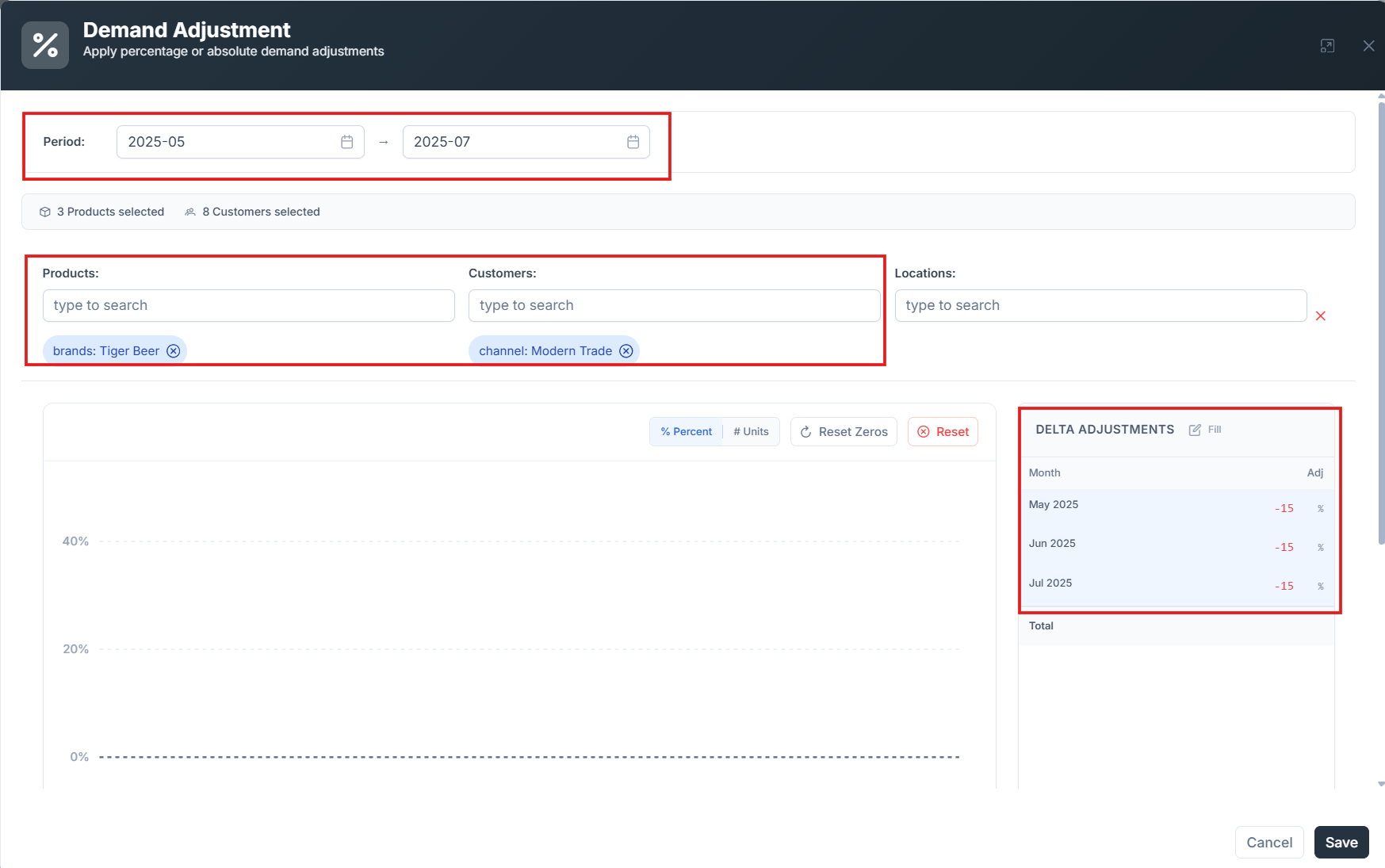
Suppose you want to create an event where the demand for Tiger Beer switches to Hanoi Beer in the Modern Trade channel:
* Decrease the demand by **15%** for the product **Tiger Beer** on the **Modern Trade** channel.
* Increase the demand by **12%** for the product **Hanoi Beer** on the **Modern Trade** channel.
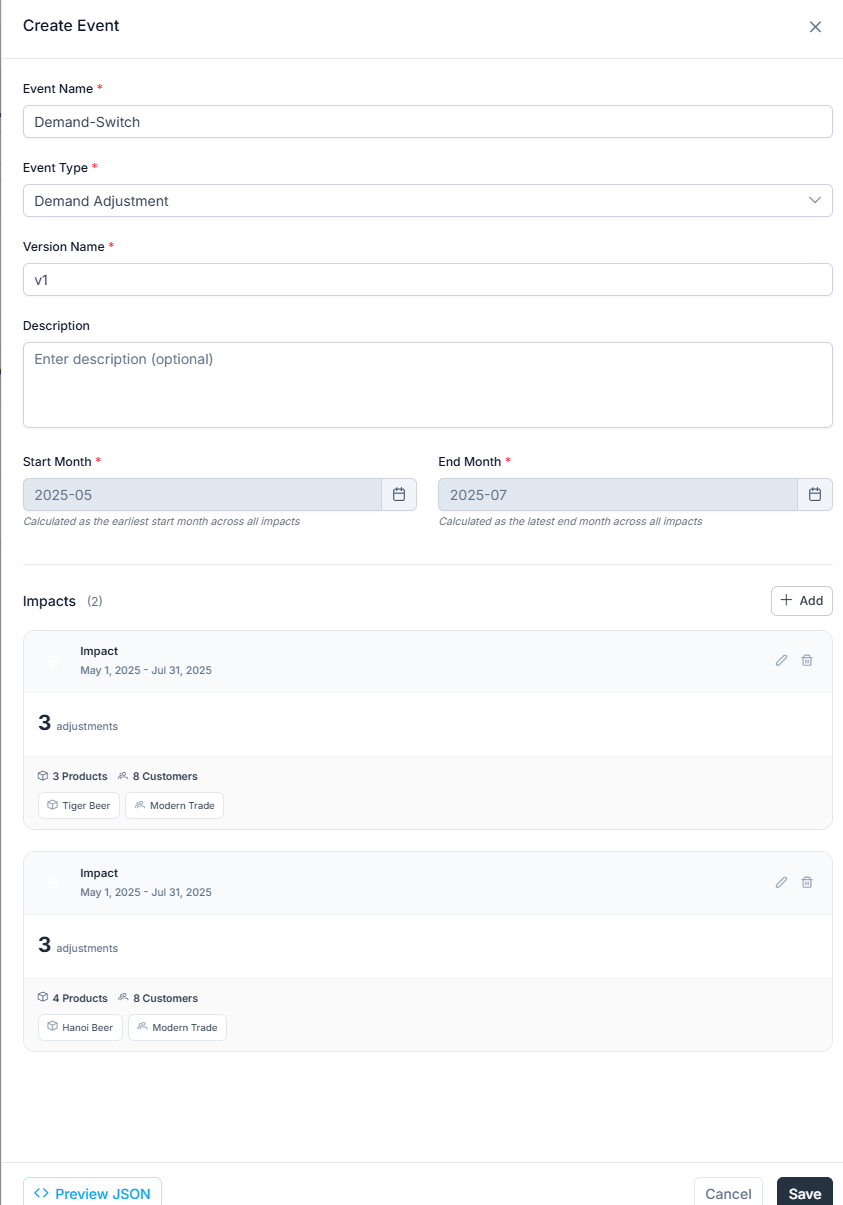
Name the new event **Demand-Switch**, select **Demand Adjustment** as the event type, and name the version **V1**.
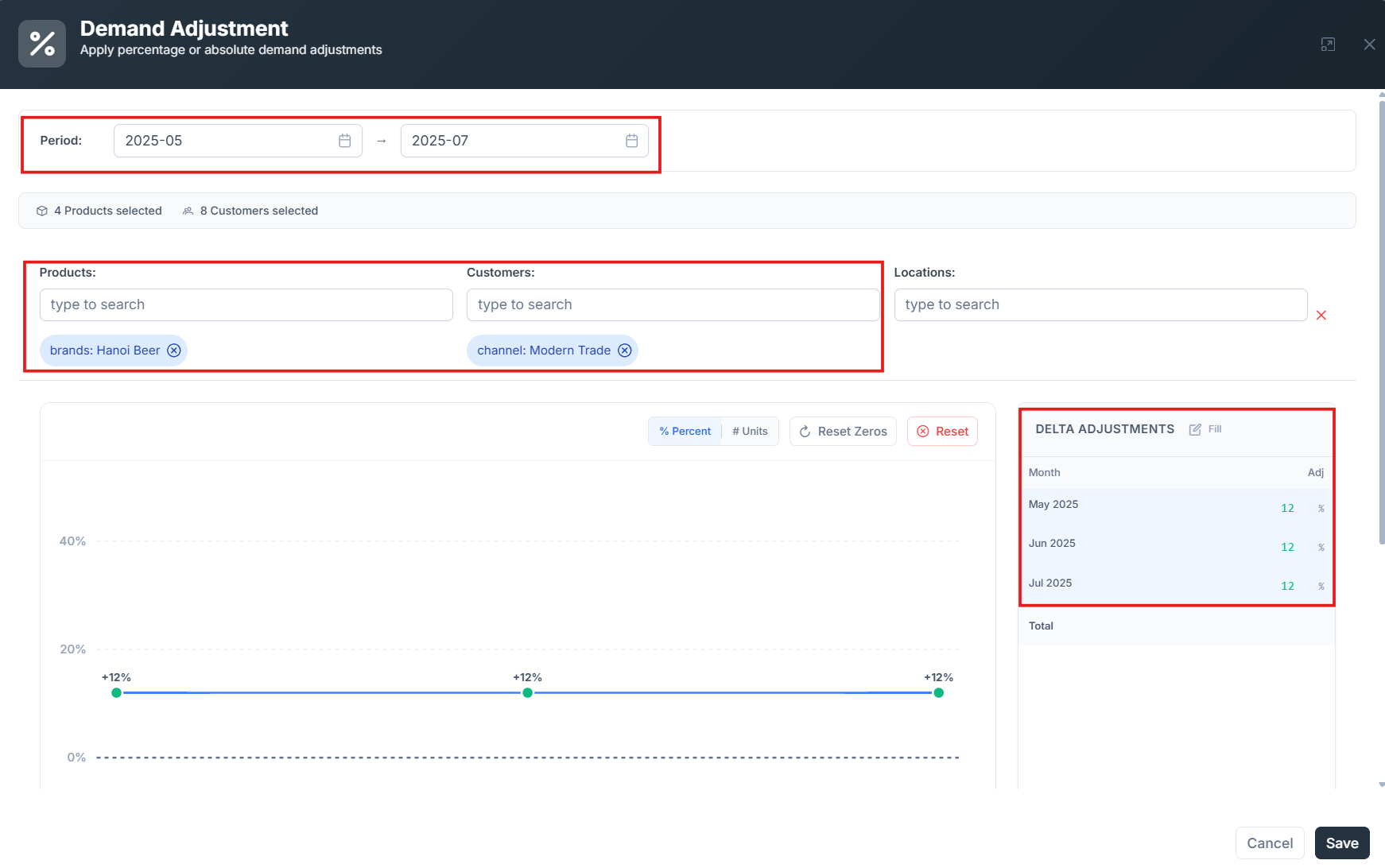
In the product search box, type and select **Tiger Beer**. In the customer search box, type and select the **Modern Trade** channel. In the **Delta Adjustments** section, set the value to **-15%**. Select the period from **May 2025** to **Jul 2025**, then click **Save**.
Click **Add Impact**. In the new box, type and select **Hanoi Beer** in the product search box, and the **Modern Trade** channel in the customer search box. In the **Delta Adjustment** section, set the value to **12%**, and select the period from **May 2025** to **Jul 2025**.
Save the event.
### Create an event with multiple impacts on multiple segments
Suppose you want to create an event where the demand for Tiger Beer switches to Hanoi Beer in the Modern Trade channel:
* Decrease the demand by **15%** for the product **Tiger Beer** on the **Modern Trade** channel.
* Increase the demand by **12%** for the product **Hanoi Beer** on the **Modern Trade** channel.
Name the new event **Demand-Switch**, select **Demand Adjustment** as the event type, and name the version **V1**.
In the product search box, type and select **Tiger Beer**. In the customer search box, type and select the **Modern Trade** channel. In the **Delta Adjustments** section, set the value to **-15%**. Select the period from **May 2025** to **Jul 2025**, then click **Save**.
Click **Add Impact**. In the new box, type and select **Hanoi Beer** in the product search box, and the **Modern Trade** channel in the customer search box. In the **Delta Adjustment** section, set the value to **12%**, and select the period from **May 2025** to **Jul 2025**.
Save the event.
 ### Create a scenario with one or multiple trade and marketing events
Add the events above to a new scenario called **Scenario 2 Events**.
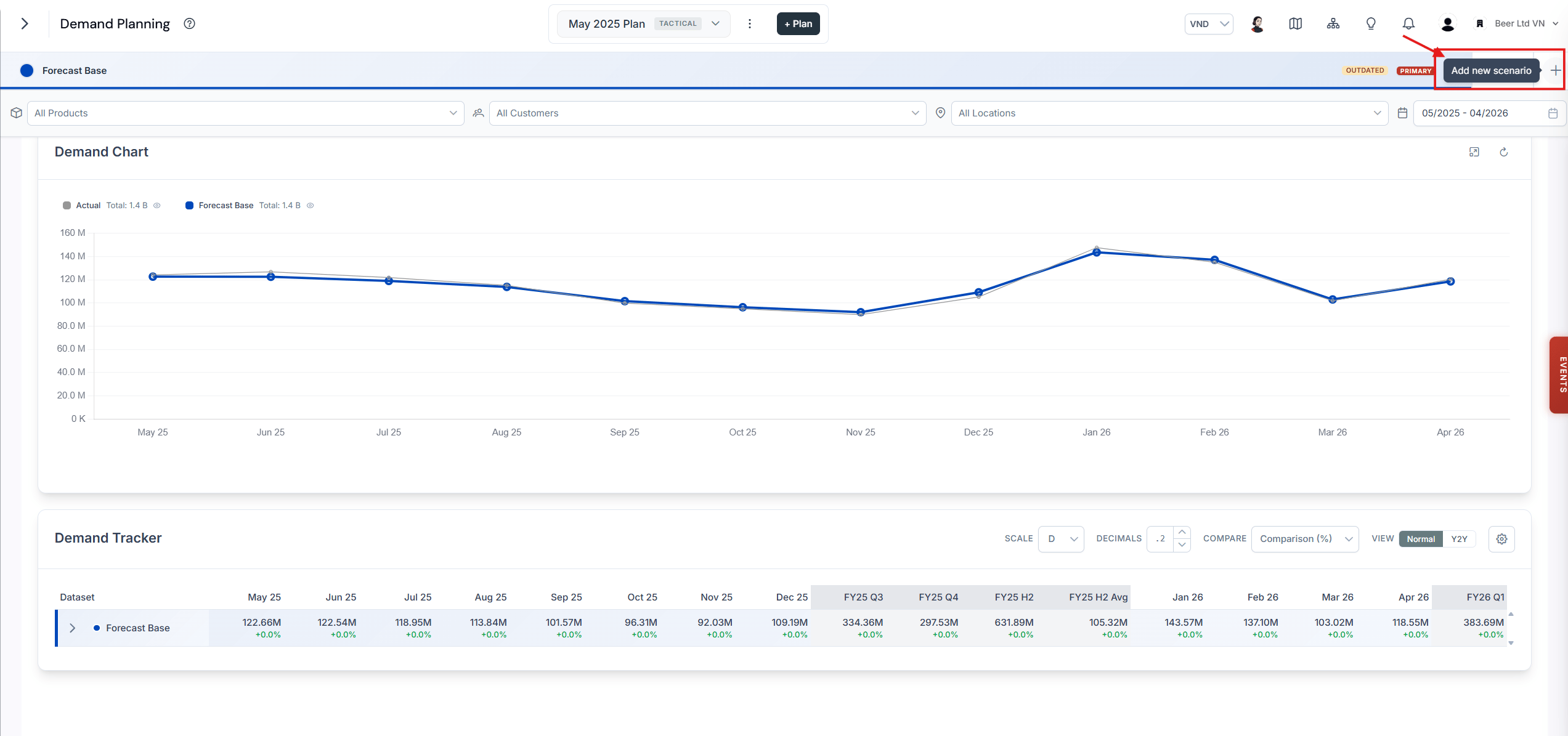
Go back to the Demand Planning page, click **Add Scenario**, then click **Create a new Scenario**.
### Create a scenario with one or multiple trade and marketing events
Add the events above to a new scenario called **Scenario 2 Events**.
Go back to the Demand Planning page, click **Add Scenario**, then click **Create a new Scenario**.
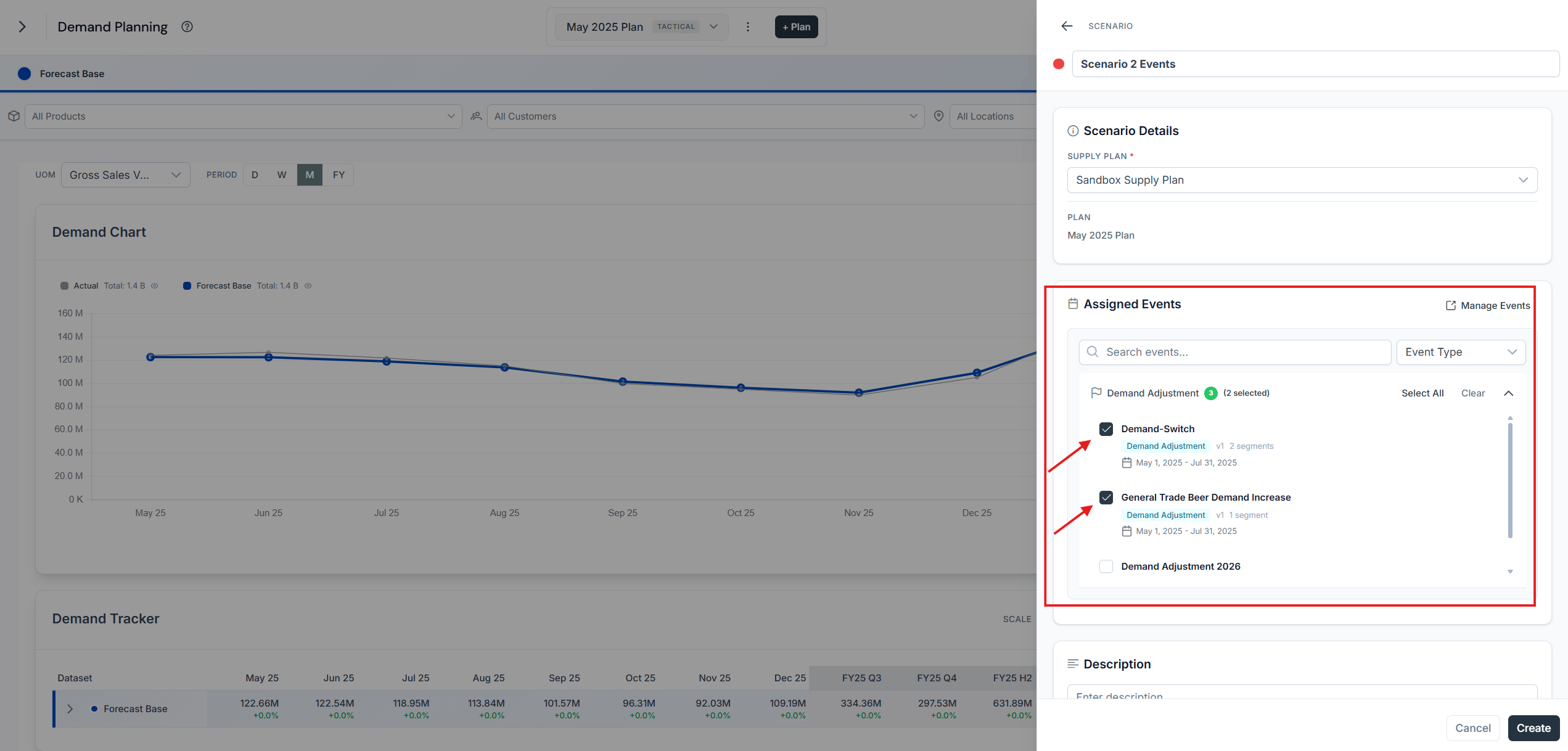
 Set the name of the scenario to **Scenario 2 Events**.
Select the event versions **General Trade Beer Demand Increase** and **Demand-Switch**.
Click **Save**.
Set the name of the scenario to **Scenario 2 Events**.
Select the event versions **General Trade Beer Demand Increase** and **Demand-Switch**.
Click **Save**.
 The events are now reflected in the scenario's demand.
 ## Select a scenario to be the execution plan
This section guides you through converting a scenario of your choice into a plan that is used as the reference for the entire business.
Click the three dots menu icon and select **Make Primary**.
## Select a scenario to be the execution plan
This section guides you through converting a scenario of your choice into a plan that is used as the reference for the entire business.
Click the three dots menu icon and select **Make Primary**.
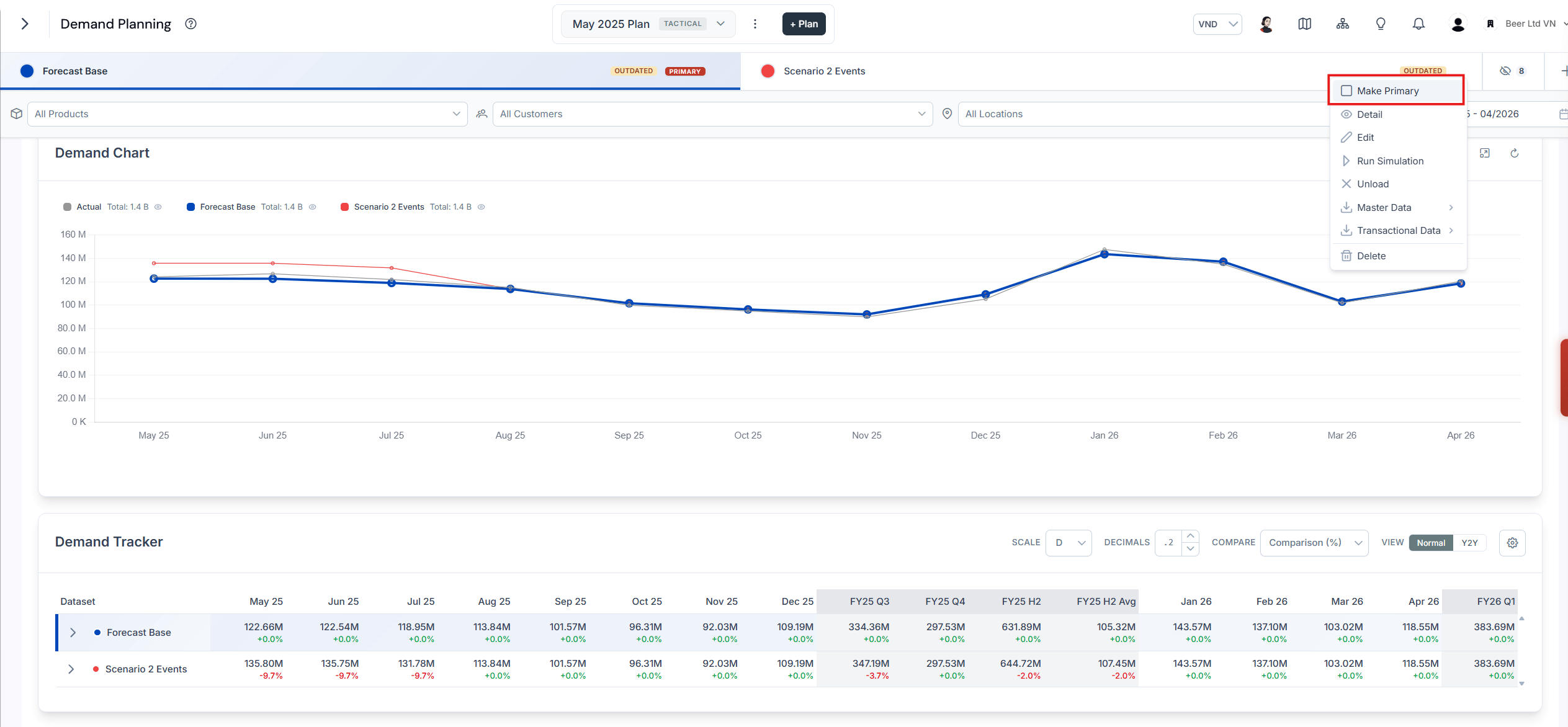 Once you have successfully selected the scenario as the execution plan, a **Primary** tag appears.
