> ## Documentation Index
> Fetch the complete documentation index at: https://docs.simcel.io/llms.txt
> Use this file to discover all available pages before exploring further.
# Spreadsheets
> An in-app spreadsheet editor wired into SIMCEL's planning model, with templates, MASTER() matching, and the Lana AI assistant.
## Overview
**SIMCEL Sheets** is an in-app spreadsheet editor built for supply chain work. It looks and behaves like a familiar spreadsheet, but it is wired into SIMCEL's planning model, so the data you enter can feed directly into plans, scenarios, and events without leaving the platform.
What sets it apart from a generic spreadsheet:
* **Templates** - pre-structured layouts for specific purposes (forecast input, pricing adjustments, scenario overrides). A template knows what data format is expected and how to submit it.
* **SIMCEL formulas** - a `MASTER()` formula that fuzzy-matches free text (product, customer, or location names) against your workspace's master data.
* **Lana AI assistant** - an embedded assistant that can read selected cells, understand the template, and suggest values.
* **Match to Master** - a workflow to map raw text values to canonical SIMCEL records.
* **System sheets** - certain templates become first-class objects in the planning model. For example, a validated Forecast Input sheet becomes a selectable data source in the Plan Drawer.
You will find Spreadsheets under the **Tools** section in the left sidebar.
## What is a SIMCEL Sheet?
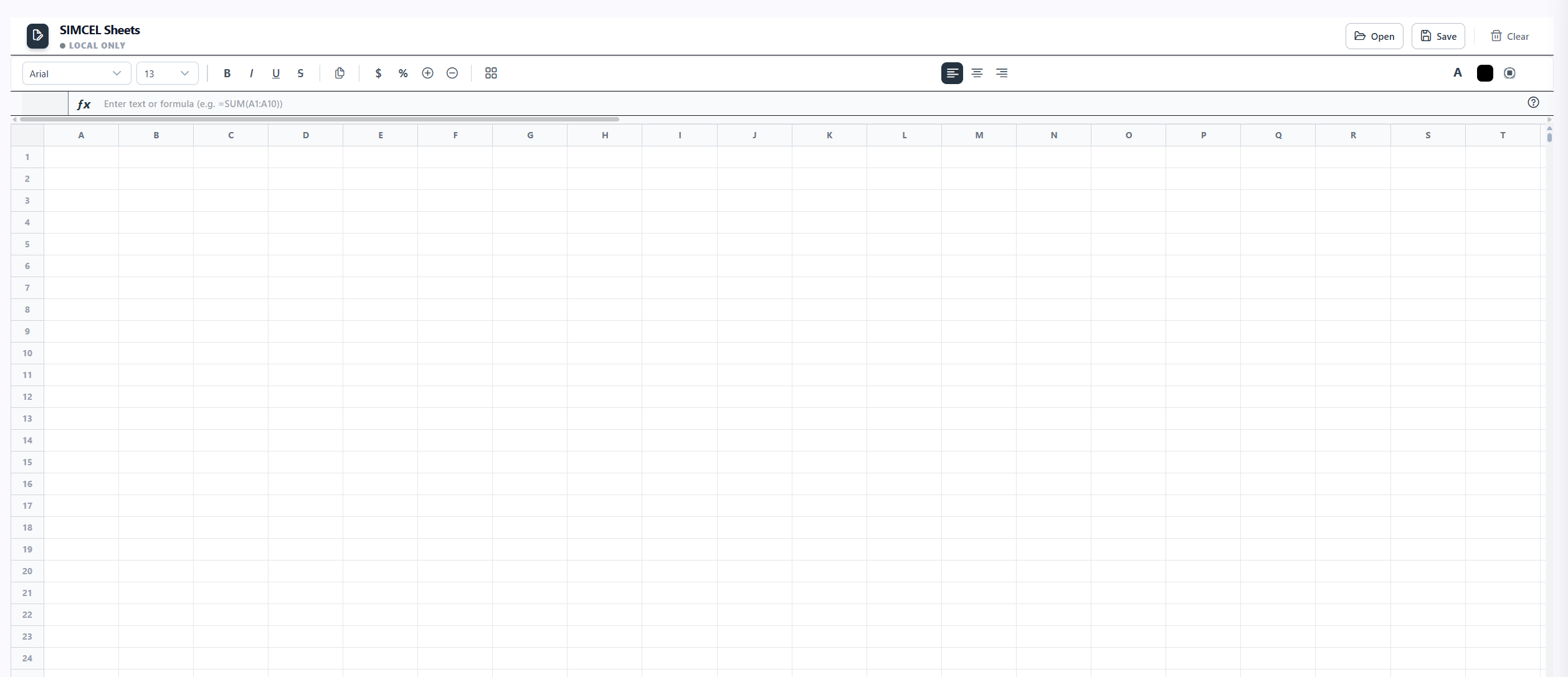 A SIMCEL Sheet is a grid of cells (rows x columns A-Z). Each cell can hold:
* **Plain text or numbers** - displayed as entered.
* **A formula** - prefixed with `=`, evaluated automatically and shown as the computed result.
* **Formatting** - bold, italic, font size, alignment, number format, colors, and borders.
Sheets are named documents saved to your workspace, and can optionally be linked to a plan or scenario for downstream use.
## Navigation and editing
### Grid interactions
A SIMCEL Sheet is a grid of cells (rows x columns A-Z). Each cell can hold:
* **Plain text or numbers** - displayed as entered.
* **A formula** - prefixed with `=`, evaluated automatically and shown as the computed result.
* **Formatting** - bold, italic, font size, alignment, number format, colors, and borders.
Sheets are named documents saved to your workspace, and can optionally be linked to a plan or scenario for downstream use.
## Navigation and editing
### Grid interactions
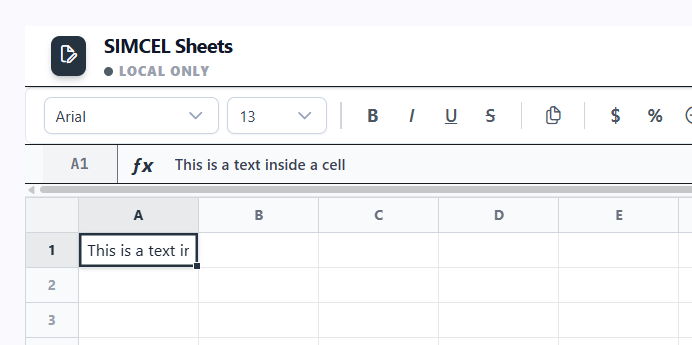 * **Select a cell** - click. **Select a range** - click and drag, or Shift+click. **Select a whole column or row** - click its header.
* **Edit a cell** - start typing to overwrite (Excel-style), or press F2 to edit without clearing.
* **Confirm and move** - Enter moves down, Tab moves right. Escape cancels the edit.
* **Navigate** - arrow keys when not editing.
### Toolbar
* **Select a cell** - click. **Select a range** - click and drag, or Shift+click. **Select a whole column or row** - click its header.
* **Edit a cell** - start typing to overwrite (Excel-style), or press F2 to edit without clearing.
* **Confirm and move** - Enter moves down, Tab moves right. Escape cancels the edit.
* **Navigate** - arrow keys when not editing.
### Toolbar
 The toolbar above the formula bar handles cell formatting:
* **Font family and size** - drop-down selectors.
* **Bold / Italic / Underline / Strikethrough** - toggle buttons that reflect the active cell's state.
* **Text alignment** - left, center, right.
* **Number format** - currency (\$), percentage (%), and increase/decrease decimal places.
* **Text and background color** - color pickers.
* **Borders** - a menu for all borders, outside, individual sides, or none.
* **Format painter** - copy formatting from one cell and apply it to another cell or range.
### Formula bar
The toolbar above the formula bar handles cell formatting:
* **Font family and size** - drop-down selectors.
* **Bold / Italic / Underline / Strikethrough** - toggle buttons that reflect the active cell's state.
* **Text alignment** - left, center, right.
* **Number format** - currency (\$), percentage (%), and increase/decrease decimal places.
* **Text and background color** - color pickers.
* **Borders** - a menu for all borders, outside, individual sides, or none.
* **Format painter** - copy formatting from one cell and apply it to another cell or range.
### Formula bar
 The formula bar shows the raw value (formula or text) of the active cell. Editing here is the same as editing in the cell.
### Fill handle
The formula bar shows the raw value (formula or text) of the active cell. Editing here is the same as editing in the cell.
### Fill handle
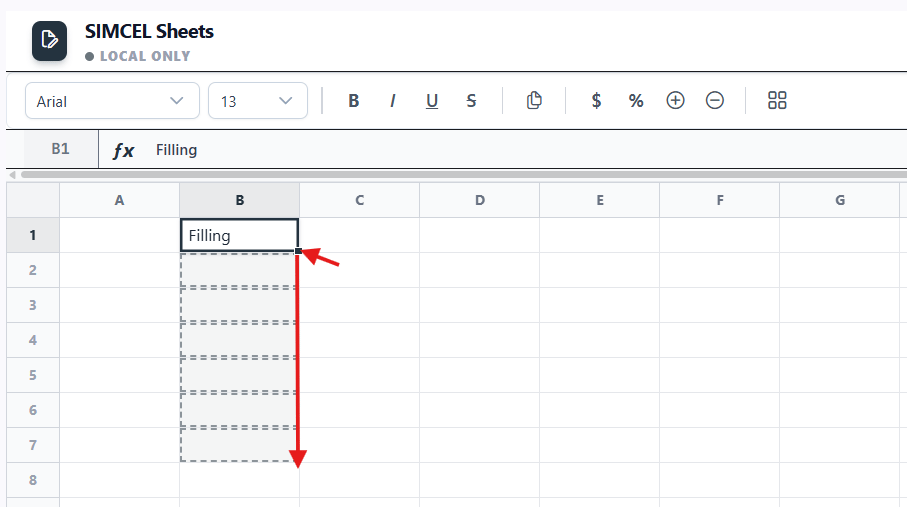 The fill handle is the small square at the bottom-right of a selection. Drag it down or right to fill copies of the source cells. Formula references increment automatically. For example, `=MASTER(A2)` becomes `=MASTER(A3)` one row down.
### Copy, paste, and cut
Use the standard shortcuts (Ctrl+C / V / X). Paste supports CSV data, so you can move data to and from Excel or Google Sheets. Pasting a multi-cell range fills outward from the active cell.
### Insert and delete rows and columns
Right-click any row or column header to insert above/below or left/right, or to delete. Column widths are resizable by dragging the right edge of a column header.
### Cell context menu
The fill handle is the small square at the bottom-right of a selection. Drag it down or right to fill copies of the source cells. Formula references increment automatically. For example, `=MASTER(A2)` becomes `=MASTER(A3)` one row down.
### Copy, paste, and cut
Use the standard shortcuts (Ctrl+C / V / X). Paste supports CSV data, so you can move data to and from Excel or Google Sheets. Pasting a multi-cell range fills outward from the active cell.
### Insert and delete rows and columns
Right-click any row or column header to insert above/below or left/right, or to delete. Column widths are resizable by dragging the right edge of a column header.
### Cell context menu
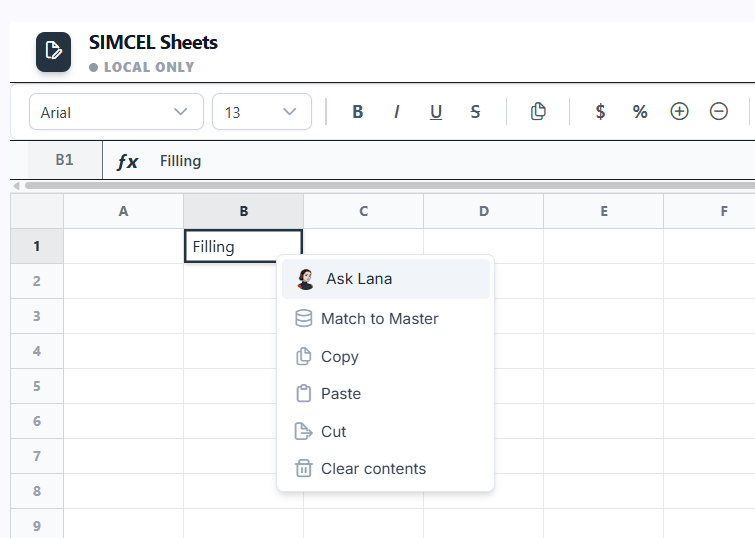 Right-click any cell for **Ask Lana**, **Match to Master**, copy/paste/cut, and clear contents.
## Saving and opening
Right-click any cell for **Ask Lana**, **Match to Master**, copy/paste/cut, and clear contents.
## Saving and opening
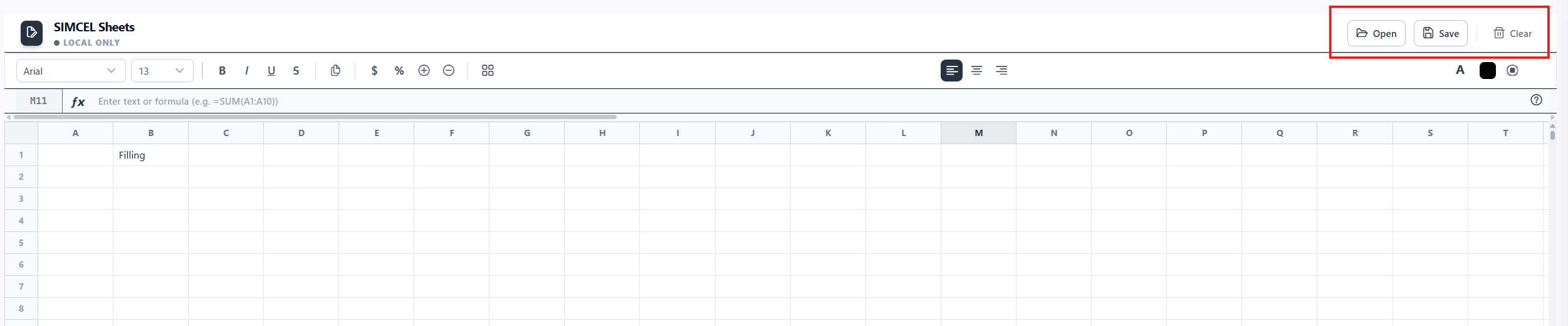 * **Save** - click **Save** (top-right). On a new sheet, a **Save Spreadsheet** dialog asks for a name. Saved sheets persist to your workspace, and the last sheet you opened is restored on your next visit.
* **Open** - click **Open** to see the **Open Sheet** panel. From there you can start a **New Blank Sheet**, start a **New System Sheet** (template-based), or reopen any sheet under **My Sheets**, each listed with its template type, cell count, and last-modified date. You can also delete sheets from this panel.
* **Clear** - empties the current grid.
## Formula system
* **Save** - click **Save** (top-right). On a new sheet, a **Save Spreadsheet** dialog asks for a name. Saved sheets persist to your workspace, and the last sheet you opened is restored on your next visit.
* **Open** - click **Open** to see the **Open Sheet** panel. From there you can start a **New Blank Sheet**, start a **New System Sheet** (template-based), or reopen any sheet under **My Sheets**, each listed with its template type, cell count, and last-modified date. You can also delete sheets from this panel.
* **Clear** - empties the current grid.
## Formula system
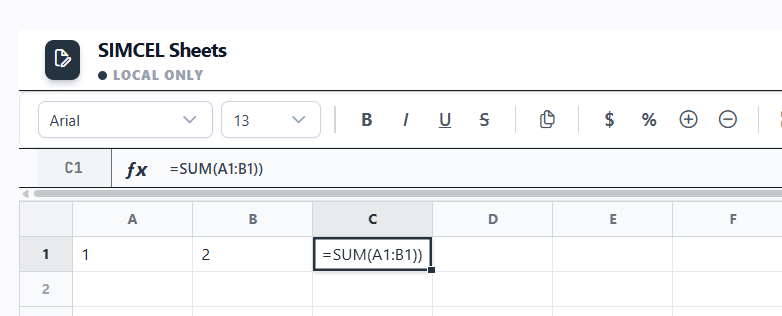 Start any formula with `=`. Formulas evaluate automatically as you edit. A built-in **Formula Reference** (the help icon) lists all available formulas grouped into Math, Statistical, Text, and Logical categories, each with syntax and an example.
Standard formulas include:
| Category | Formulas |
| --------------- | --------------------------------------------------------------------------------------- |
| **Math** | `SUM`, `PRODUCT`, `ROUND`, `ABS`, `SQRT`, `POWER`, `MOD` |
| **Statistical** | `AVERAGE` (alias `AVG`), `MIN`, `MAX`, `COUNT`, `COUNTA`, `MEDIAN` |
| **Text** | `UPPER`, `LOWER`, `LEN`, `CONCATENATE` (alias `CONCAT`), `LEFT`, `RIGHT`, `MID`, `TRIM` |
| **Logical** | `IF` |
### The MASTER() formula
`=MASTER(ref)` fuzzy-matches the value in a referenced cell against your workspace's master data (products, customers, locations) and returns the best canonical match. Add a field to return a specific attribute: `=MASTER(ref, "field")`.
Supported fields include `productId`, `brands`, `category`, `subCategory`, `channel`, `country`, and `region`. Omitting the field returns the best-matching canonical name.
```text theme={null}
A2 = "Coca Cola 330ml"
B2 = =MASTER(A2) → "Coca-Cola Classic 330mL"
C2 = =MASTER(A2, "brands") → "Coca-Cola"
```
Match results are shown by confidence. A confident match (80% or above) shows the resolved value directly, an uncertain match (20-79%) shows `~value`, and anything below 20% shows `#NO_MATCH`. While a lookup is running, the cell shows `#RESOLVING`.
**Error states**: `#RESOLVING` (lookup in progress), `#NO_MATCH` (no match above threshold), `#ERROR!` (formula could not be parsed or evaluated).
## Match to Master
When you paste product, customer, or location names from an outside source (an ERP export, an Excel file, an email), they rarely match SIMCEL's canonical names exactly. **Match to Master** bridges that gap with a guided fuzzy-matching workflow.
Select the cells containing the raw values, for example "coke can 330" or "walmart US east".
Right-click and choose **Match to SIMCEL**.
Choose Products, Customers, or Locations.
Click **Search**. A results table shows each original value, its best-match candidate with a score percentage, and a drop-down to pick an alternative.
Accept or reject each row, then click **Apply**. Matched cells update to the canonical value and get a subtle green highlight.
You can open a **validation panel** to summarize matched (80% or above), uncertain (20-79%), and unmatched (`#NO_MATCH`) cells. A **Fix All** button auto-applies the best suggestion for every uncertain or unmatched cell.
`=MASTER()` uses the same matching engine under the hood, but runs automatically per cell. Use the dialog-based Match to Master when you want to review candidates before accepting, or for bulk operations.
## Normal sheets vs system sheets
Start any formula with `=`. Formulas evaluate automatically as you edit. A built-in **Formula Reference** (the help icon) lists all available formulas grouped into Math, Statistical, Text, and Logical categories, each with syntax and an example.
Standard formulas include:
| Category | Formulas |
| --------------- | --------------------------------------------------------------------------------------- |
| **Math** | `SUM`, `PRODUCT`, `ROUND`, `ABS`, `SQRT`, `POWER`, `MOD` |
| **Statistical** | `AVERAGE` (alias `AVG`), `MIN`, `MAX`, `COUNT`, `COUNTA`, `MEDIAN` |
| **Text** | `UPPER`, `LOWER`, `LEN`, `CONCATENATE` (alias `CONCAT`), `LEFT`, `RIGHT`, `MID`, `TRIM` |
| **Logical** | `IF` |
### The MASTER() formula
`=MASTER(ref)` fuzzy-matches the value in a referenced cell against your workspace's master data (products, customers, locations) and returns the best canonical match. Add a field to return a specific attribute: `=MASTER(ref, "field")`.
Supported fields include `productId`, `brands`, `category`, `subCategory`, `channel`, `country`, and `region`. Omitting the field returns the best-matching canonical name.
```text theme={null}
A2 = "Coca Cola 330ml"
B2 = =MASTER(A2) → "Coca-Cola Classic 330mL"
C2 = =MASTER(A2, "brands") → "Coca-Cola"
```
Match results are shown by confidence. A confident match (80% or above) shows the resolved value directly, an uncertain match (20-79%) shows `~value`, and anything below 20% shows `#NO_MATCH`. While a lookup is running, the cell shows `#RESOLVING`.
**Error states**: `#RESOLVING` (lookup in progress), `#NO_MATCH` (no match above threshold), `#ERROR!` (formula could not be parsed or evaluated).
## Match to Master
When you paste product, customer, or location names from an outside source (an ERP export, an Excel file, an email), they rarely match SIMCEL's canonical names exactly. **Match to Master** bridges that gap with a guided fuzzy-matching workflow.
Select the cells containing the raw values, for example "coke can 330" or "walmart US east".
Right-click and choose **Match to SIMCEL**.
Choose Products, Customers, or Locations.
Click **Search**. A results table shows each original value, its best-match candidate with a score percentage, and a drop-down to pick an alternative.
Accept or reject each row, then click **Apply**. Matched cells update to the canonical value and get a subtle green highlight.
You can open a **validation panel** to summarize matched (80% or above), uncertain (20-79%), and unmatched (`#NO_MATCH`) cells. A **Fix All** button auto-applies the best suggestion for every uncertain or unmatched cell.
`=MASTER()` uses the same matching engine under the hood, but runs automatically per cell. Use the dialog-based Match to Master when you want to review candidates before accepting, or for bulk operations.
## Normal sheets vs system sheets
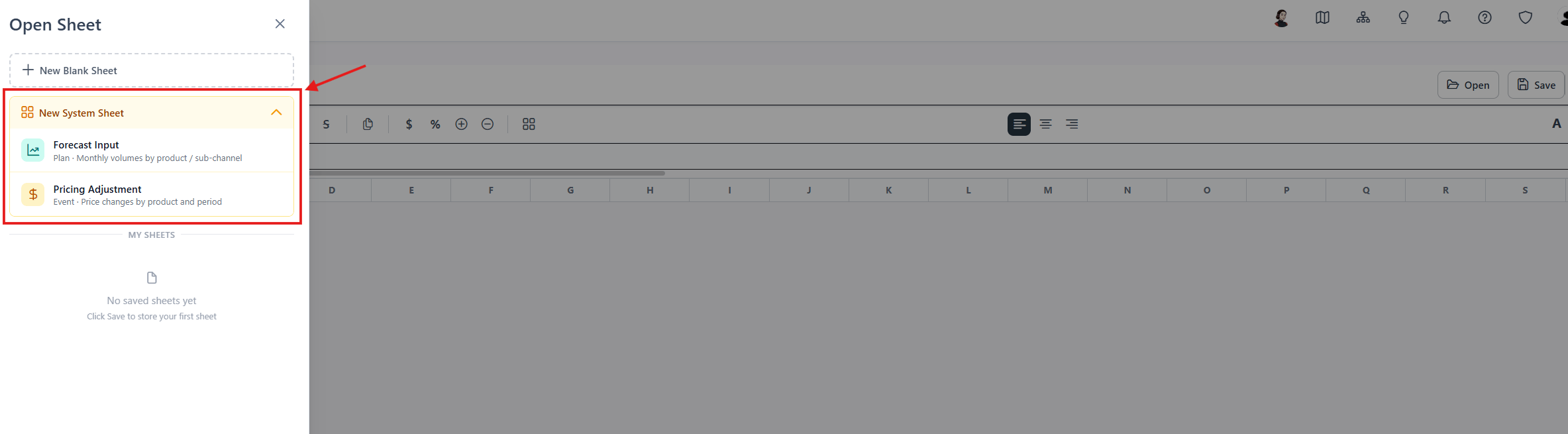 **Normal sheet** - a regular spreadsheet you create, name, and fill freely. It has no downstream integration, and is good for calculations, scratch work, or planning notes.
**System sheet** - a sheet created from a template that is integrated into SIMCEL's planning model. System sheets add a submission action (**Verify** or **Submit**) and track a status such as draft or validated. On submission, they create or update something in a plan, event, or scenario.
Template types include:
| Template | Creates | Downstream effect |
| ---------------------- | ------- | ----------------------------------------------------- |
| **Forecast Input** | Plan | Validates, then becomes selectable in the Plan Drawer |
| **Pricing Adjustment** | Event | Creates or updates an event version with pricing data |
## Forecast Input template
**Normal sheet** - a regular spreadsheet you create, name, and fill freely. It has no downstream integration, and is good for calculations, scratch work, or planning notes.
**System sheet** - a sheet created from a template that is integrated into SIMCEL's planning model. System sheets add a submission action (**Verify** or **Submit**) and track a status such as draft or validated. On submission, they create or update something in a plan, event, or scenario.
Template types include:
| Template | Creates | Downstream effect |
| ---------------------- | ------- | ----------------------------------------------------- |
| **Forecast Input** | Plan | Validates, then becomes selectable in the Plan Drawer |
| **Pricing Adjustment** | Event | Creates or updates an event version with pricing data |
## Forecast Input template
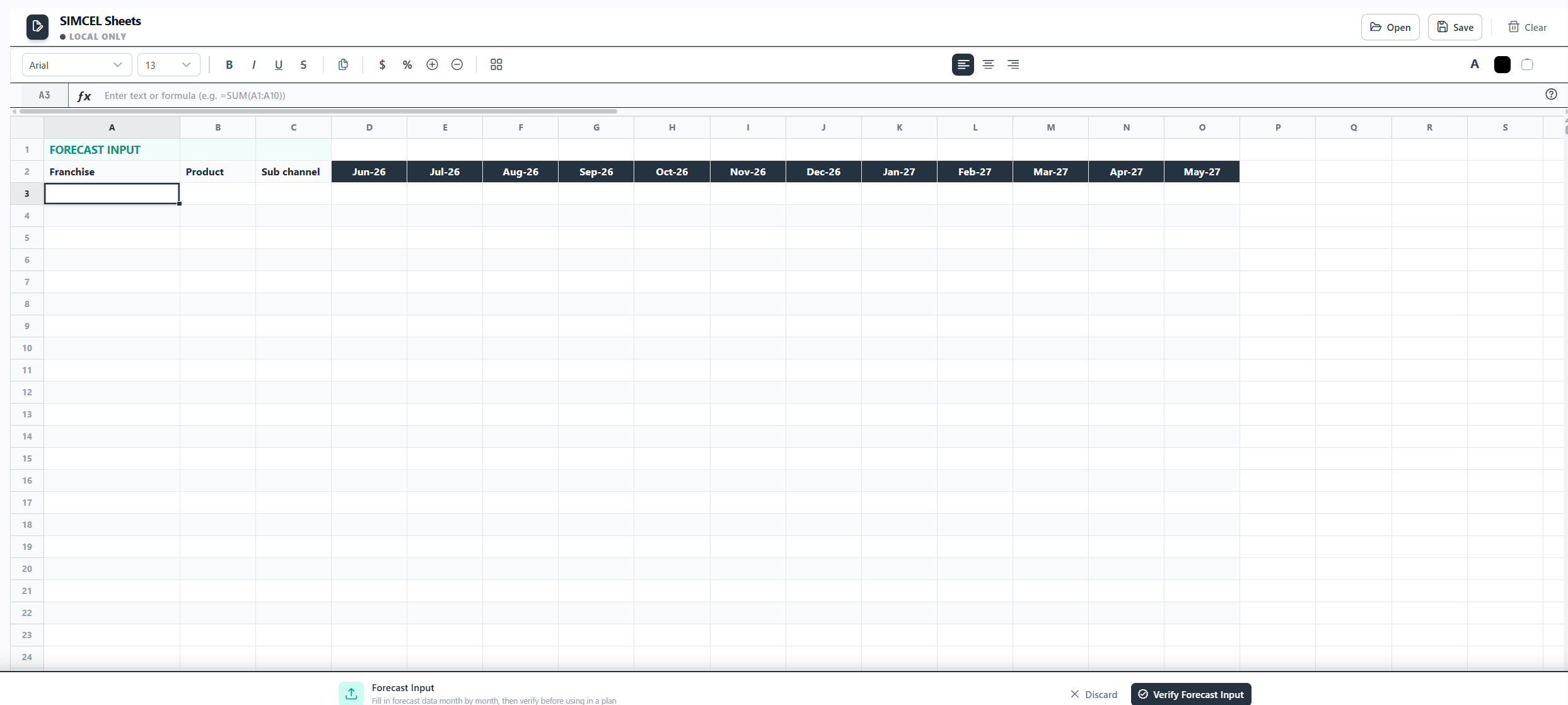 The **Forecast Input** sheet is the main way planners enter demand targets by product and sub-channel across a time horizon. Once verified, it becomes available as a data source when configuring a demand import in the Plan Drawer.
The template enforces a layout: a header row, then a row defining Product / Sub-Channel / month columns (in `Mon-YY` format, for example `Jan-25`), then one data row per product x sub-channel combination with numeric monthly values.
To submit, fill the template, then click **Verify Forecast Input**. The system checks that at least one data row exists, the month headers are valid, and the sheet has been saved. On success, the action bar shows a green **Validated** badge and the sheet appears in the Plan Drawer's Forecast Input selector. Reopening a validated sheet restores the Validated badge automatically.
## Pricing Adjustment template
The **Forecast Input** sheet is the main way planners enter demand targets by product and sub-channel across a time horizon. Once verified, it becomes available as a data source when configuring a demand import in the Plan Drawer.
The template enforces a layout: a header row, then a row defining Product / Sub-Channel / month columns (in `Mon-YY` format, for example `Jan-25`), then one data row per product x sub-channel combination with numeric monthly values.
To submit, fill the template, then click **Verify Forecast Input**. The system checks that at least one data row exists, the month headers are valid, and the sheet has been saved. On success, the action bar shows a green **Validated** badge and the sheet appears in the Plan Drawer's Forecast Input selector. Reopening a validated sheet restores the Validated badge automatically.
## Pricing Adjustment template
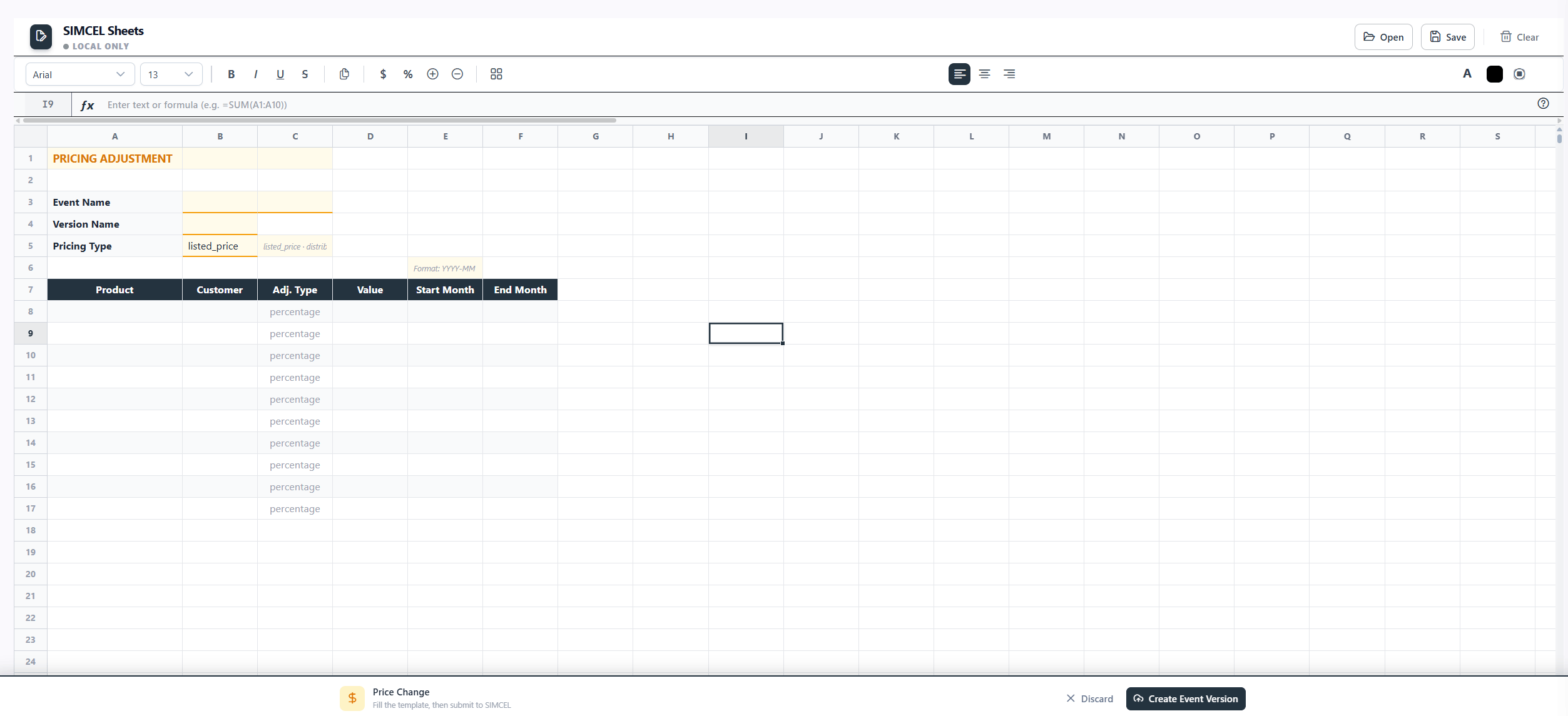 The **Pricing Adjustment** template captures price changes across a set of products and a date range. On submission, it creates an event version in SIMCEL's event management system.
The template carries event metadata (event name, version name, description) in dedicated cells, followed by data rows of product x price type x monthly values. Month columns use `YYYY-MM` format. The supported price types are listed price, distributor price, and secondary price.
To submit, fill in the metadata and price rows, then click **Submit**. SIMCEL reads the metadata, transforms the data rows, infers the date range from the month columns, and creates or updates the event version. On success, the template clears and a confirmation appears.
The **Forecast Override** and **New Demand Stream** templates work the same way, with the same metadata structure and submission mechanism. They just carry different data and create different event types.
## Lana AI assistant
The **Pricing Adjustment** template captures price changes across a set of products and a date range. On submission, it creates an event version in SIMCEL's event management system.
The template carries event metadata (event name, version name, description) in dedicated cells, followed by data rows of product x price type x monthly values. Month columns use `YYYY-MM` format. The supported price types are listed price, distributor price, and secondary price.
To submit, fill in the metadata and price rows, then click **Submit**. SIMCEL reads the metadata, transforms the data rows, infers the date range from the month columns, and creates or updates the event version. On success, the template clears and a confirmation appears.
The **Forecast Override** and **New Demand Stream** templates work the same way, with the same metadata structure and submission mechanism. They just carry different data and create different event types.
## Lana AI assistant
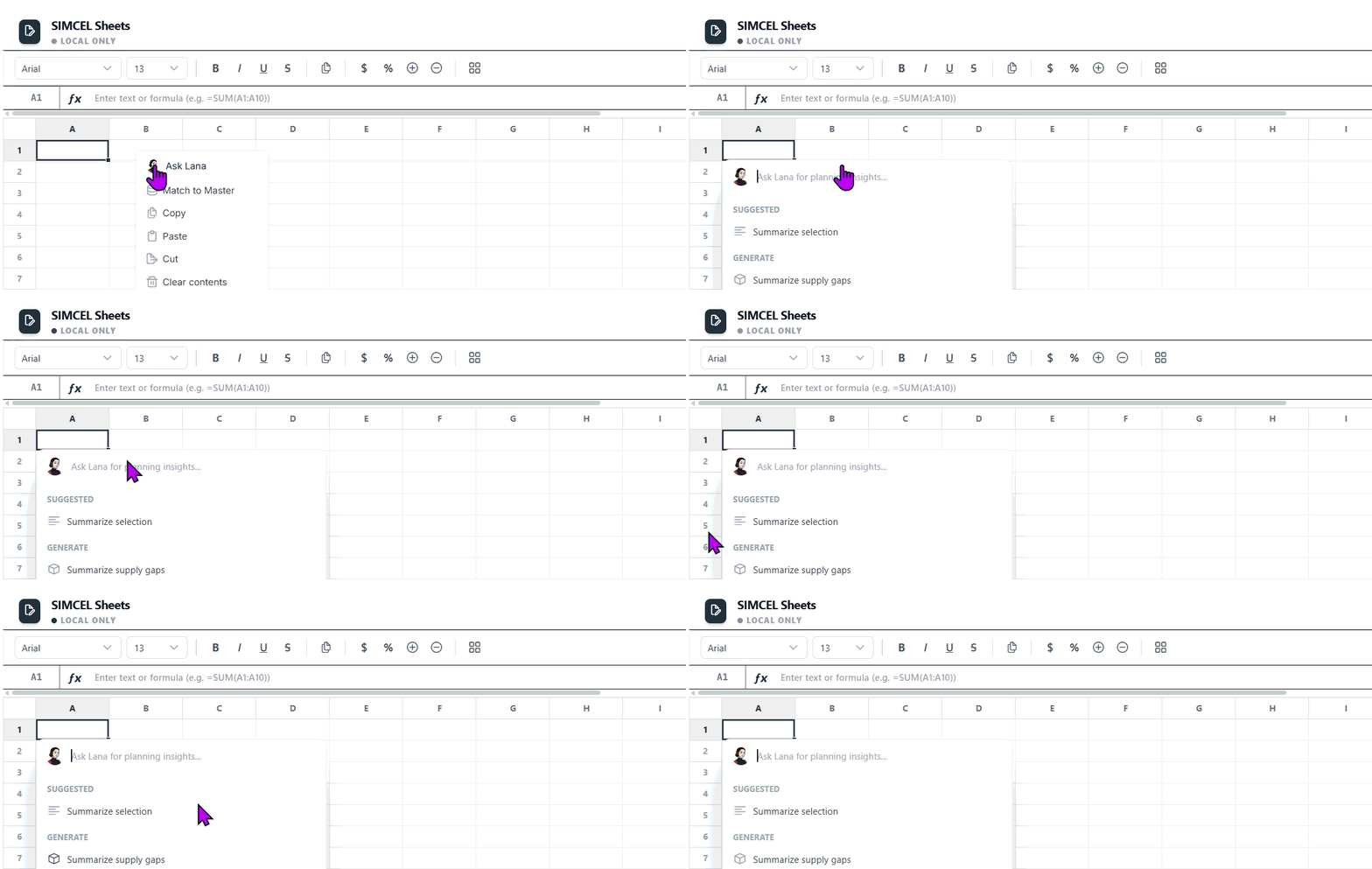 Lana is SIMCEL's AI assistant, embedded directly in Sheets. You can select cells, describe what you need, and receive cell-level suggestions you can apply to the grid.
To use it, right-click a cell or range and choose **Ask Lana**. Lana receives the selected cells and their values, any detectable column headers, and the active template type as context. In the dialog, type your question. Lana replies with text and, where applicable, a list of suggested cell-to-new-value changes, each with a short reason. Click **Apply All** to write the suggestions into the grid.
The Lana integration is live and functional. The specific use cases for each template, such as suggesting forecast values from historical context, flagging data-quality issues, or explaining formula results, are still being defined and will be documented as they are validated.
Lana is SIMCEL's AI assistant, embedded directly in Sheets. You can select cells, describe what you need, and receive cell-level suggestions you can apply to the grid.
To use it, right-click a cell or range and choose **Ask Lana**. Lana receives the selected cells and their values, any detectable column headers, and the active template type as context. In the dialog, type your question. Lana replies with text and, where applicable, a list of suggested cell-to-new-value changes, each with a short reason. Click **Apply All** to write the suggestions into the grid.
The Lana integration is live and functional. The specific use cases for each template, such as suggesting forecast values from historical context, flagging data-quality issues, or explaining formula results, are still being defined and will be documented as they are validated.