Definition

Task management gives your team a dedicated space to create, assign, and track work directly within SIMCEL, without relying on external tools. Tasks can be linked to Plans, Scenarios, and Events, keeping coordination grounded in the planning context where it belongs. To access task management, open the side navigation menu and click Tasks under the Collab section. This opens the main task board.
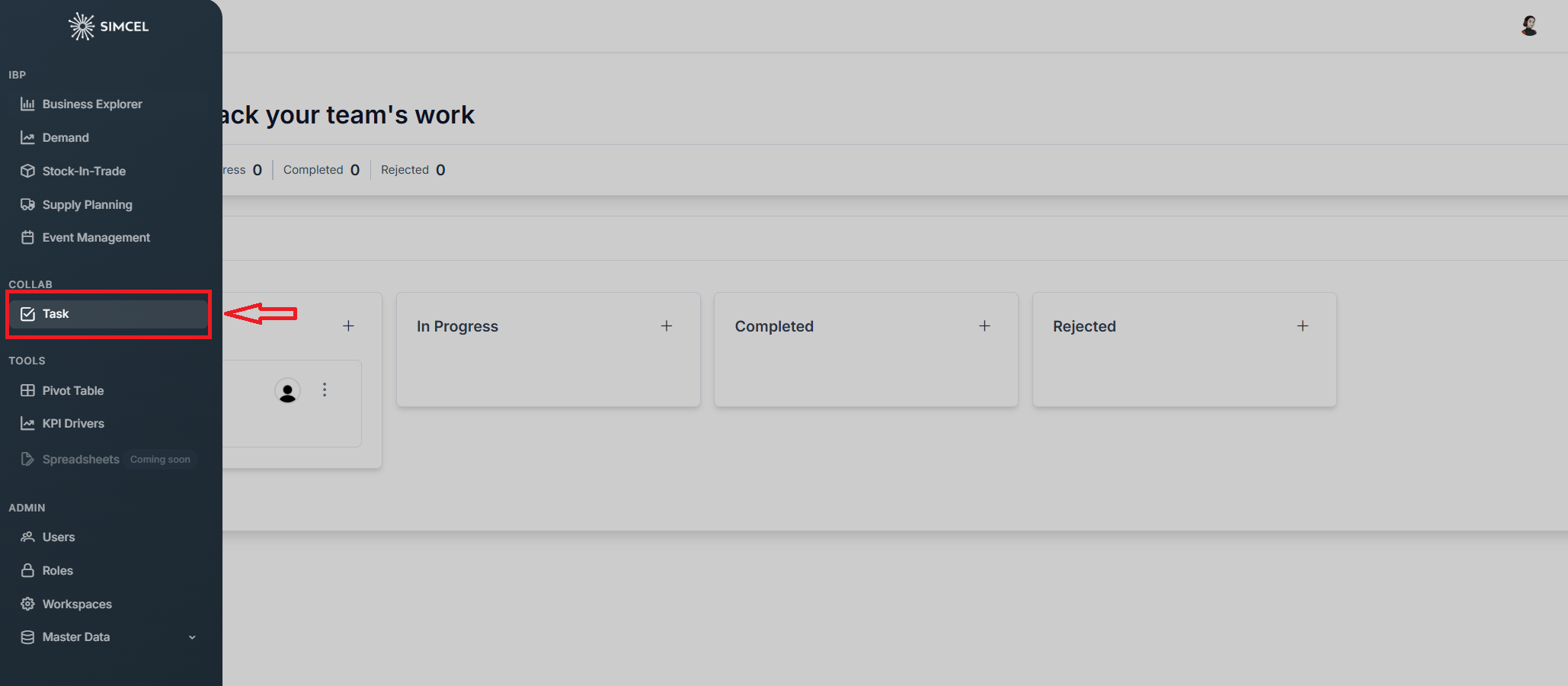
SIMCEL side navigation menu with the Tasks item highlighted under the Collab section

Opening Tasks from the Collab section of the side navigation
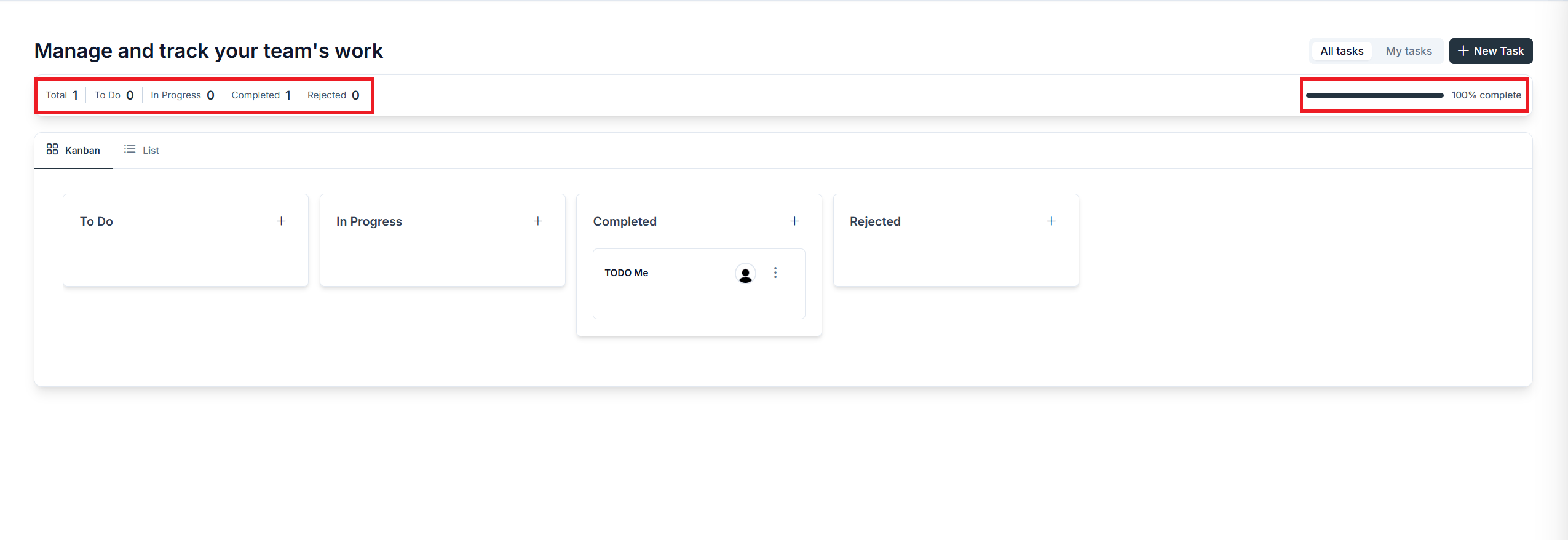
At the top of the page, a summary bar shows the count of tasks by status (Total, To Do, In Progress, Completed, and Rejected) along with an overall % complete progress bar on the right.
Summary bar at the top of the task board showing task counts for Total, To Do, In Progress, Completed, and Rejected, with a percentage complete progress bar on the right

The task board summary bar

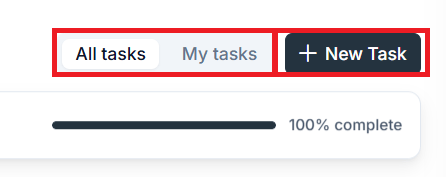
Use the All tasks / My tasks toggle in the top right to switch between viewing all workspace tasks and only the tasks assigned to you. To create a new task, click + New Task in the top right corner.
Top right corner of the task board with the All tasks and My tasks toggle next to the New Task button

The All tasks / My tasks toggle and the New Task button

Views

Task management offers two ways to view your tasks.
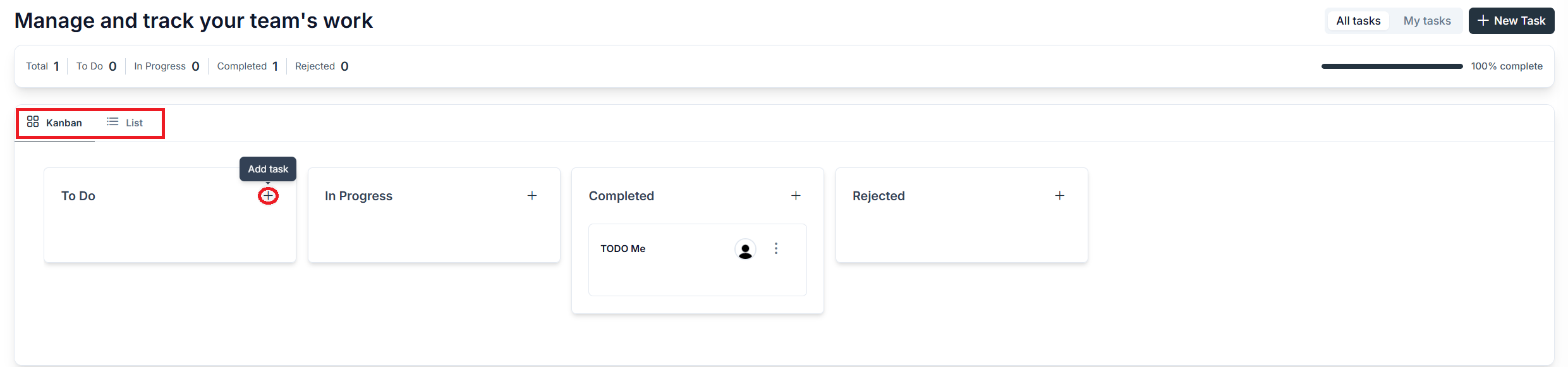
Kanban board with task cards organized into columns for To Do, In Progress, Completed, and Rejected

The Kanban board, the default task view

Kanban (the default view) displays tasks as cards organized into four columns by status. Drag and drop a card from one column to another to update its status instantly. Click the + icon within any column to quickly add a new task directly to that status.
List view showing tasks in a table with columns for Title, Status, Assigned to, Start Date, Due Date, and Tags, with column filters and a search bar

The List view of tasks

List switches to a table layout showing all tasks with columns for Title, Status, Assigned to, Start Date, Due Date, and Tags. Each column has a filter icon to narrow down results, and a Search tasks bar is available in the top right. Use Clear Filters to reset any active filters.

Creating and editing a task

Click + New Task, or the + button in any Kanban column, to create a task. This opens a detail panel on the right side of the screen.
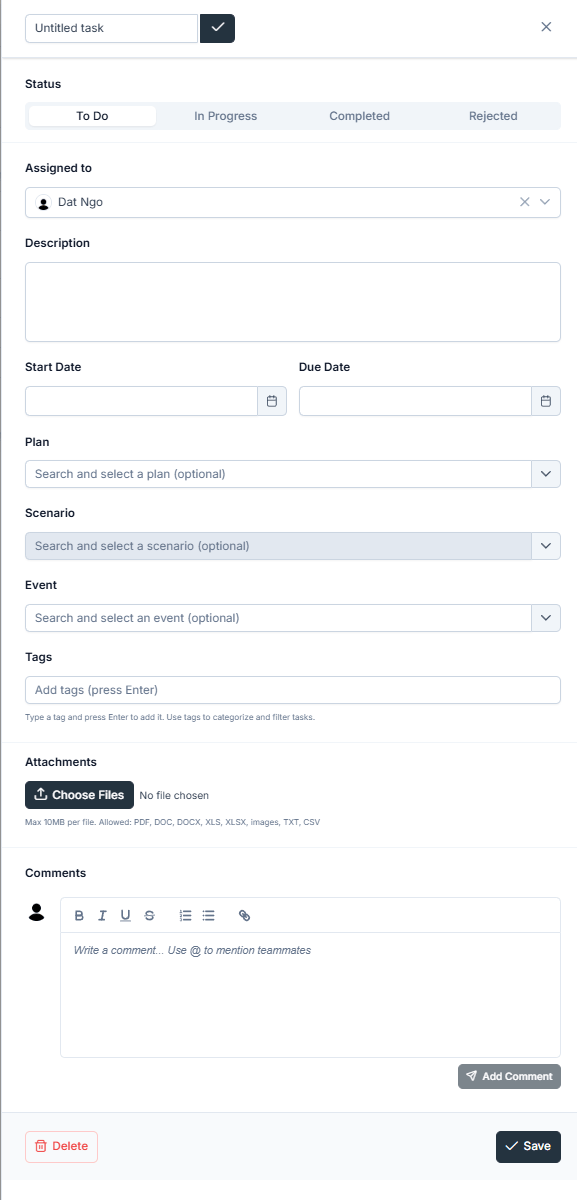
Task detail panel with fields for status, assignee, description, start and due dates, linked Plan, Scenario, and Event, tags, attachments, and comments

The task detail panel where you fill in task fields

Fill in the following fields:

Managing tasks on the Kanban board

Each task card on the Kanban board displays the task title and the assignee’s avatar. To open the full task detail, click anywhere on the card. To access quick actions, click the three-dot menu on a card.
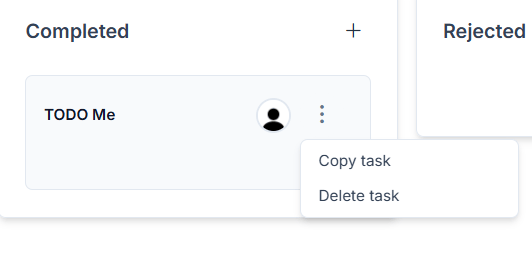
Three-dot menu opened on a Kanban task card showing the Copy task and Delete task options

Quick actions on a task card

  • Copy task duplicates the task with the same details.
  • Delete task permanently removes the task.
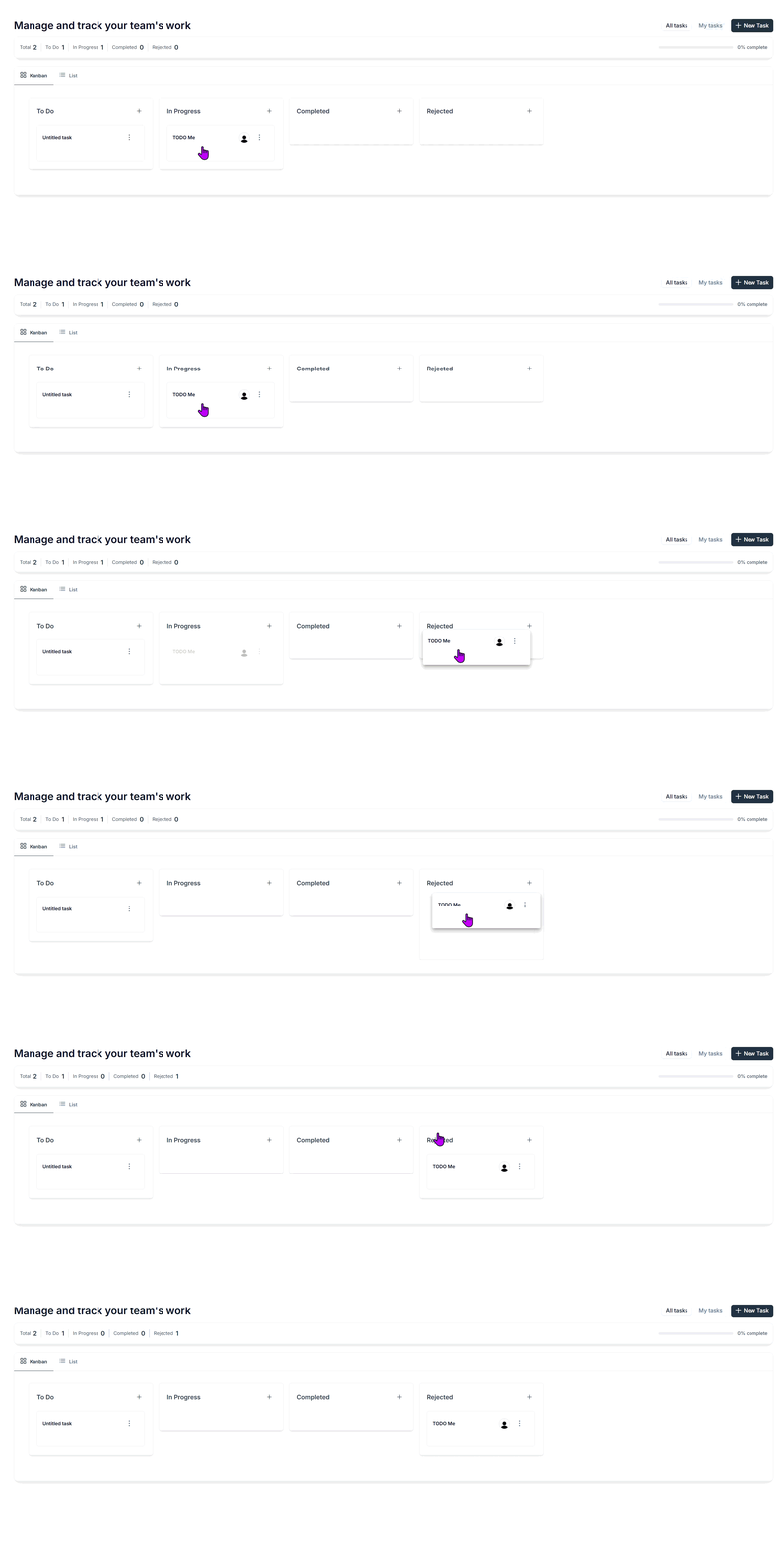
A task card being dragged from one Kanban status column to another, updating the task status

Dragging a task card between Kanban columns to change its status

To move a task to a different status, either drag the card to the target column or open the task detail and change the Status field at the top.